
Linux Cab Project
I always wanted a virtual pinball cabinet that works like a Ron Popeil infomercial: “SET IT AND FORGET IT!”
This is possible on Linux
If you own an arcade cabinet with EmulationStation or RetroPie, you set it up once and rarely touch the system. That’s my goal with this Linux conversion.
|
VPX on Linux Video (THE SETUP) - Part 1 |
📋 Table of Contents
- 🎯 Introduction
- 🤔 Considerations Before Moving to Linux
- 💿 Linux Distributions Tested
- 🏆 Recommended Distribution
- 📦 Preparation
- 🚀 Installation
-
📚 Additional Resources
🎯 Introduction
Why Move to Linux?
Over the years, maintaining a Windows-based VP cabinet has been challenging:
- Windows updates breaking configurations
- Antivirus preference changes
- Constant nagging screens for updates or Copilot
- System instability
With the development of VPX Standalone, Virtual Pinball now runs on almost any platform, including Linux. This journey documents my transition from Windows to Linux for a more stable, maintenance-free pinball cabinet.
🤔 Considerations Before Moving to Linux
Moving to Linux has become easier over the years. While many still associate Linux with “geeks,” “command lines,” and complexity, modern Linux distributions are very user-friendly. You can use Linux without ever touching the command line!
Ask Yourself These Questions
Before making the switch, consider:
- ✅ Am I ready to learn something new?
- ✅ Am I ready to accept that certain features won’t work the same as Windows?
- ✅ Am I ready to spend time tweaking and setting things up from scratch?
- ✅ Am I prepared to restructure my entire system for VPX Standalone compatibility?
Current Limitations
Virtual Pinball works well on Linux, but some features are still in development:
- DOF (Direct Output Framework): Works but not consistently
- PuP Packs: Some work, some don’t
- Table Compatibility: Not all tables work out of the box (many have patches available)
The Challenge
VPX developers are working to make Virtual Pinball flawless on Linux by adding plugins that support Windows-only features like VBS and .NET. However:
- Not all tables are coded consistently
- Not all PuP Packs are built the same way
- Lack of standardization makes achieving stability challenging
But we’re getting there! 🚀
💿 Linux Distributions Tested
I tested multiple Linux distributions to find the best fit for Virtual Pinball. Here are my findings:
 Batocera
Type: Gaming frontend built on EmulationStation
Pros
- ✅ Polished, user-friendly interface
- ✅ Great for arcade emulation
Cons
- ❌ Closed environment, difficult to update components
- ❌ VPX version is outdated (10.8 on v10.42, won’t update to 10.8.1 until v44)
- ❌ Monitor detection is challenging
- ❌ Media file management through
gamelist.xmlis cumbersome - ❌ Requires advanced skills to automate with tools like VPXBCT
Verdict
Not recommended for Virtual Pinball. Better suited for arcade emulation.
 Nobara
Type: Fedora-based gaming distro
Pros
- ✅ Appealing interface
- ✅ Excellent GPU driver support
- ✅ Detects all 3 screens out of the box
- ✅ Steam games support
Cons
- ❌ Difficulties with VPinFE frontend compatibility
- ❌ Fedora is not officially supported by VPX developers
Verdict
Not recommended due to lack of VPX community support.
 Ubuntu
Type: Debian-based distribution
Pros
- ✅ Officially supported by VPX developers
- ✅ Very user-friendly (Windows-like experience)
- ✅ Large community and extensive support
- ✅ Stable and well-maintained
Cons
- ⚠️ Graphics card driver support can be challenging
- ⚠️ Ubuntu 24.04.1 LTS freezes on welcome screen (safe mode required for installation)
Verdict
Recommended — Best balance of support and usability.
 Bazzite
Type: Fedora-based gaming distro
Pros
- ✅ Designed for gaming newcomers and enthusiasts
- ✅ Steam pre-installed with Proton integration
- ✅ HDR & VRR support
- ✅ Improved CPU schedulers for responsive gameplay
- ✅ Detects all 3 screens out of the box
- ✅ Excellent graphics driver support (Nvidia, AMD, Intel)
- ✅ Out-of-the-box controller support (Xbox, PS3/4/5, Switch, Wii)
- ✅ Lutris pre-installed for managing non-Steam games
- ✅ Supports multiple game launchers (Epic, GOG, EA, Battle.net, etc.)
Cons
- ❌ Not officially supported by VPX developers
- ❌ VPinFE frontend compatibility issues
- ❌ Python dependency problems with frontend
Verdict
Not recommended despite excellent hardware support. Lack of VPX community support is a dealbreaker.
🖥️ VPX Supported Platforms
✅ Supported Platforms
|
❌ Unsupported Platforms
|
🏆 Recommended Distribution
Ubuntu 24.04 LTS
After testing multiple distributions, Ubuntu 24.04 LTS is the recommended choice for Virtual Pinball on Linux.
Why Ubuntu?
While not my first choice (due to driver support challenges and monitor detection), Ubuntu makes the most sense for:
- ✅ Official VPX developer support
- ✅ Long-term stability (LTS = Long Term Support)
- ✅ Active community with decades of experience
- ✅ Regular updates and ongoing development
- ✅ Future-proof — best bet for continued compatibility
Ubuntu has been around for decades and continues to improve. It’s the safest choice for long-term Virtual Pinball stability.
📦 Preparation
Proper preparation is critical for a successful migration. This is not a race—take your time!
💾 Backup
⚠️ BACKUP EVERYTHING BEFORE YOU START ⚠️
You don’t want to lose your entire table collection due to a mistake.
Backup Strategy
- Primary Backup: Copy all tables and media to an external hard drive and store it safely
- Working Copy: Use a second external hard drive for active work
Recommended Tool: BUMP
I created a simple backup utility specifically for Virtual Pinball:
BUMP - Backup Utility for My Pinball

BUMP is designed to backup your existing Virtual Pinball setup to an external or network drive with ease.
📁 VPX Standalone Folder Structure
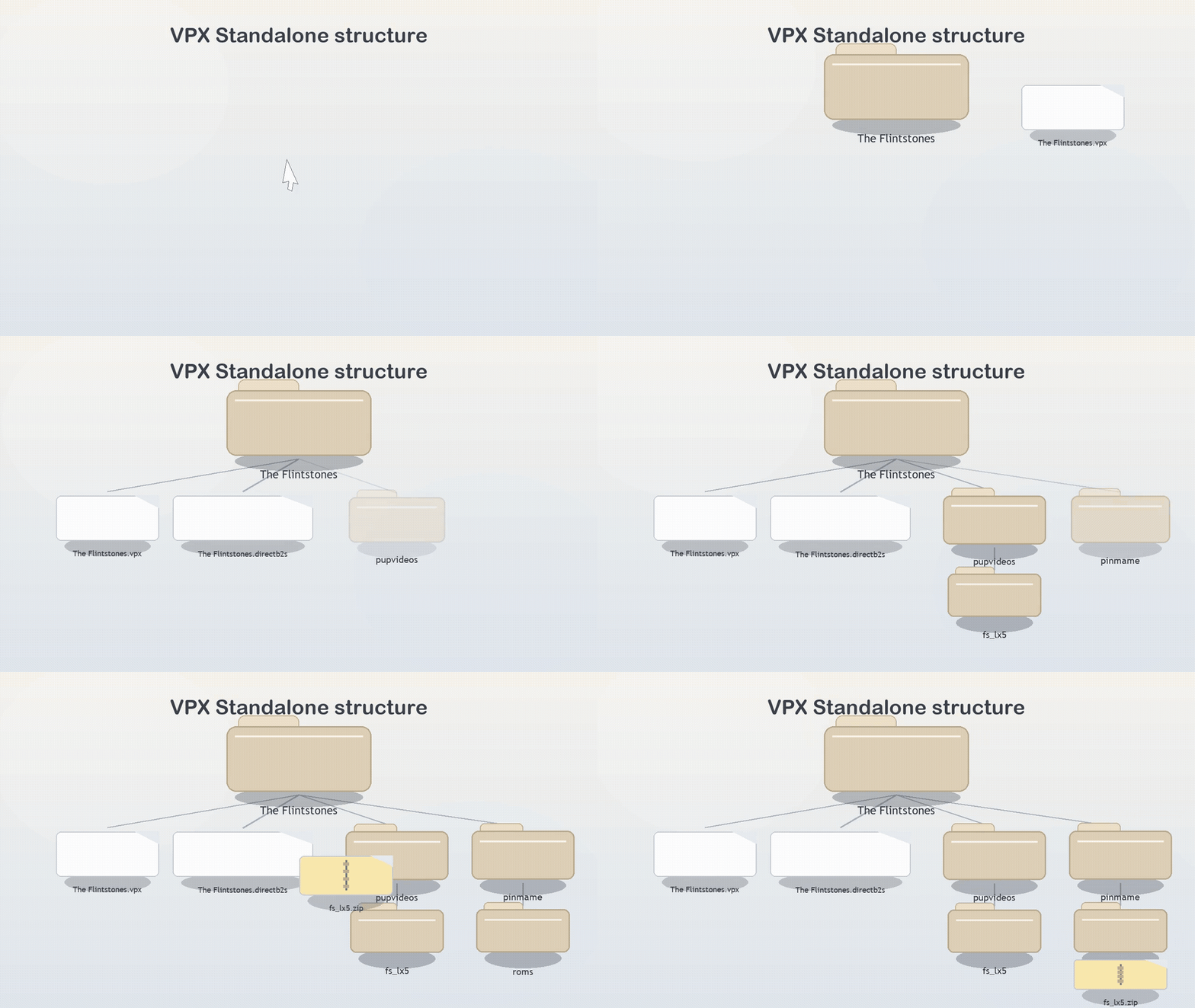
VPX Standalone uses a self-contained folder structure where all files for a table are in one directory.
📘 Official VPX File Layout Documentation
Example Structure
Table Name (Manufacturer Year)/              ← Dedicated folder for this table
├── Table file v1.1.vpx                      ← Main VPX file
├── Table file v1.1.ini                      ← Table setting overrides
├── Table file v1.1.vbs                      ← Custom script override
├── Table file v1.1.scv                      ← ScoreView plugin layout
├── Table file v1.0.vpx                      ← Older version (for reference)
├── Table Name (Manufacturer Year).directb2s ← Backglass (shared between versions)
├── Table Name (Manufacturer Year).info      ← Frontend metadata
├── Installation.txt                         ← Table author documentation
├── Rulesheet.pdf                            ← Game rules
├── altsound/                                ← AltSound files
│   └── xxx/
├── cache/                                   ← VPX cache data
├── medias/                                  ← Frontend media files
│   ├── (Backglass) Table Name.mp4
│   ├── (Playfield) Table Name.mp4
│   └── (Wheel) Table Name.apng
├── music/                                   ← Music files (loaded via PlayMusic)
│   └── *.ogg
├── pinmame/                                 ← PinMAME ROMs and NVRAM
│   ├── roms/
│   │   └── *.zip
│   ├── nvram/
│   │   └── *.nv
│   └── alias.txt
├── pupvideos/                               ← PinUP Player videos
│   └── xxx/
├── scripts/                                 ← Additional table scripts
├── serum/                                   ← Serum colorization files
│   └── xxx/
│       └── xxx.crz
├── Table Name.UltraDMD/                     ← FlexDMD/UltraDMD content
├── user/                                    ← Saved values from scripts
│   └── VPReg.stg
└── vni/                                     ← VNI colorization files
    └── xxx/
        ├── xxx.pal
        └── xxx.vni
The Challenge
Converting your existing Windows setup to this structure requires finding and copying all related files for each table. This can be time-consuming!
🔧 VPX Merging Tool
📥 Download VPX Merging Tool
Automating the conversion process
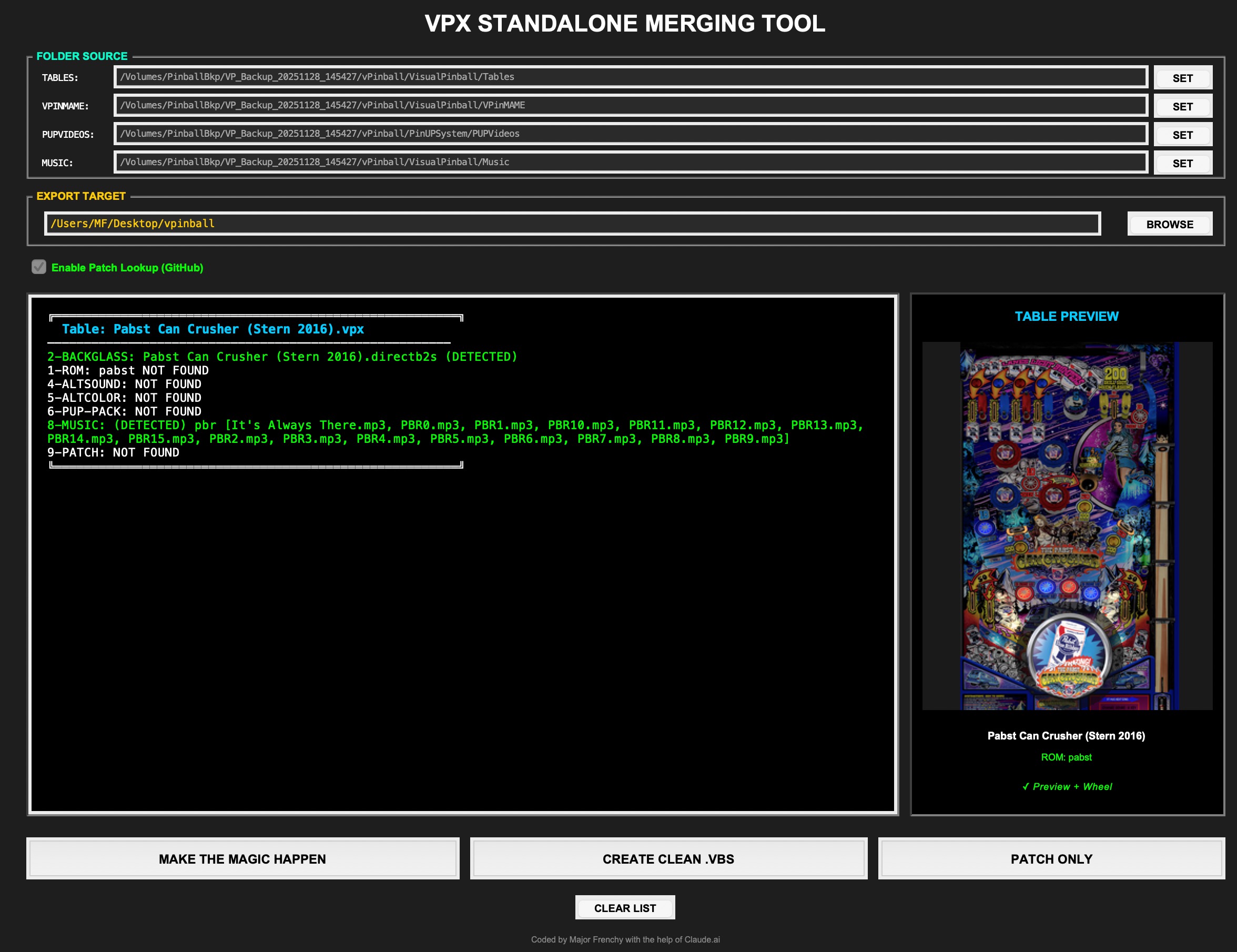
I created a tool that automatically scans and merges all required files for VPX Standalone compatibility.
What It Does
- 🔍 Scans for: ROM, DirectB2S, AltSound, AltColor, PuP Videos, Music
- 🧠 Built-in logic knows where to look in your system
- 📋 Lists all found files before copying
- 📁 Creates proper folder structure automatically
- ⚡ Saves hours of manual work
Video Comparison: Manual vs Automated
See how much time the merging tool saves:

Manual Process vs VPX Merging Tool
Complete walkthrough of VPX Merging Tool
🚀 Installation
Now it’s time to install Ubuntu on your Virtual Pinball cabinet!
💿 Creating Bootable USB
Requirements:
- USB flash drive (8GB minimum)
- Balena Etcher (USB flashing tool)
- Ubuntu 24.04 ISO
⚙️ BIOS Settings
Before booting from USB, configure your BIOS for optimal Ubuntu compatibility.
Required BIOS Settings
| Setting | Value | Notes |
|---|---|---|
| Boot Mode | UEFI | Modern Ubuntu (20.04+) works best with UEFI |
| Secure Boot | Disabled | Can re-enable after installation |
| Fast Boot | Disabled | Prevents boot issues |
| Boot Order | USB First | Then HDD/SSD |
| SATA Mode | AHCI | Required for SSD/NVMe performance |
| Virtualization | Enabled | For VMs and containerization |
Installation Steps
- Enter BIOS (usually Del, F2, or F12 during boot)
- Configure settings as listed above
- Save & Exit
- Boot from USB (press F12/F8 to access boot menu)
- Follow Ubuntu installer
- 3 Screens Ubuntu Setup Guide
- Download the latest VPinballX_BGFX-10.8.1 linux-x64-Release
- Setup VPX ( Screen layout )
LiveUI
LiveUI is the new F12 function in 10.8.1. It is designed to be a fully graphical interface to manage the (Playfield, Backglass, ScoreView) monitor setup. This is not working 100% on Linux. You may have to manually adjust the entry in the VPinballX.ini.
 You can see an overview of the LiveUI
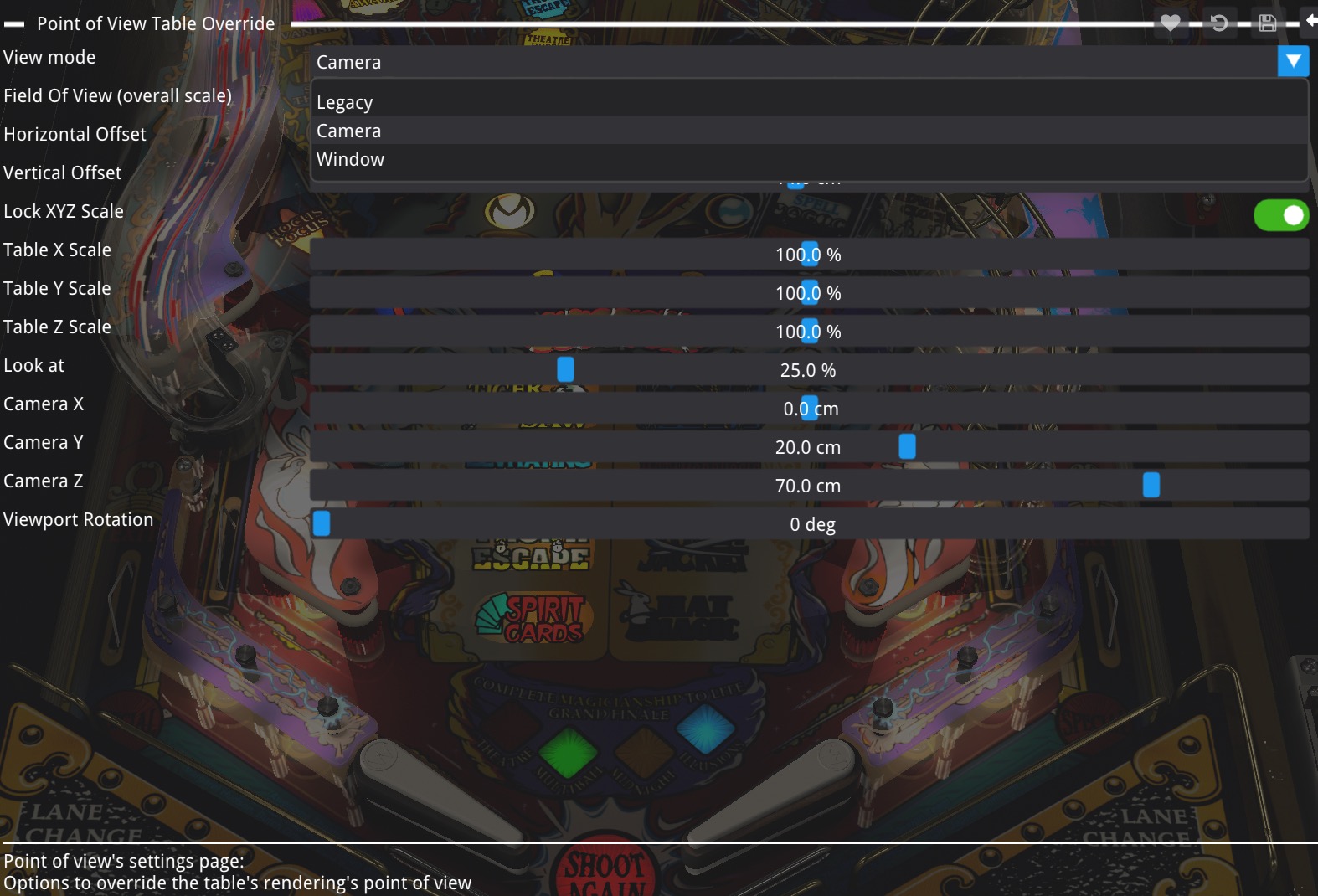 Point of View |
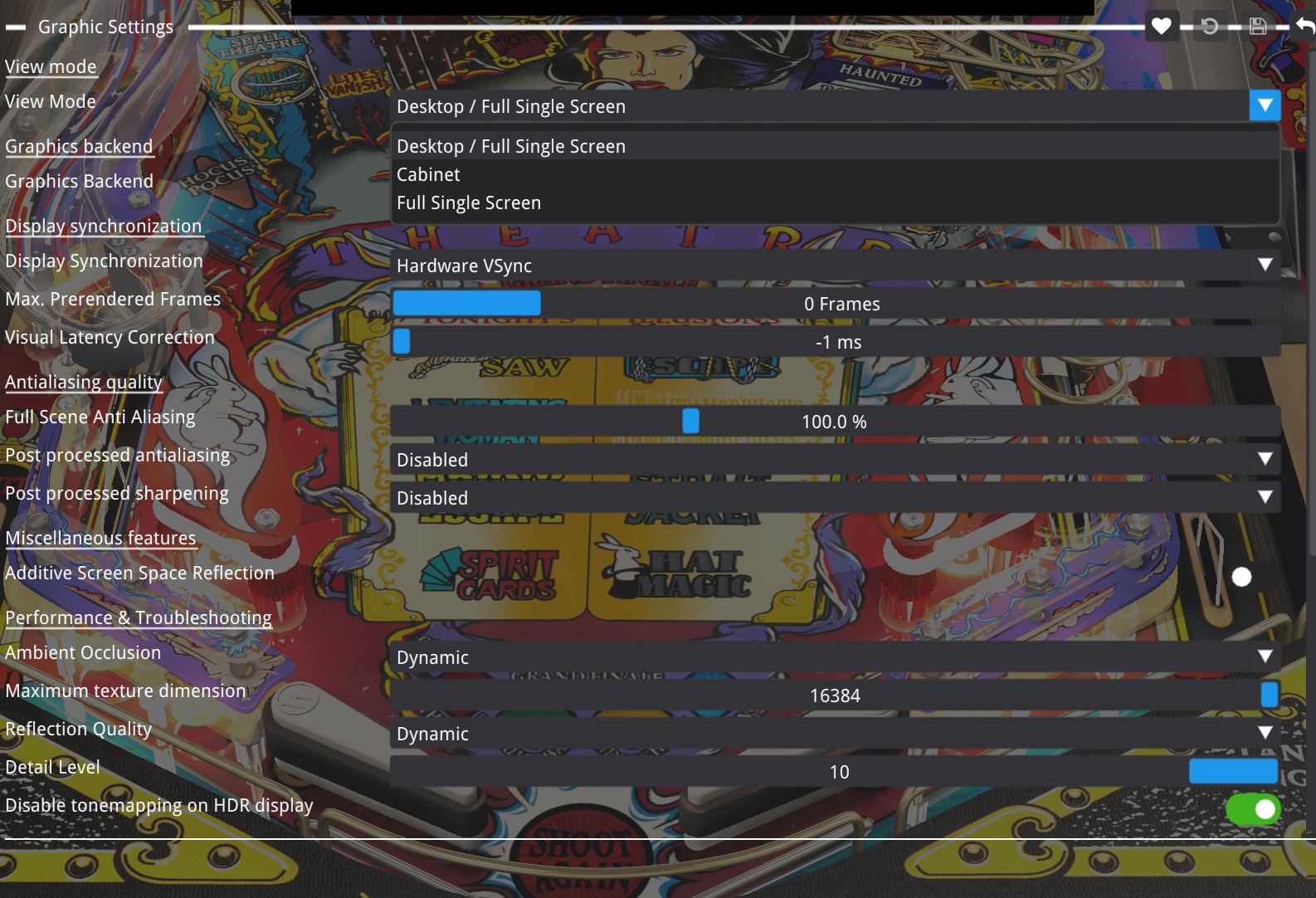 Graphics Settings |
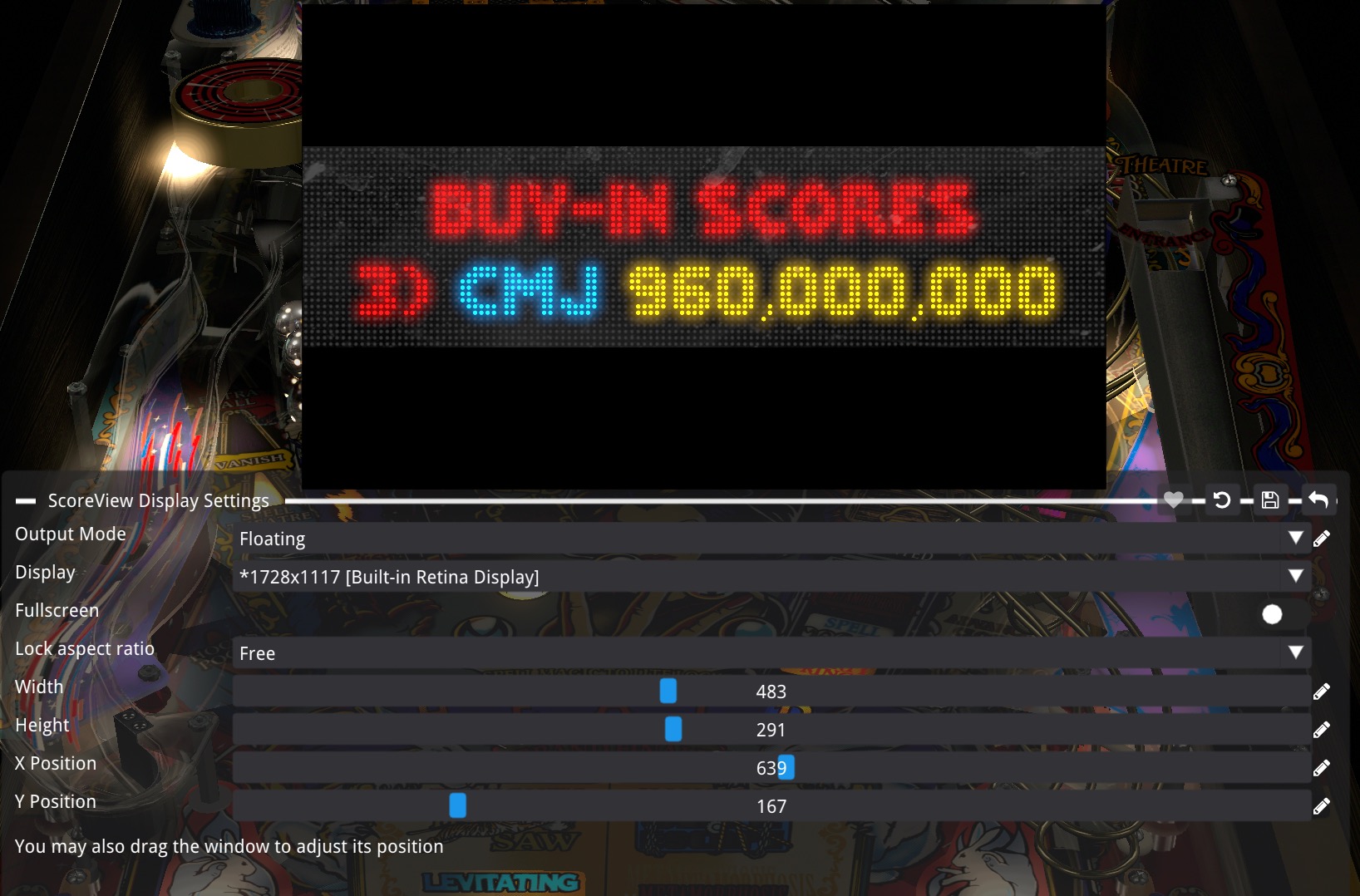 ScoreView Display Settings |
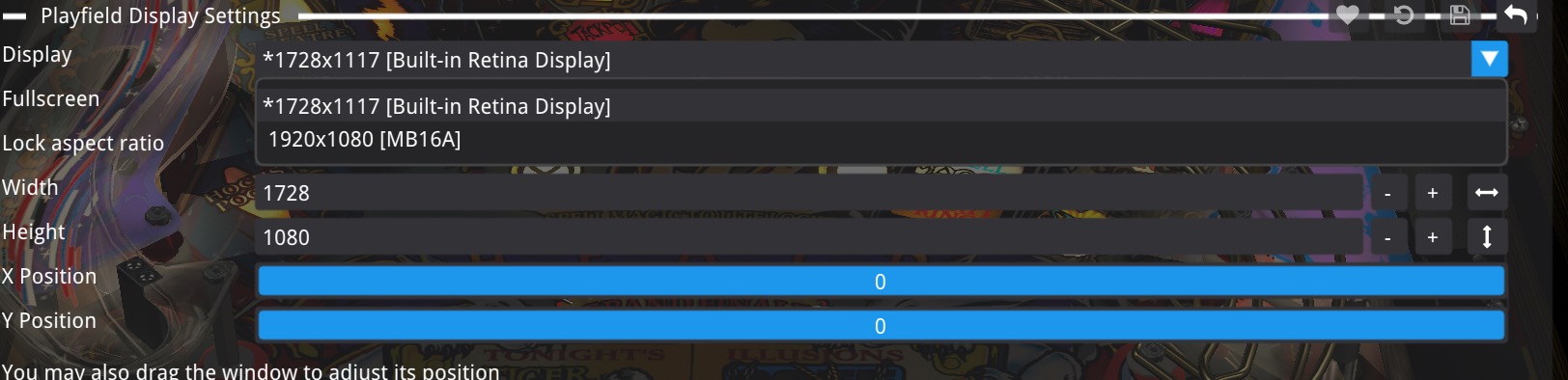 Playfield Display Settings |
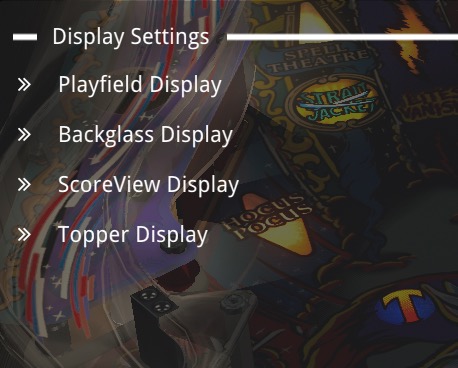 Display Settings Menu |
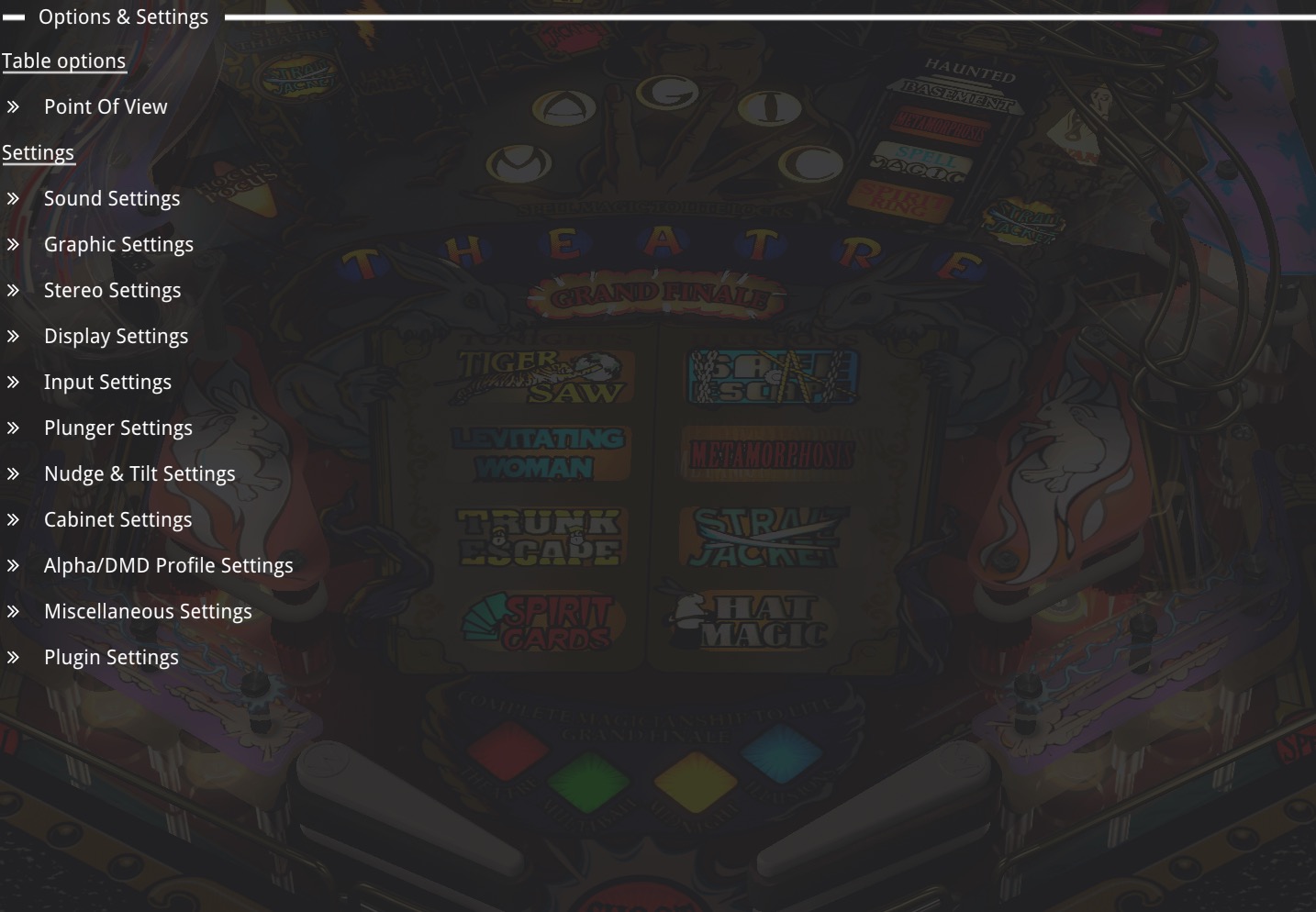 LiveUI Main Screen |
You access the menu with F12 and select the option you want to adjust.
Most common settings used
- Playfield ( Display )
- Backglass ( Display )
- ScoreView ( Display ) DMD
- Point of View ( Point of View ) / change the layout of the view
- Scene Lighting ( Miscellaneous settings ) / make the table lighter or darker
- View ( Graphics Settings ) / change the type of setting Desktop / Cabinet
- Plugins ( Plugins ) / options for all plugins
Installing software and settings on Ubuntu
- Save
VPinballX_BGFXin the directoryhome/user/VPX(extract all files inVPX) - Save your tables in the home/user/VPX/tables
- To open VPX, you need to double-click the
.VPXtable file, but first we need to associate it.
VPX File Association & Icon Setup on Ubuntu
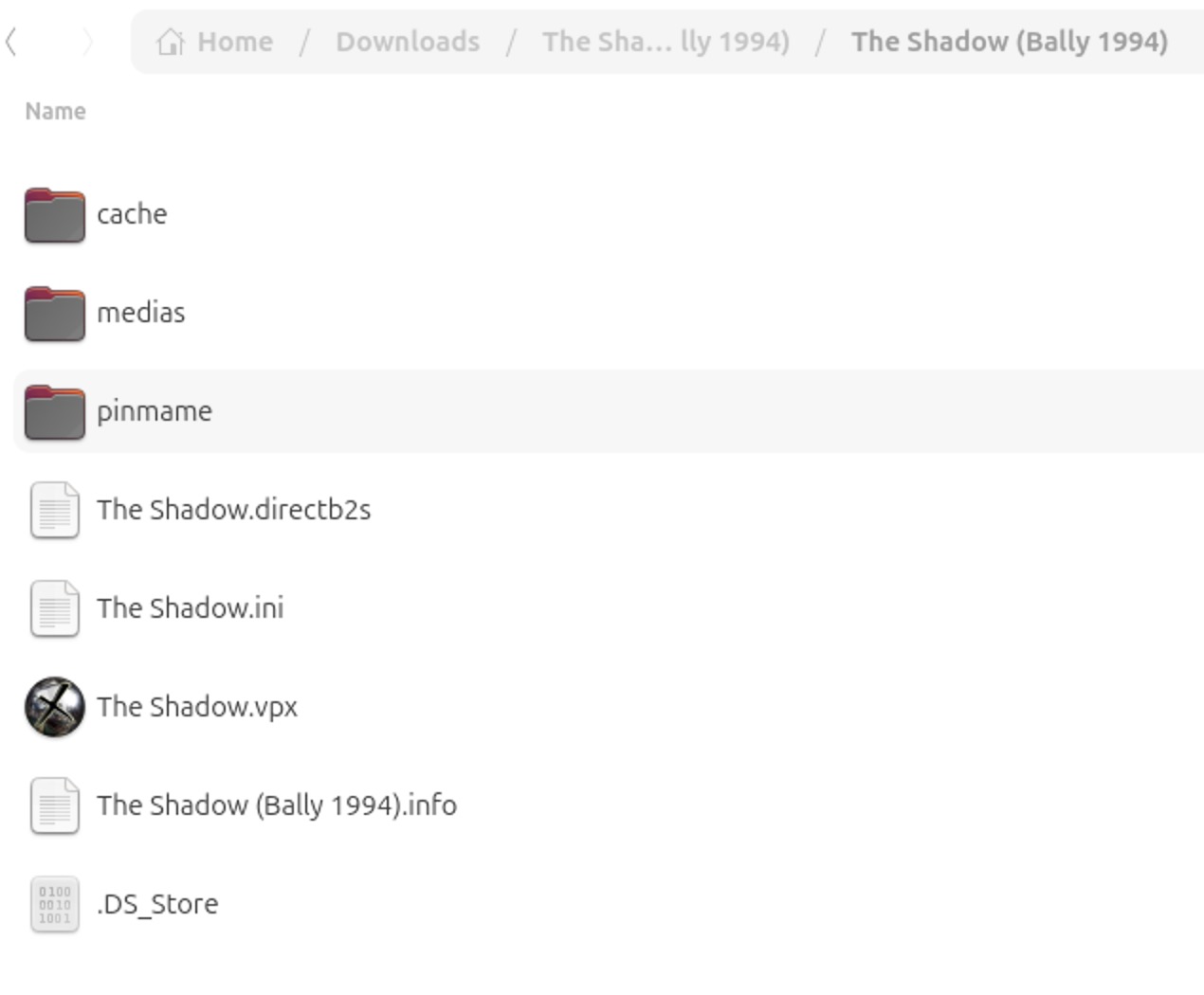
# As you can see now the VPX table has a picture
Following the file association guide, will now allow you to
1- have an Icon on your table.vpx
2- Launch VPX by double clicking the table.vpx
VPX
URL:
Download the latest VPX version from the Github
- Extract the tar.gz by double clicking
- I suggest you rename the folder to VPX and copy it in your home/username/ folder.
- Double click the table.vpx and the table should start. You will need to configure the monitor location and dimensions.
- There are 2 ways you can configure your monitors, the 1st solution and the recommended way is to use the LiveUI. This is done by pressing F12 while VPX is running.
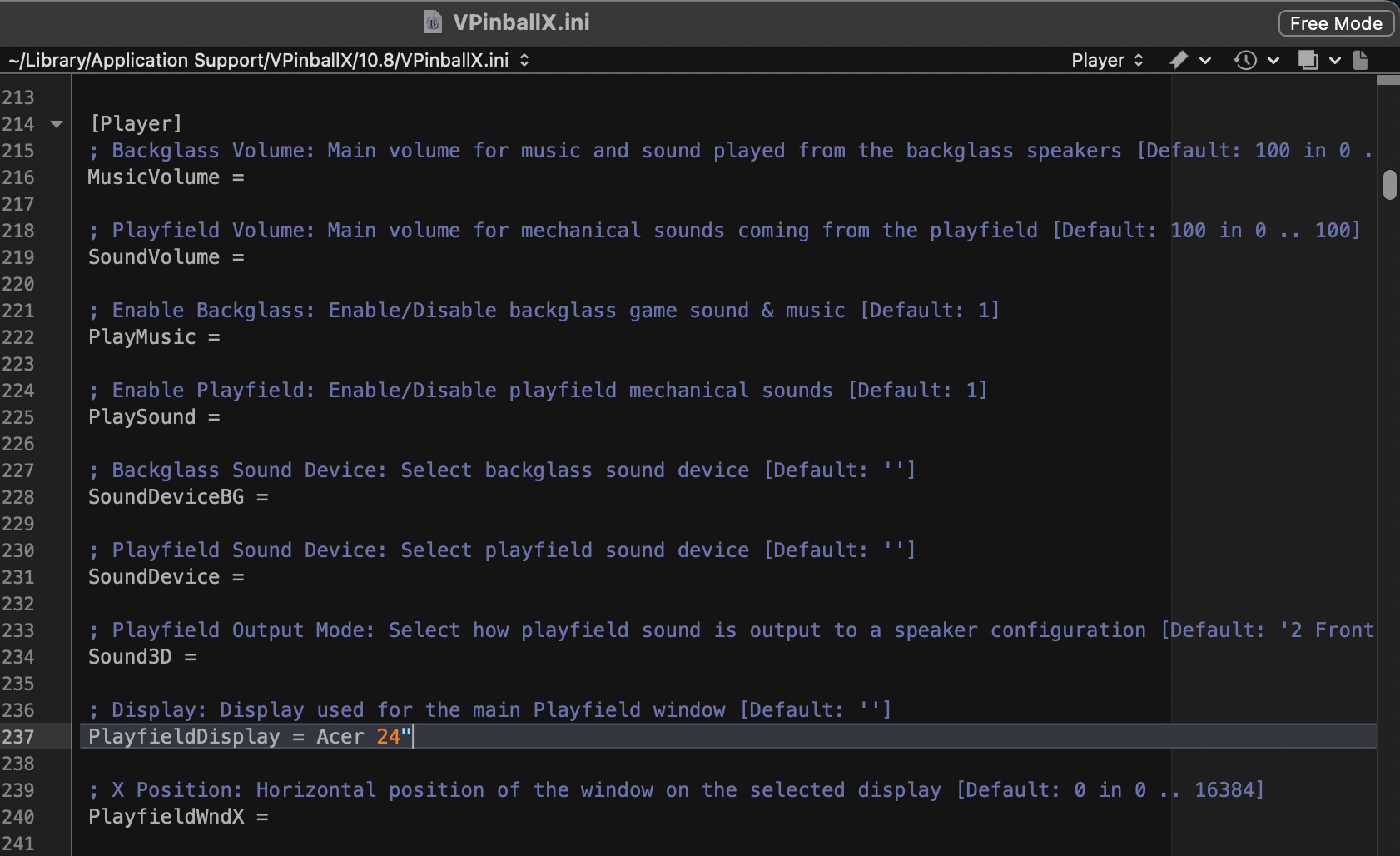
The 2nd way to configure your monitors is by manually editing the .ini file.
Navigate to your .VPinballX.ini on linux it is in /.local/share/VpinballX/VpinballX.ini
Opening the file and changing your monitors ( Playfield / Backglass/ Scoreview ) just like showed in this video
You can see an overview of the LiveUI
📚 Additional Resources
More content coming soon! Check back for updates.