VPX Merging Tool
This tool will copy all required files from your Virtual Pinball Cab and copy the required files into a Standalone folder structure.

🎯 One-Click Full Export — VPX + VBS + Backglass + PUP + Media
🔧 Auto-Fix Scripts — WScript.Shell, RegRead, deprecated B2S properties
🎬 Smart Media Manager — Fuzzy matching for POPMedia files
🖼️ Live Table Previews — See table artwork while you work
📦 Batch Processing — Handle entire collections at once
🎮 ROM Detection — 3-tier fallback for maximum compatibility
📝 VBS Extraction — Pull scripts from VPX files safely
PURPOSE OF THE TOOL
This is to merge you existing Virtual pinball tables and media collection to a VPX Standalone “ready” format. The Standalone uses a 1 folder structure with all required files. This tool will scan the required files for a specific table (.VPX) and list all the required files such as
- Backglass
- ROM
- altcolor
- altsound
- Pup packs
- Pinup Media files
-
music
It will gather the above from your Windows setup or your Backup drive as long as the folder structure is existing.
Installation
Refer to the Installation page
Install Python Python Website
After Run the command in Python to install the dependencies.
# Windows
pip install tkinterdnd2 pillow olefile

# macOS/Linux
pip3 install Pillow olefile tkinterdnd2 --break-system-packages
## HOW TO USE THE TOOL?
Check the video tutorial
STEPS
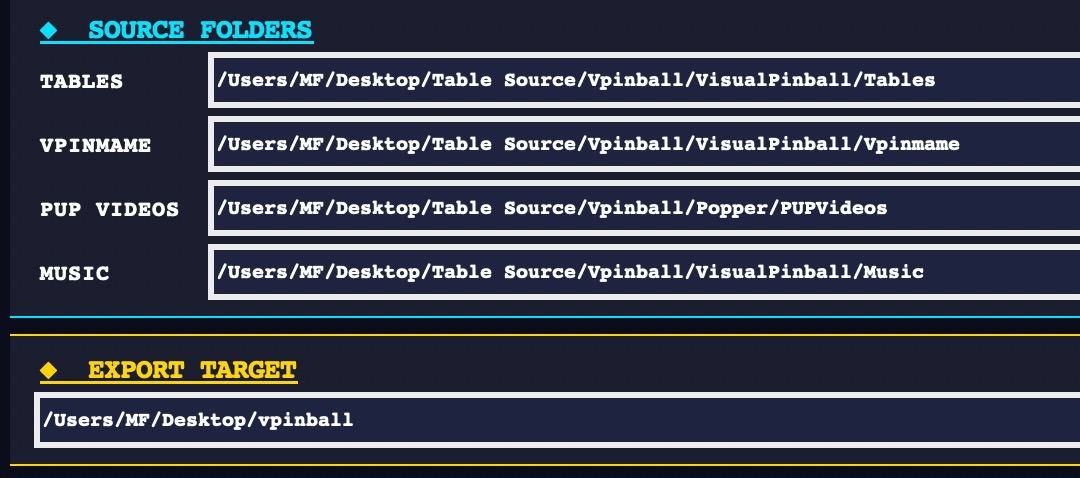
1- Set your SOURCE folder and TARGET
2- Drag your VPX to the software box where it say “ DROP .VPX HERE “
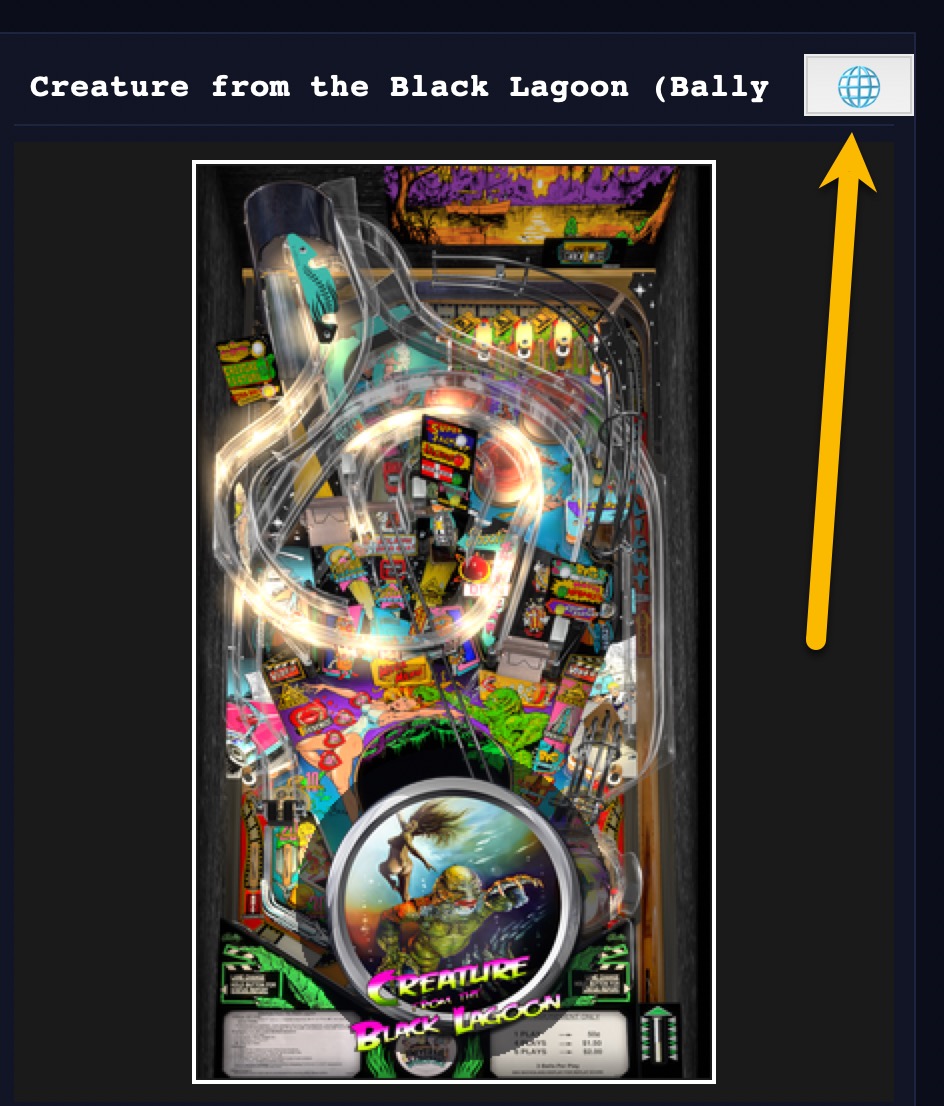
3- if an image preview is available it will display the table preview
4- there is a Globe on the right side of the table title in the picture preview box. This will take you to the table in virtualpinballspreadsheet
5- You can select to export your Table media check the box and pick the folder structure you want. See Below ## Media for additional info

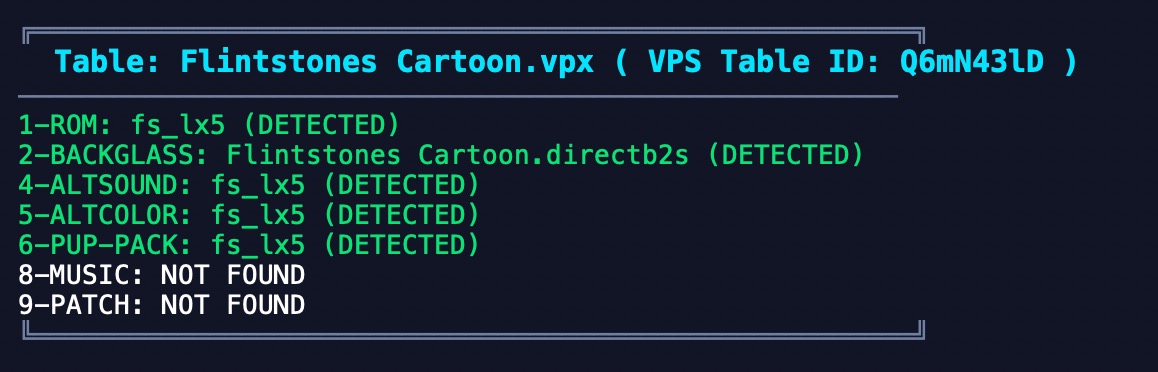
6- The Audit window will tell you what files were detected on your system
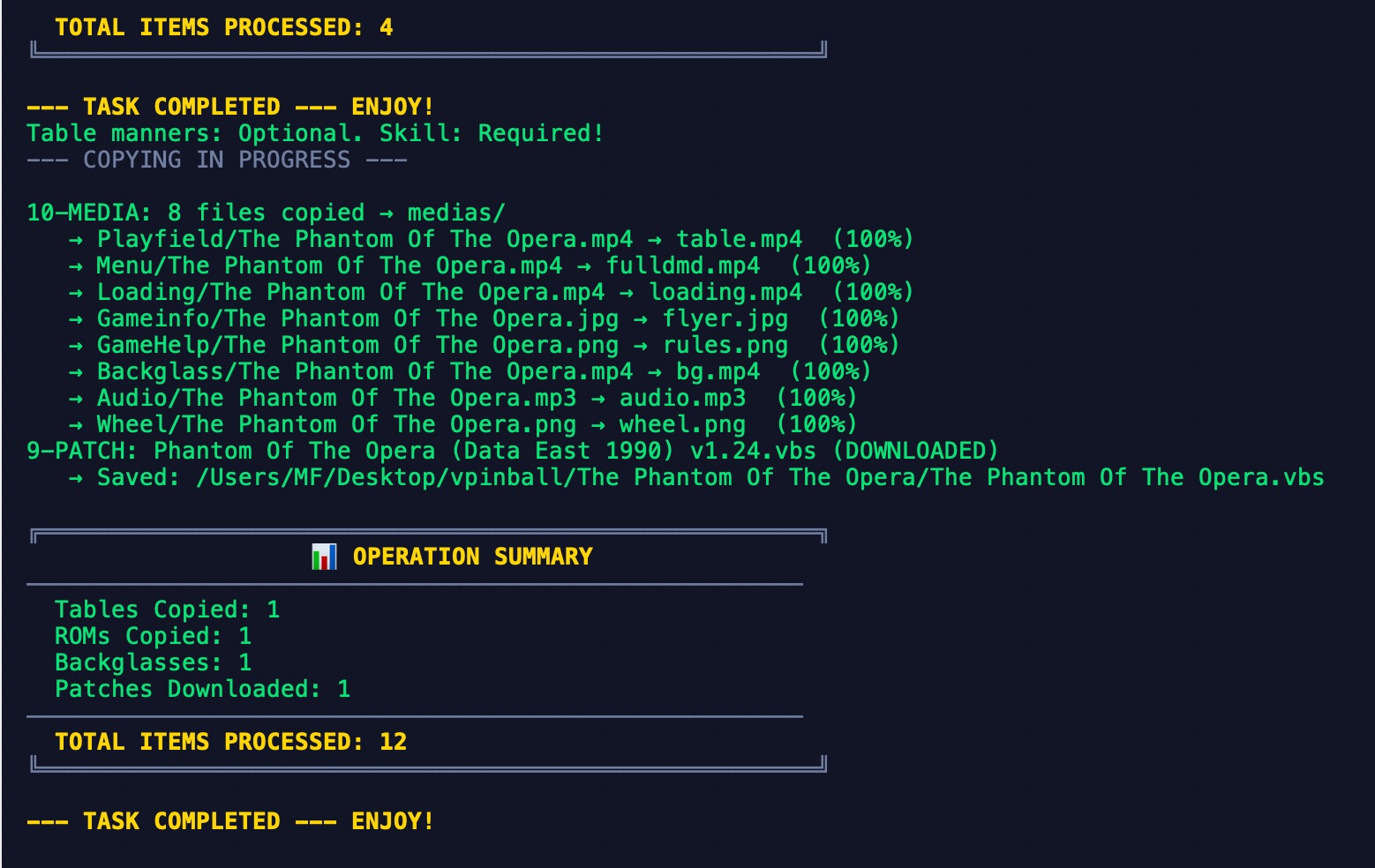
7- Click the Make magic Happen to launch the Merging tool. It will copy all files in a single folder ready for VPX Standalone.

After the copy, you will see a summary of all copied files
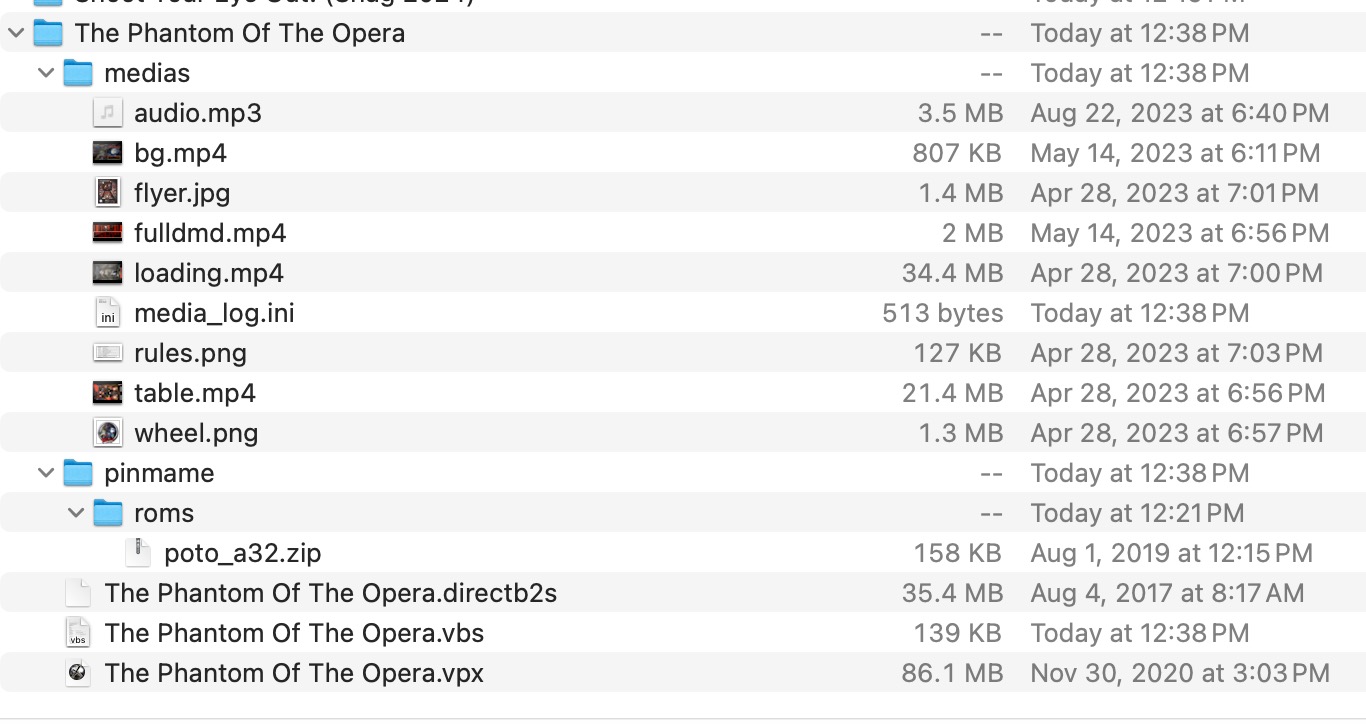
 8- The folder and all files will now be in your target folder. The media files will be renamed based on the type of media you selected from the drop down menu.
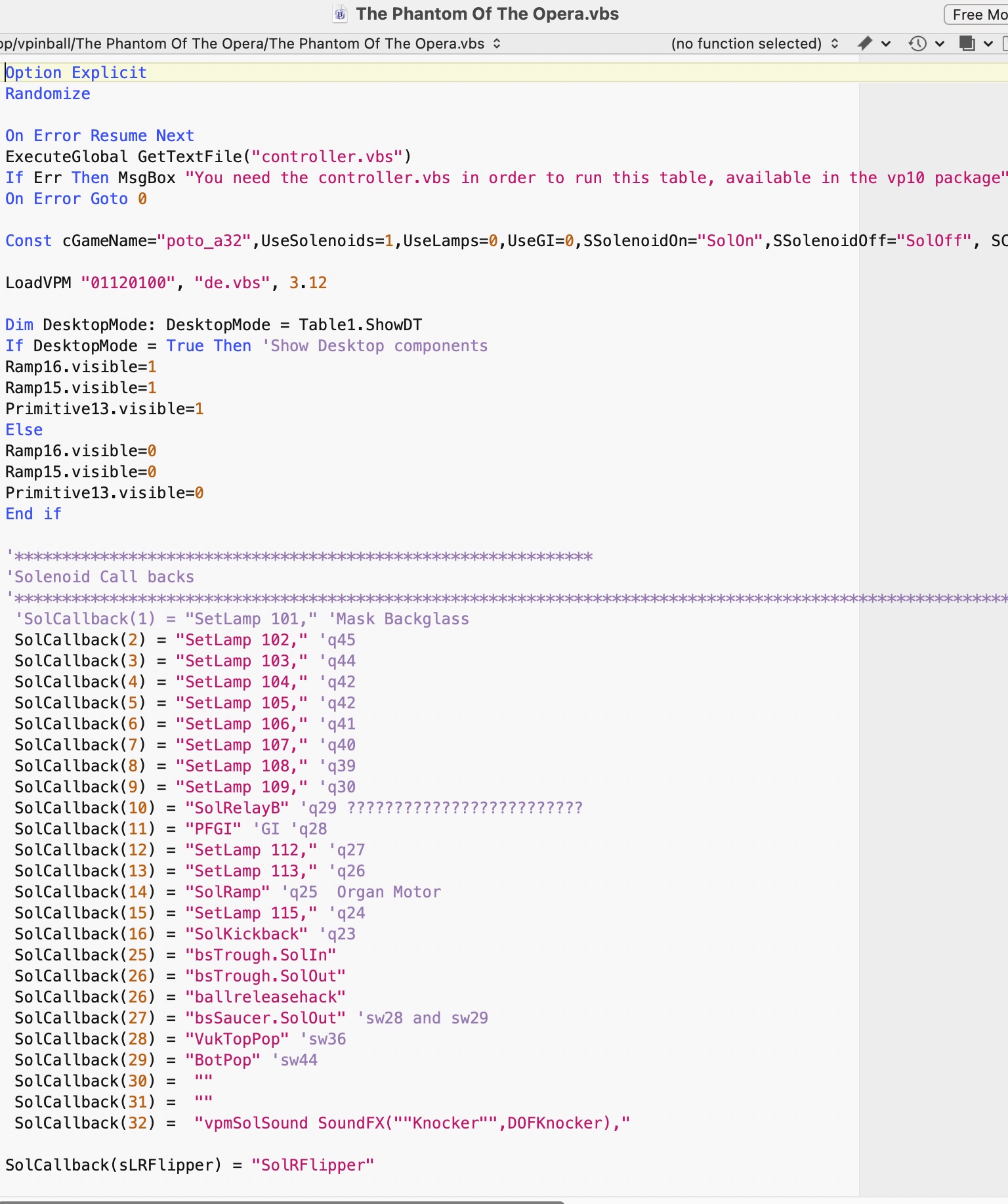
Clean VBS

This option allows you to extract the Table script with 1 click of a button. It will be renaming the .vbs to match the .VPX
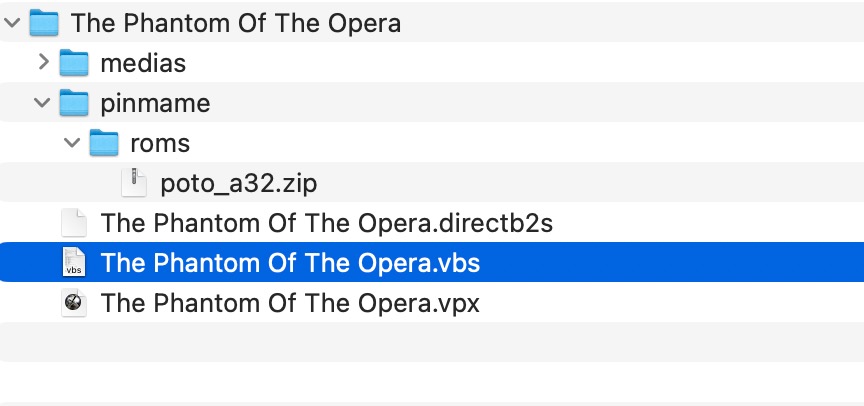
In VPX Standalone, you can not access the script directly anymore. This tool will allow you to export a clean version of the table script. Sometimes, you
may need to enable an option, change the rom name or edit a specific line.
Fix Script

VPX tables were built using windows infrastructure like VBS, .NET a lot of table patches were already made by members of the community and they are being hosted on JSM74’s Giuhub. VPX Standalone Scripts
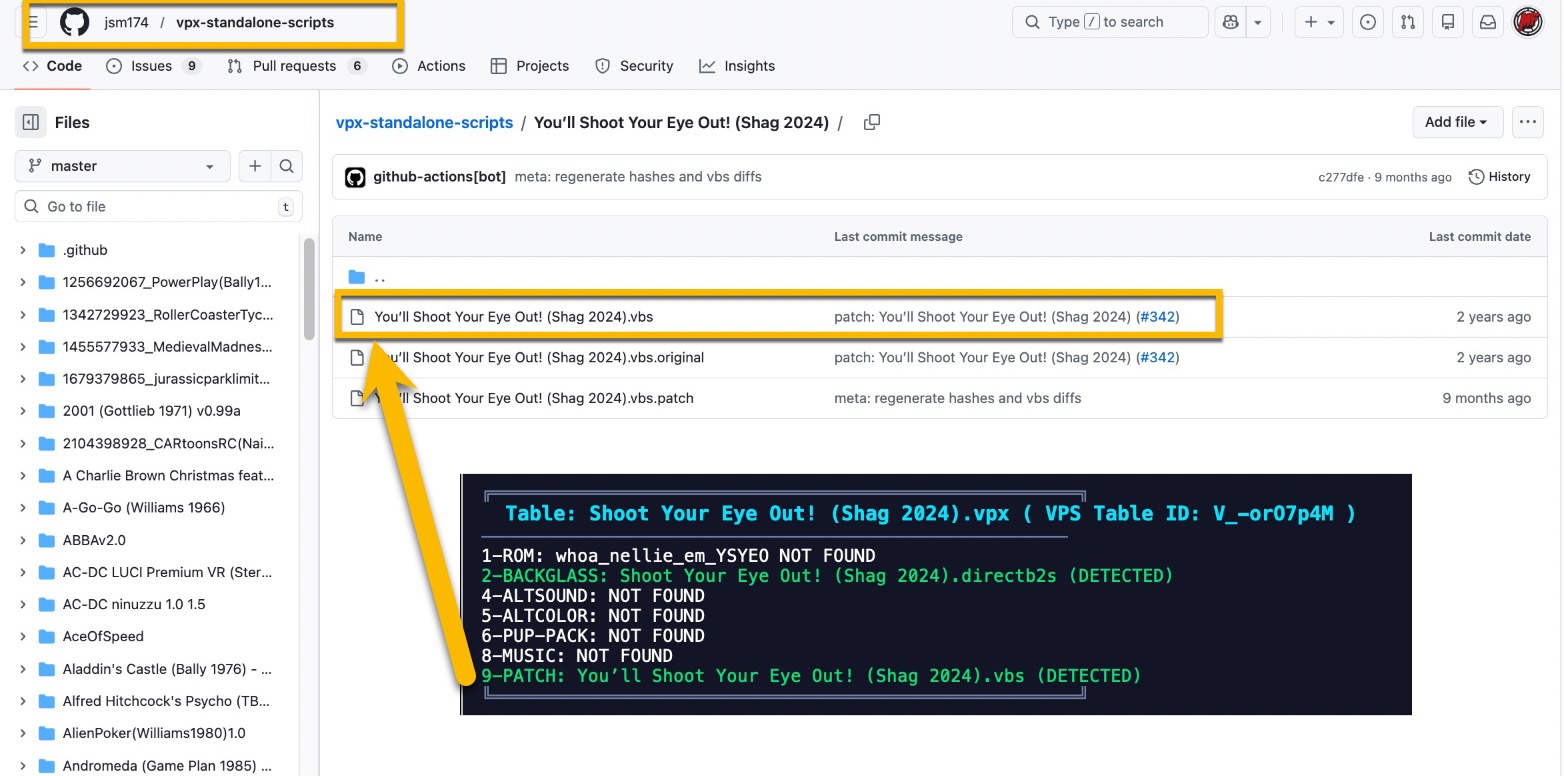
The software automatically looks for it and if there is a match, it will download it automatically. Sometimes, certain tables will crash and there is no patch for it . Clicking the Fix script will scan and list the table issues . If it detects any issues , it will create a .VBS script
with the corrections.
Auto-Fix Script Logic ( This does not fix Broken PUP PACKS )
What It Fixes: VPX Standalone doesn’t support certain Windows-specific features that desktop VPX uses. The auto-fixer removes or replaces these incompatible code patterns.
- WScript.Shell Registry Reads
- Problem: Desktop VPX reads Windows registry to find NVRAM folder path
- Fix: Replace GetNVramPath() function to use local .\pinmame\nvram\ folder instead
- Action: Completely rewrites the function to return a hardcoded local path
- WScript.Shell CreateObject
- Problem: Creates Windows shell objects (not supported in VPX Standalone)
- Fix: Comments out any line containing CreateObject(“WScript.Shell”)
- Action: Adds ‘ comment marker and explanation
- RegRead Calls
- Problem: Reads Windows registry values (registry doesn’t exist on Linux/Android)
- Fix: Comments out lines containing RegRead(
- Action: Adds ‘ comment marker with explanation
- Const cGameName Declaration
- Problem: Old table format declares Const cGameName = “rom_name”
- Fix: Replaces with modern format: Const cGameName = “rom_name” : cAltGameName = “”
- Action: Adds empty cAltGameName variable for compatibility
- Table1_Exit() Sub
- Problem: Desktop VPX uses Table1_Exit() to clean up on close
- Fix: Renames to Table1_Paused() (VPX Standalone equivalent)
- Action: Changes function name while keeping all code inside unchanged
Result:
- Script runs on VPX Standalone without Windows dependencies
- All fixes are logged in audit output
- Original problematic code is commented out (not deleted) for reference
Media
Depending on what system you are exporting it for, you can select 2 different front end or a generic structure for the media.
Whether you are on Mac or Linux, you only have 2 options for a front End. VPinFE
or Batocera
Media Export Logic - Three Formats
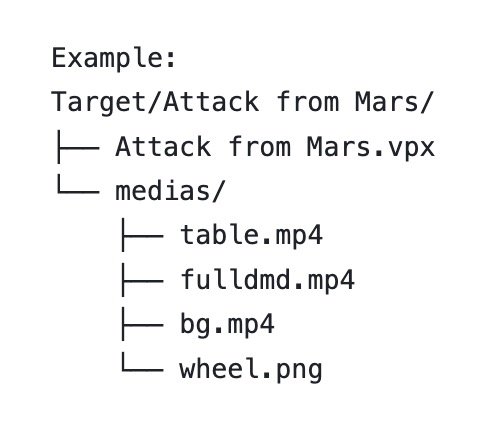
- VPinFE Format Source Location:
POPMedia/Visual Pinball X/ subfolders (Playfield, Menu, Backglass, Wheel, etc.)
Output Location:
Target/TableName/medias/ subfolder
Output Naming (Renamed):
Playfield/file.mp4 → table.mp4
Menu/file.mp4 → fulldmd.mp4
Loading/file.mp4 → loading.mp4
Backglass/file.mp4 → bg.mp4
Wheel/file.png → wheel.png
Gameinfo/file.png → flyer.png
GameHelp/file.png → rules.png
AudioLaunch/file.mp3 → audiolaunch.mp3
Audio/file.mp3 → audio.mp3
- Batocera Format Source Location:
Same as VPinFE: POPMedia/Visual Pinball X/ subfolders
Output Location:
Next to VPX file (same folder, NOT in medias/ subfolder)
Output Naming (Simple fixed names):
Playfield/file.mp4 → table.mp4
Backglass/file.mp4 → backglass.mp4 (video)
Backglass/file.png → backglass.png (image fallback)
Menu/file.mp4 → dmd.mp4 (video)
Menu/file.png → dmd.png (image fallback)
Wheel/file.png → wheel.png
AudioLaunch/file.mp3 → audiolaunch.mp3
Audio/file.mp3 → audio.mp3
Example:
Target/Attack from Mars/
├── Attack from Mars.vpx
├── table.mp4 ← next to VPX
├── backglass.mp4 ← next to VPX
├── dmd.mp4 ← next to VPX
├── wheel.png ← next to VPX
├── audiolaunch.mp3 ← next to VPX
└── audio.mp3 ← next to VPX
Special Note:
Batocera identifies tables by folder name, not VPX filename EmulationStation scans folder structure
- PuP Media Format Source Location:
POPMedia/Visual Pinball X/ - ALL subfolders dynamically scanned
Matching Logic:
Same fuzzy matching as VPinFE/Batocera Scans ALL folders found (not just predefined list) Includes: Playfield, Menu, Backglass, Wheel, Audio, AudioLaunch, GameHelp, GameInfo, GameSelect, Loading, DMD, Topper, Other1, Other2, System, etc.
Output Location:
Target/TableName/medias/ subfolder
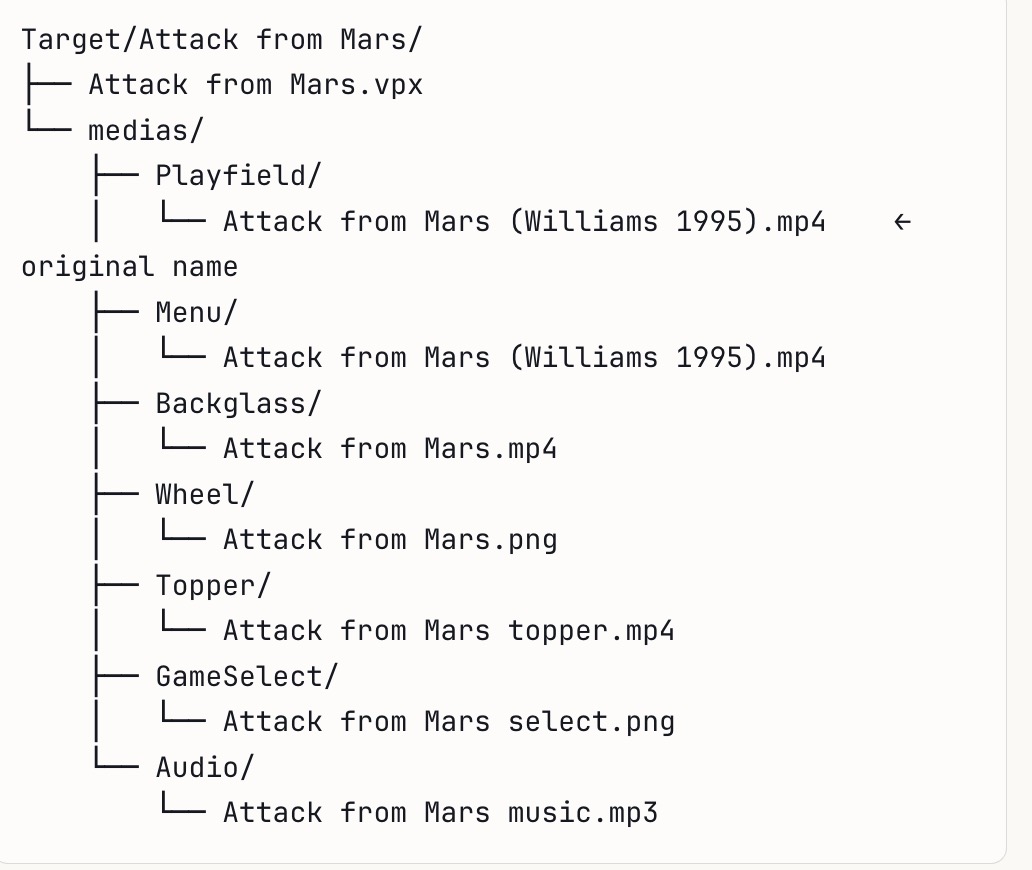
Output Naming (Preserves original structure):
Keeps folder structure AND original filenames
No renaming - files copied as-is
Special Features:
Preserves complete POPMedia folder hierarchy
Keeps original filenames (no renaming)
Copies from any folder found in POPMedia (future-proof)
Ideal for PinUP Popper systems
Media Log:
Creates media_log.ini in output folder Records: Original filename = Renamed filename Includes match confidence score (for debugging) Sonnet 4.5