
VPinFE MacOS
This is a cross-platform front end for Virtual Pinball. This guide covers setup on macOS.

youtube-video-tutorial
A frontend for vpinball with the following features:
- Works on Linux, Windows, and Mac (Windows must use Standalone dir structure)
- Multiscreen - Supports up to 3 screens (Backglass, DMD, and Table)
- Keyboard & Joystick support
- Table and Media Manager (Auto download art via VPinMediaDB)
- Build custom table collections (VPS ID-based and filter-based)
- Automatic vpx patching for Linux & Mac
- Fully customizable UI theming using HTML, JS and CSS
- JSON-based table metadata with VPX file parsing and feature detection
- Mobile transfer support for VPinball on Android and iOS (Web Send & VPXZ Download)
Table of Contents
- YouTube Video Tutorial
- Install VPinFE
- First Launch Permissions
- Open the Settings Screen
- Initial Setup
- Adding Tables
- Remote
Install VPinFE
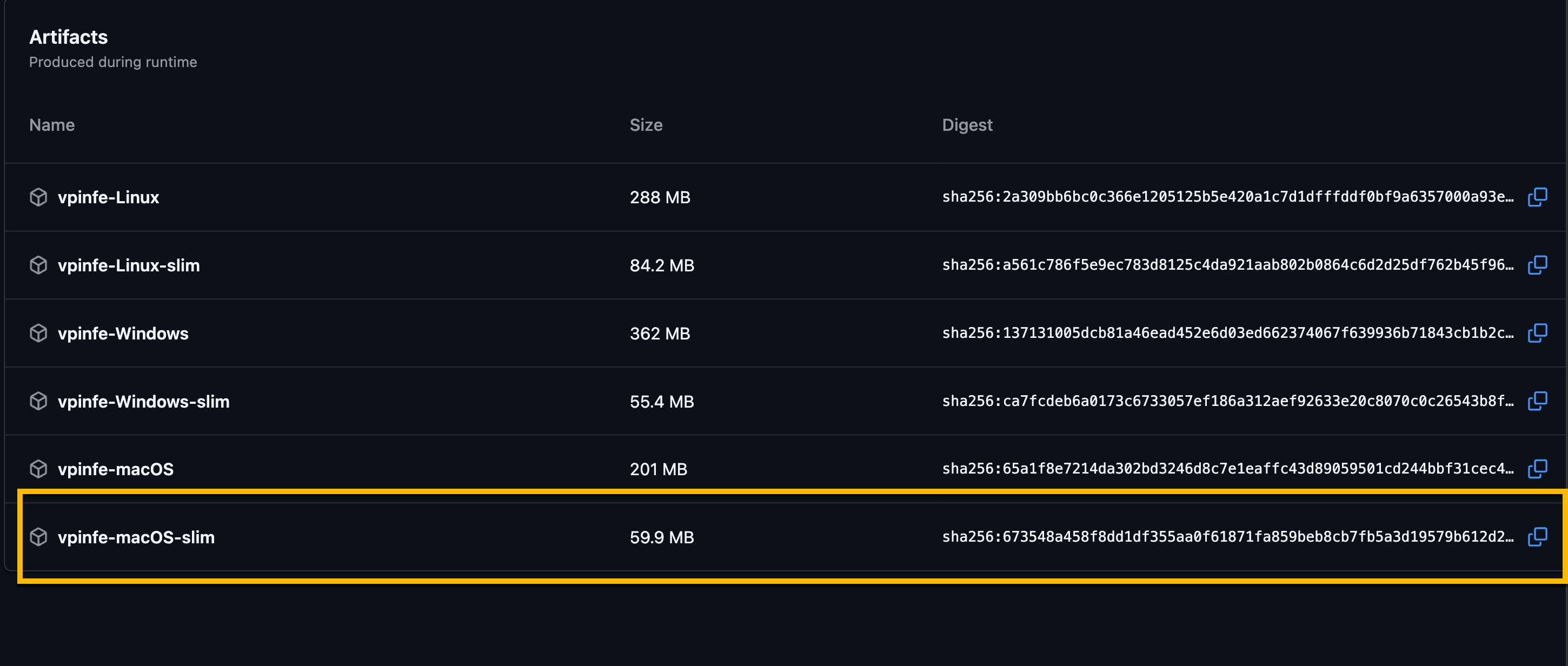
- Download the latest build from VPinFE Runs (GitHub login required).
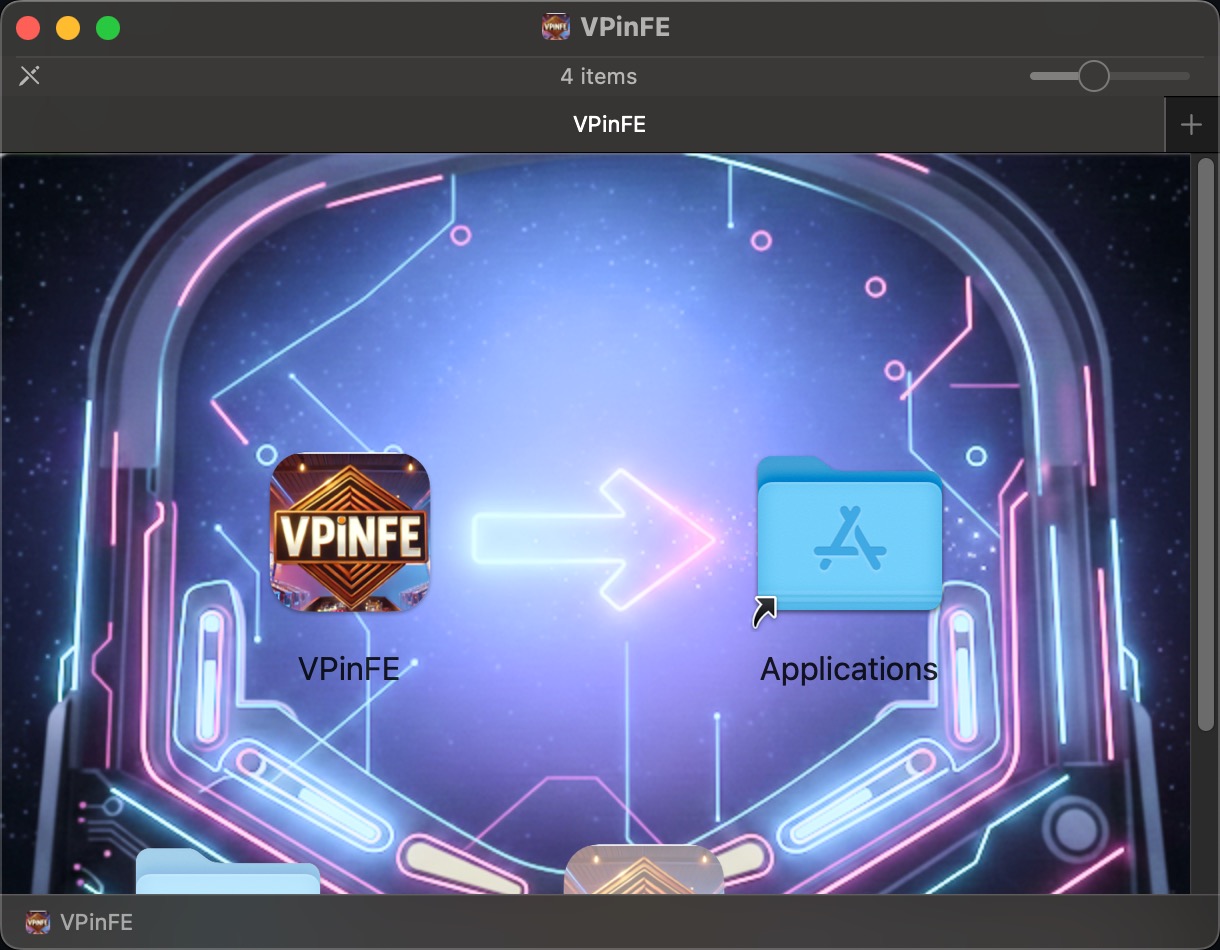
- Drag the app icon into your
Applicationsfolder.
First Launch Permissions
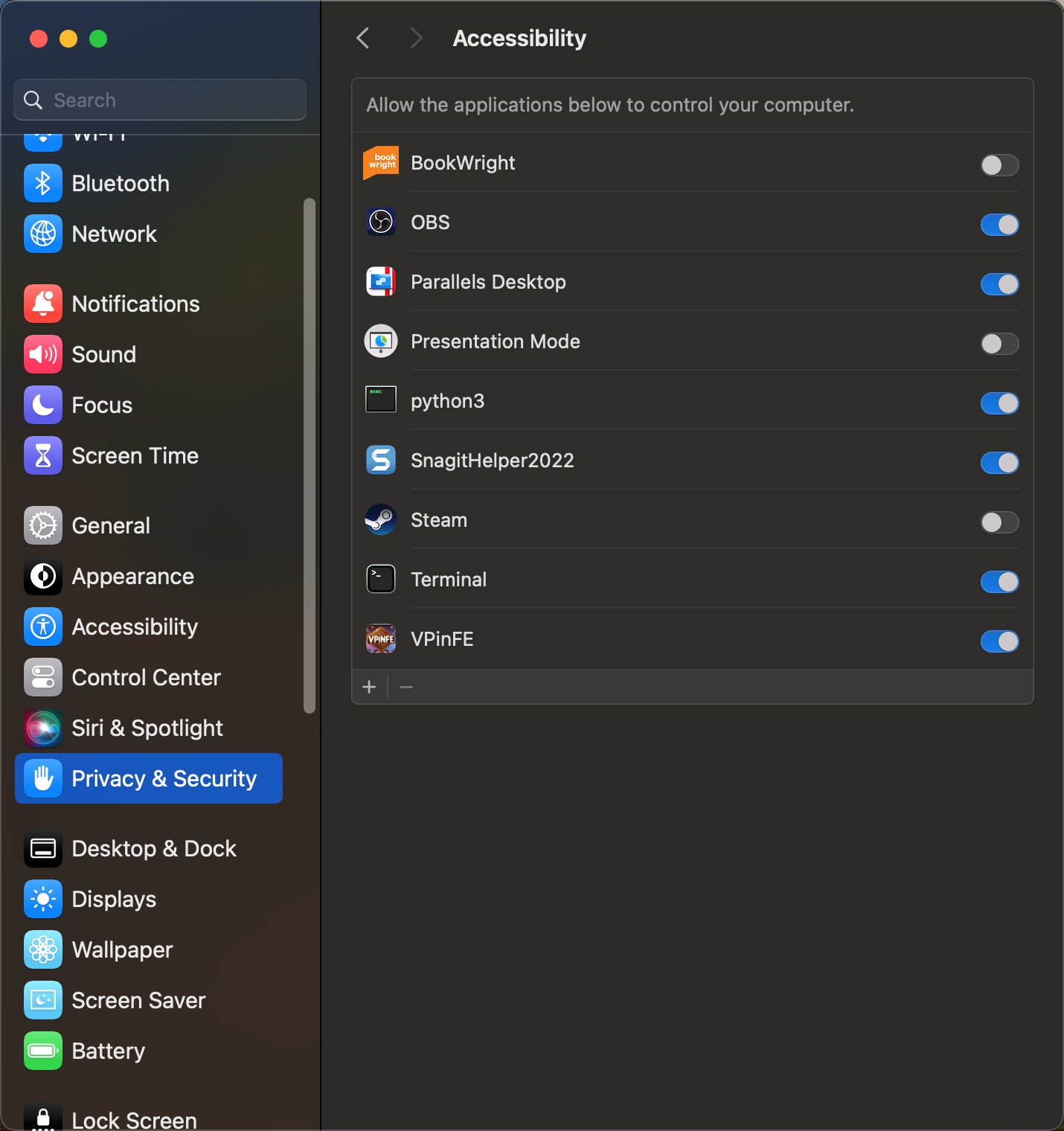
On first launch, macOS security prompts may appear.
- Open
System Settings > Privacy & Securityand allow VPinFE. - Open
System Settings > Privacy & Security > Files and Foldersand allow file access.

Open the Settings Screen
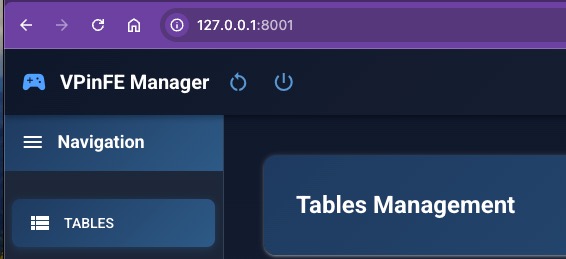
- Local device:
127.0.0.1:8001 - Another device on your network:
YOUR_VPINFE_IP:8001(example:192.168.1.113:8001)
Initial Setup
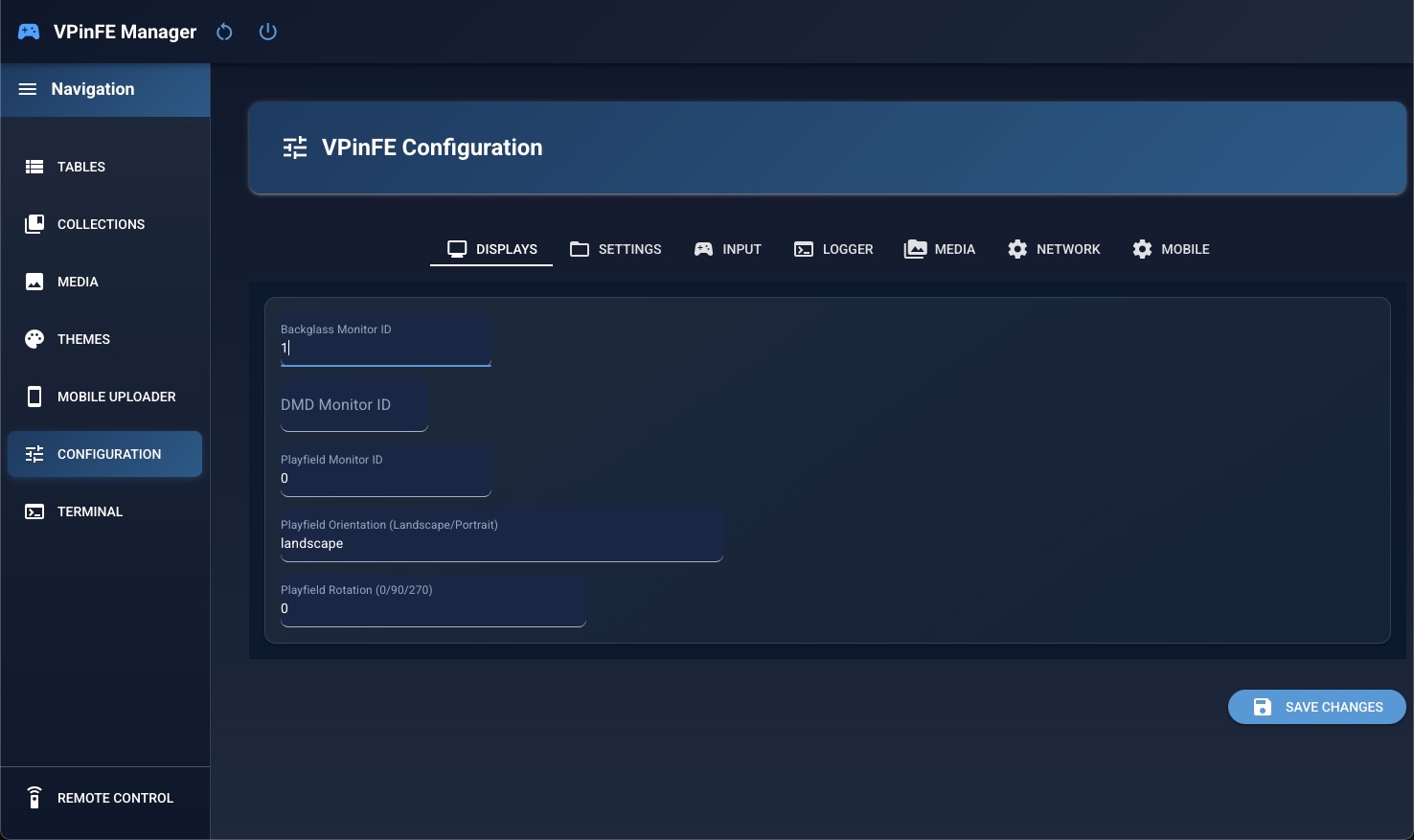
- Configure monitor mappings in the Settings menu.
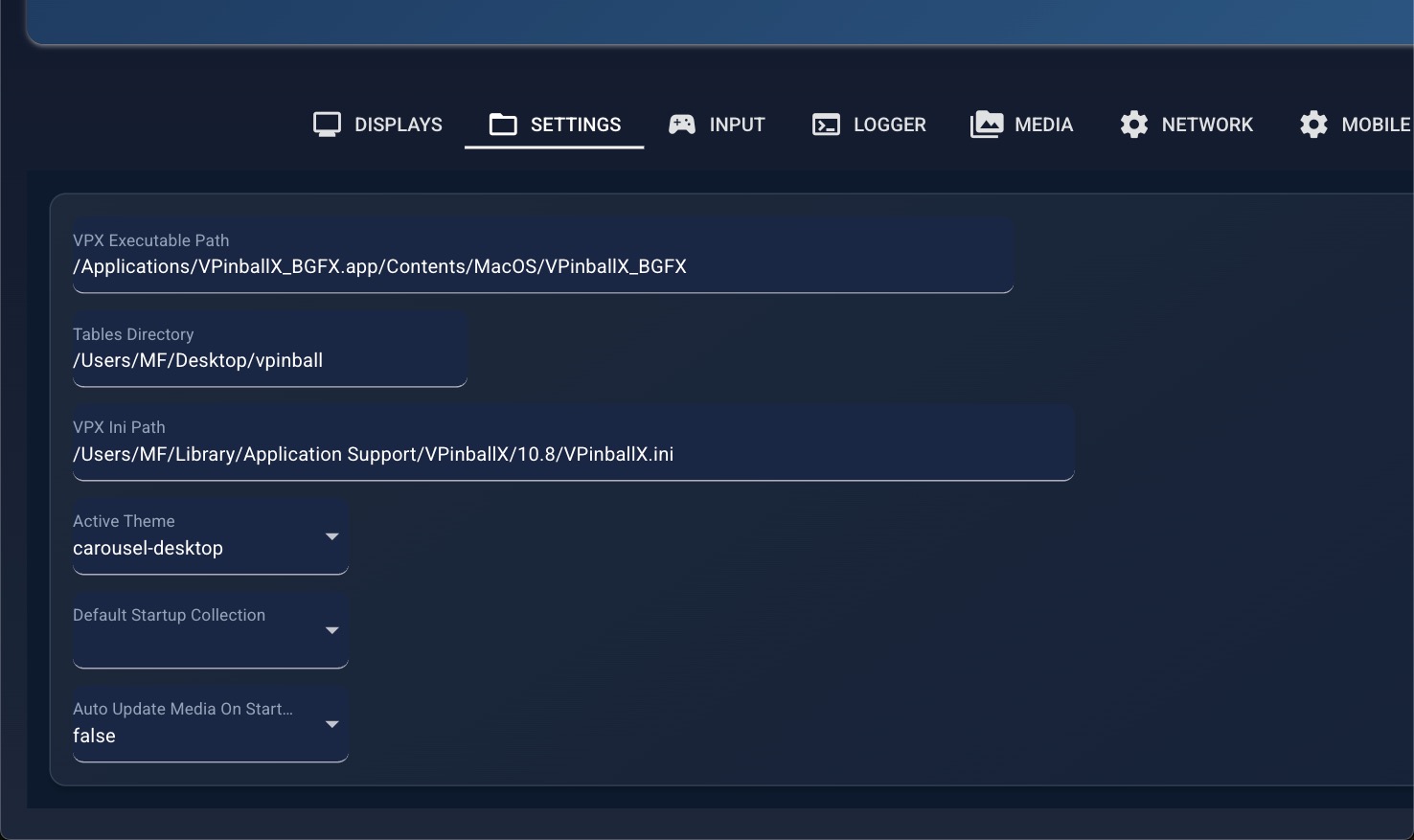
- Set the VPX Standalone paths:
vpxbinpath = /Applications/VPinballX_BGFX.app/Contents/MacOS/VPinballX_BGFXtablerootdir = /Users/YOURUSERNAME/Desktop/vpinball/vpxinipath = /Users/YOURUSERNAME/Library/Application Support/VPinballX/10.8/VPinballX.ini
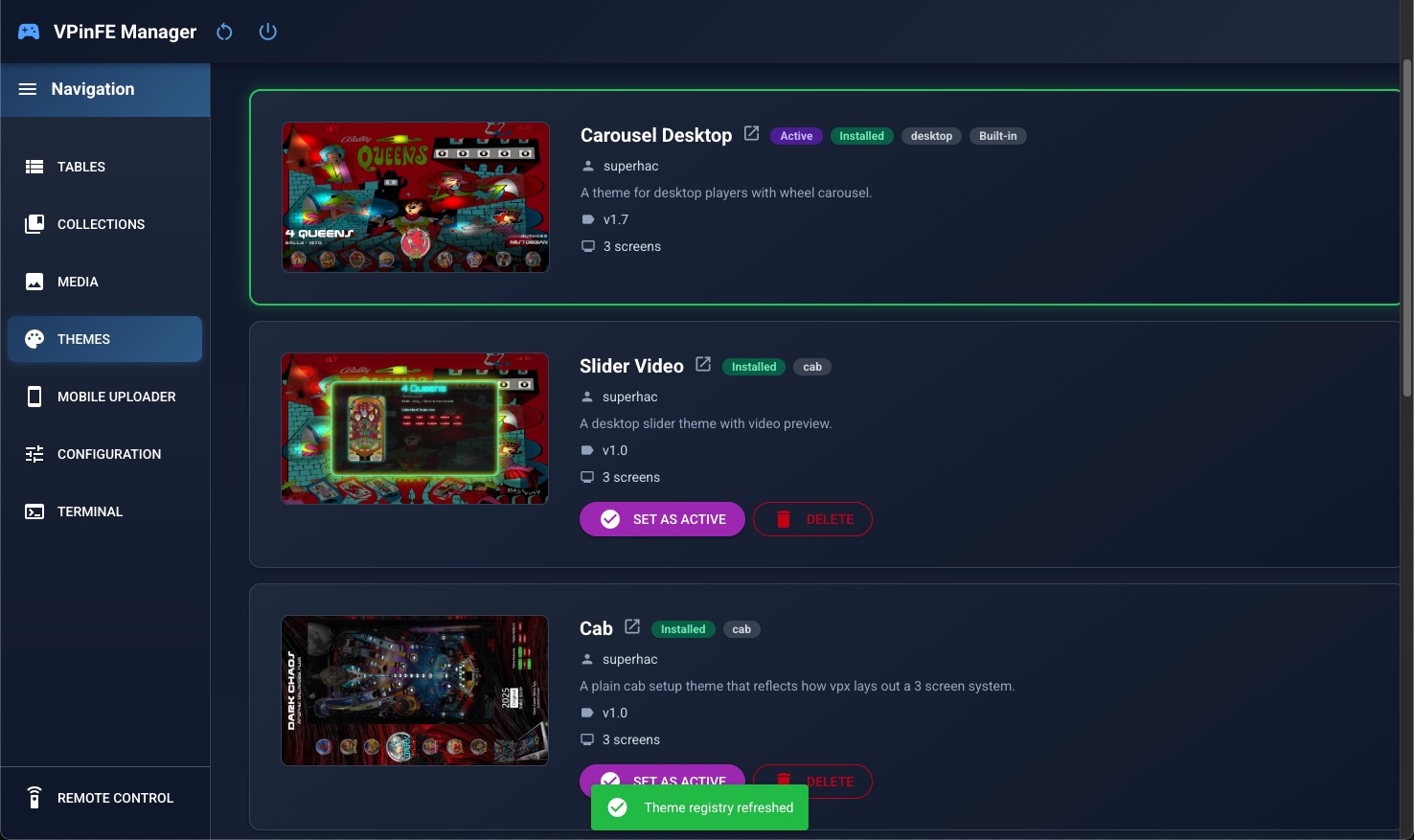
- Pick and activate your theme.

Adding Tables
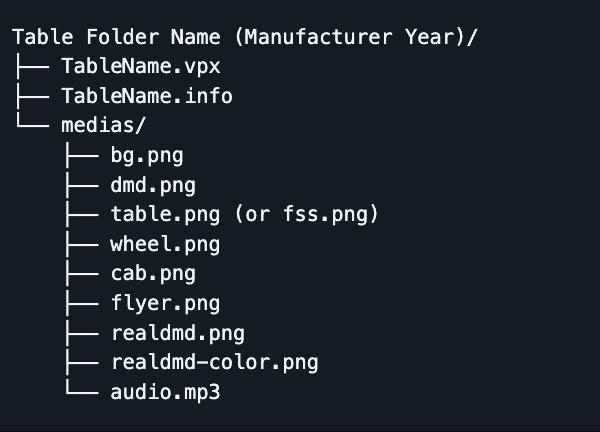
To run correctly, your VPX files should follow a standalone folder structure.
Add your tables folder under:
tablerootdir = /Users/YOURUSERNAME/Desktop/vpinball/
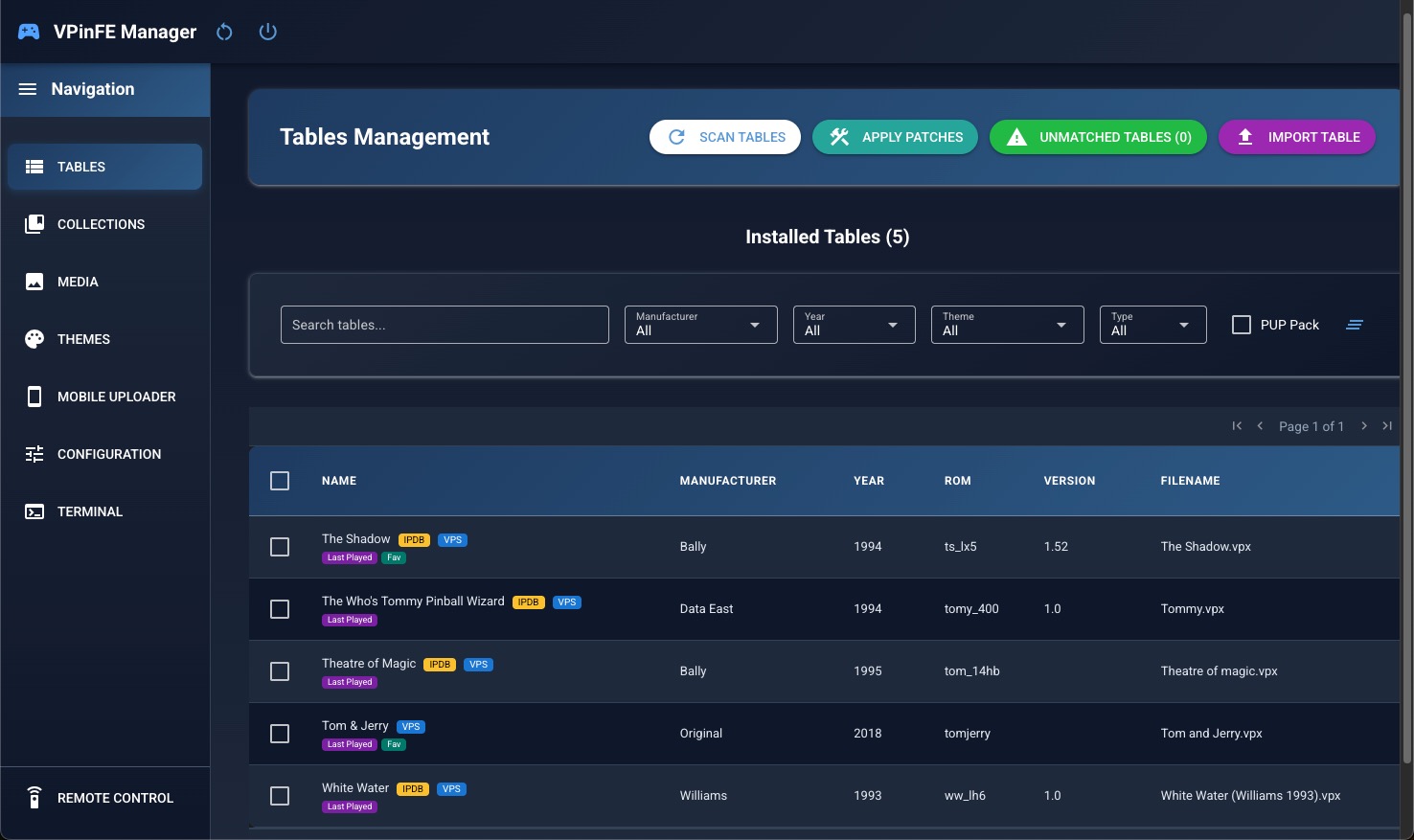
In Manager UI, use the Tables > Unmatched button to add tables to your library.
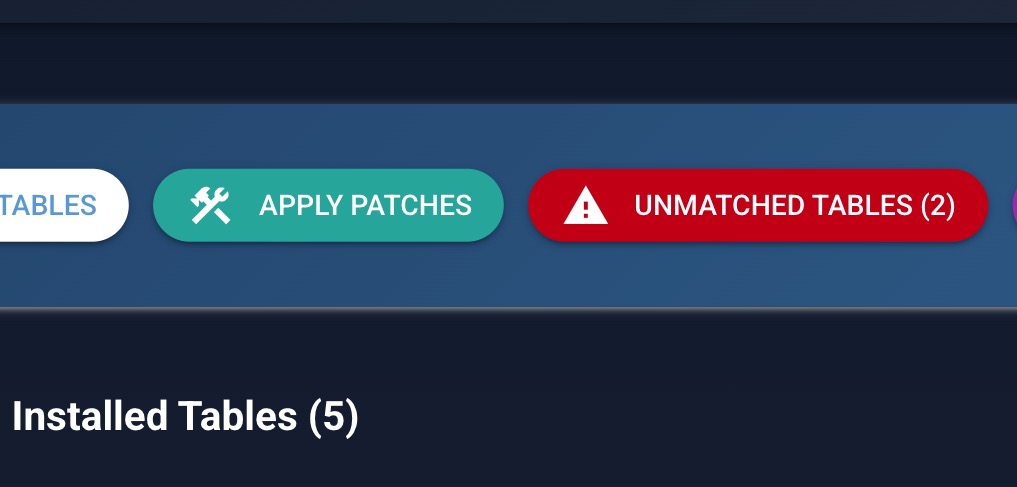
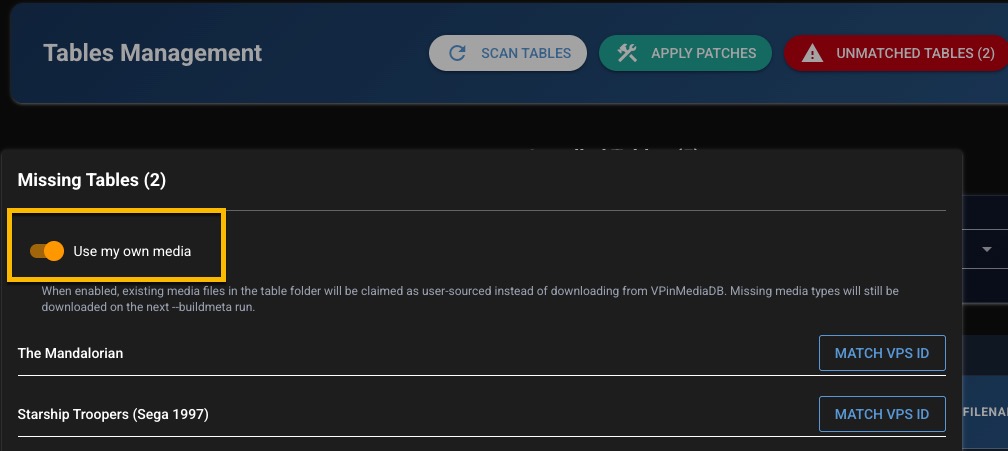
Your table must be associated with a VirtualPinballSpreadsheet table ID so VPinFE can download matching media.
If you already have your own media, use Use my own media. Otherwise, trim extra characters in the table name until you get a VPS match, then click Associate.
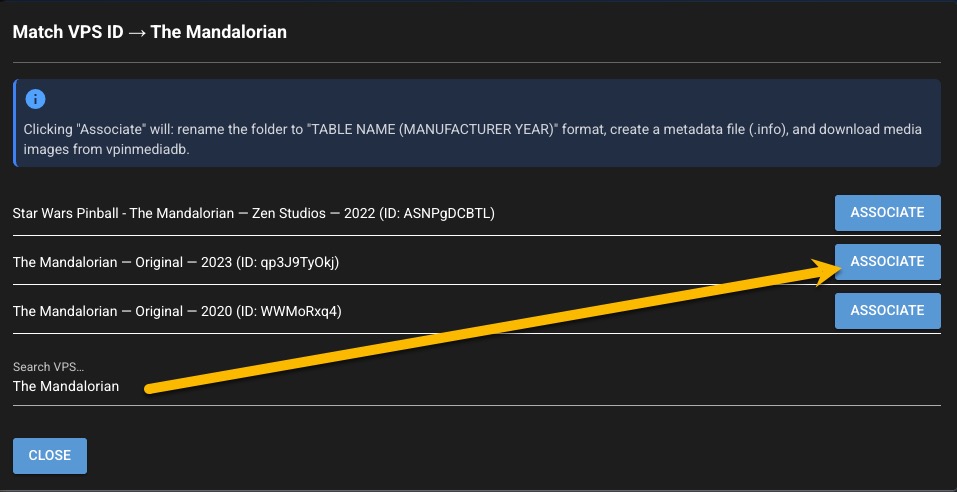
After association, VPinFE will:
- Add the table entry to your library
- Download media
- Create a
.infofile
————–
Remote
Remote lets you control the front end from another computer, tablet, or phone.
Use:
YOUR_VPINFE_IP:8001/remote (example: 192.168.0.113:8001/remote)
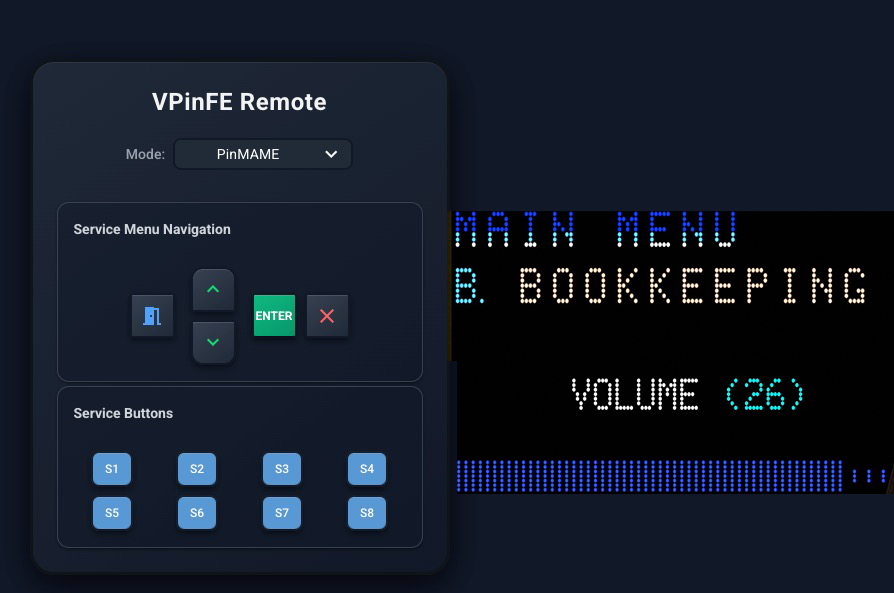
The Remote page includes 4 modes:
- VPinFE: restart VPinFE, reboot, or shut down the computer
- PinMAME: change ROM menu settings (for example, ROM volume)
- VPX Game: control VPX game settings and launch tables
- VPX Maintenance: volume and navigation controls
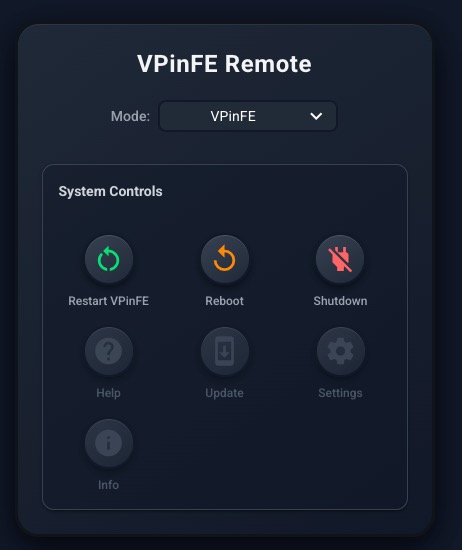
VPinFE Control |
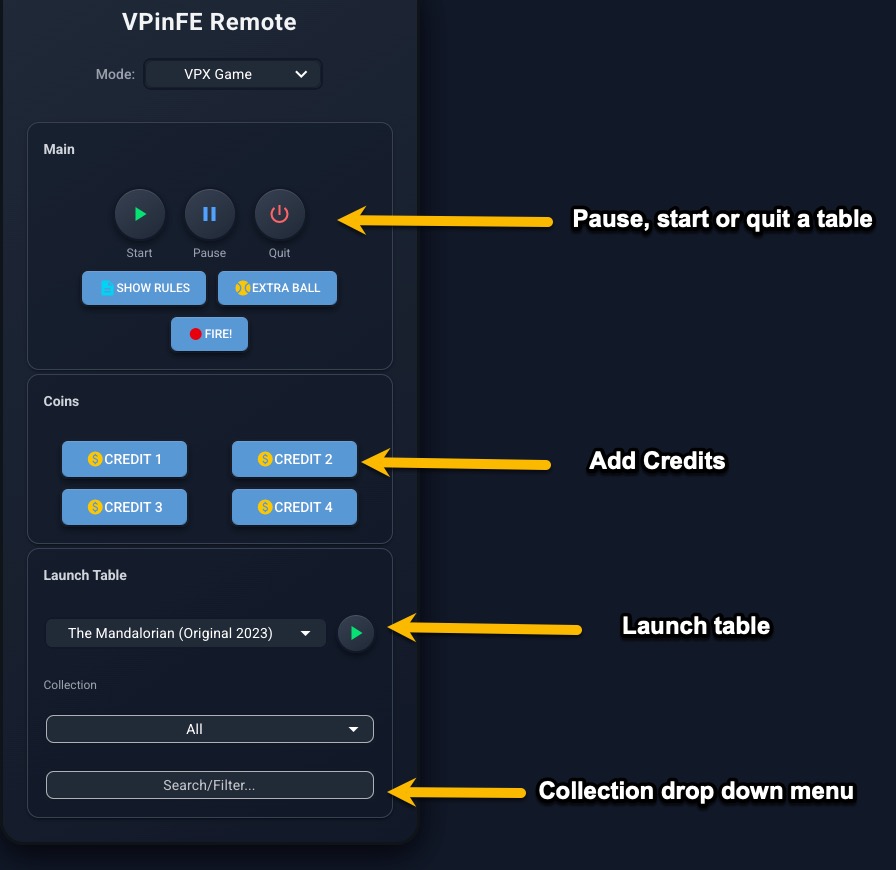
PinMAME / VPX ROM |
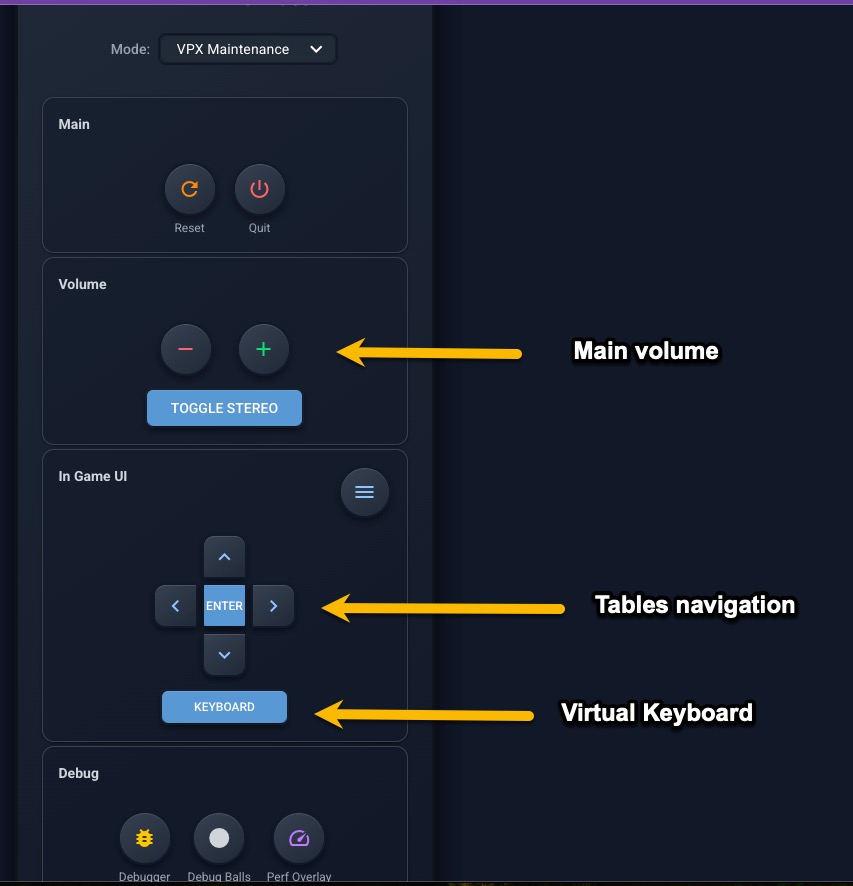
VPX Maintenance |
ROM Control |