
Visual Pinball X (VPX)

Click any image to enlarge it.

What is Visual Pinball X?
Visual Pinball X is the most used platform in the virtual pinball community. A very large community creates original tables — such as Harry Potter and the Goblet of Fire by Scott Wickberg of Orbitalpin.com, the Iron Maiden Legacy of the Beast from the VPinWorkshop team, and real table recreations like JP's Indiana Jones (Stern 2008) by the legendary JPSalas.
- Simulates pinball table physics rendered via DirectX or OpenGL
- Simple editor to (re-)create any kind of pinball table with live viewport editing
- Table logic and game rules controlled via Visual Basic Script
- Over 1,050 real pinball machines from ~100 manufacturers recreated, plus 550+ originals (3,000+ including MODs and variants)
- Emulation of real pinball machines via Visual PinMAME
- Configurable camera views for virtual pinball cabinet display
- Tablet/touch input and specialized pinball controller support
- Stereo 3D output and head tracking via BAM
- VR HMD rendering with PUP, B2S backglass and DMD output support
Visual Pinball Downloads
Installing Visual Pinball X
Download Visual Pinball X from the official GitHub. Download the full installer first before upgrading to 10.8.
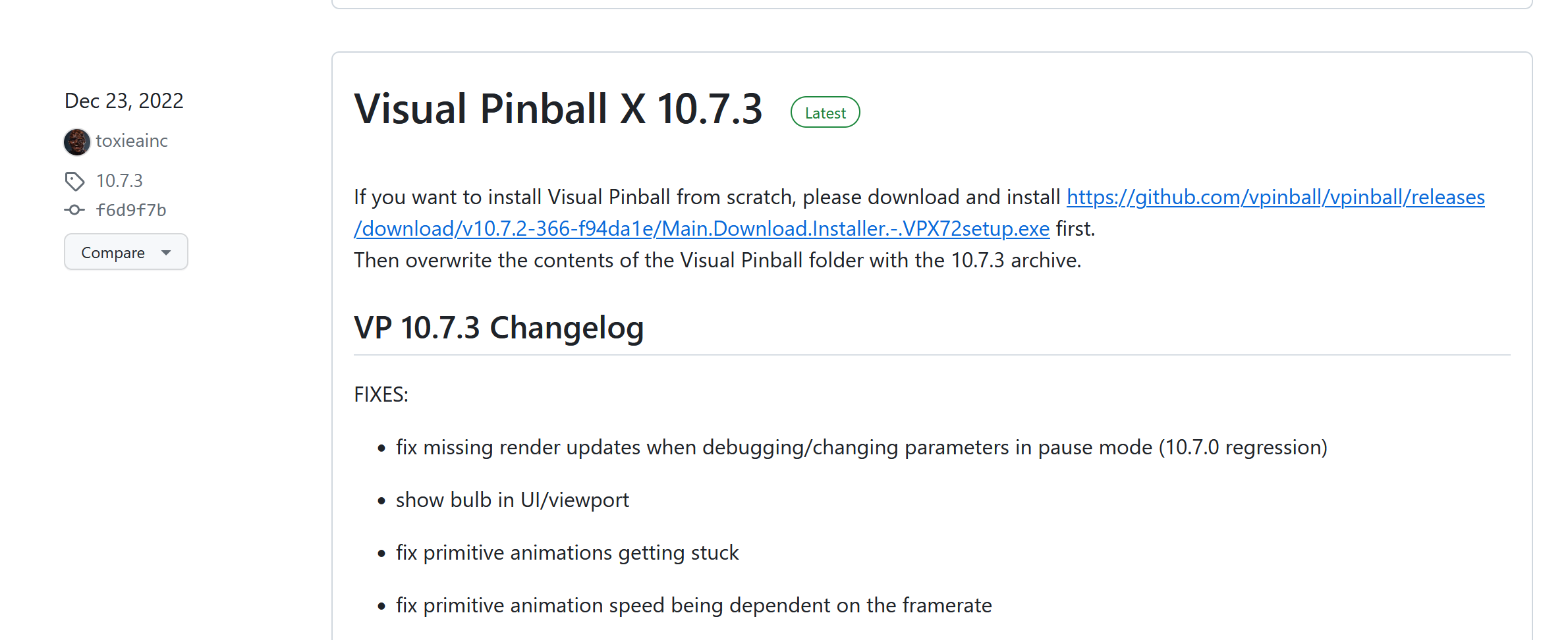
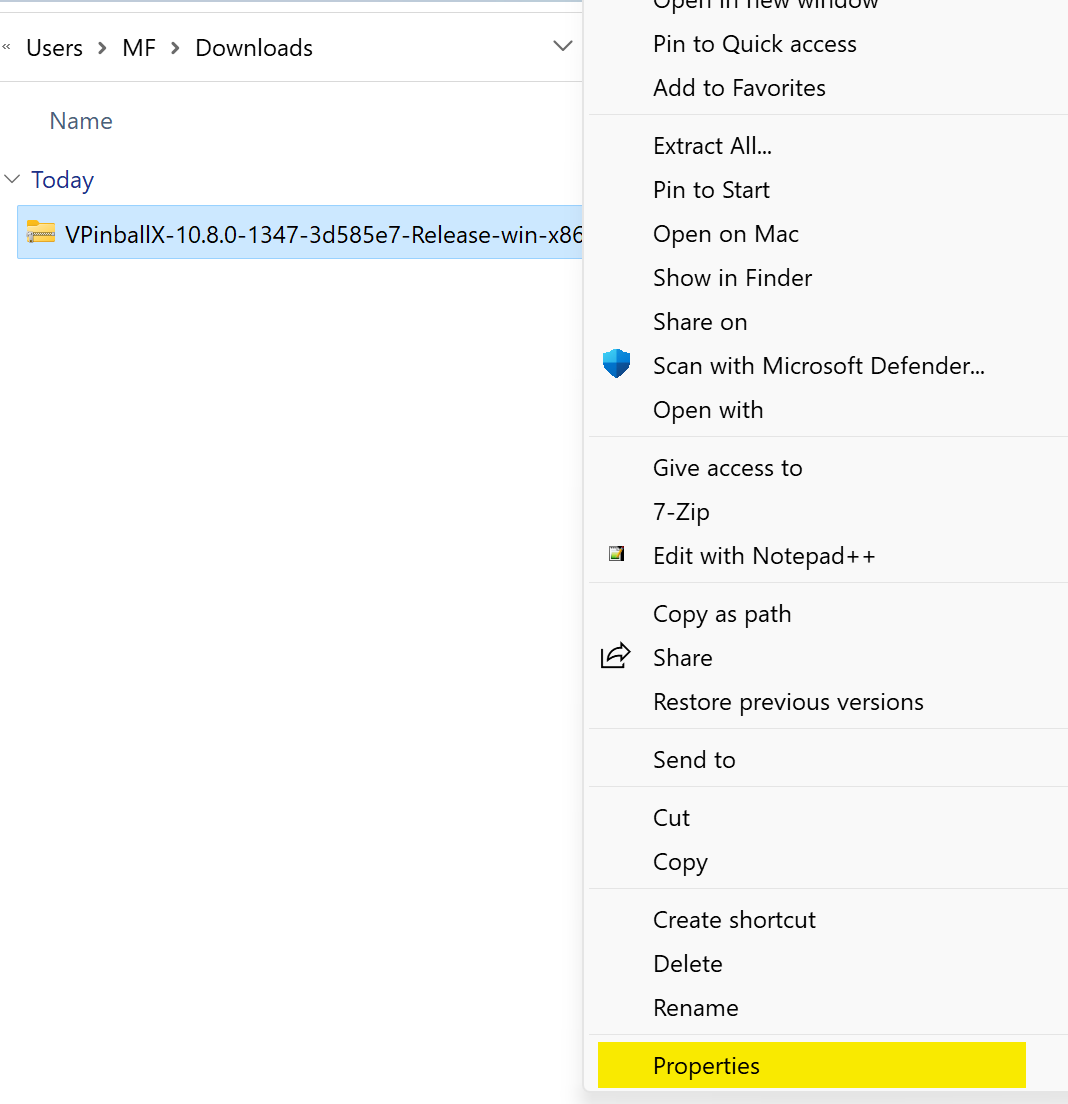
Right-click the installation file and select Properties.
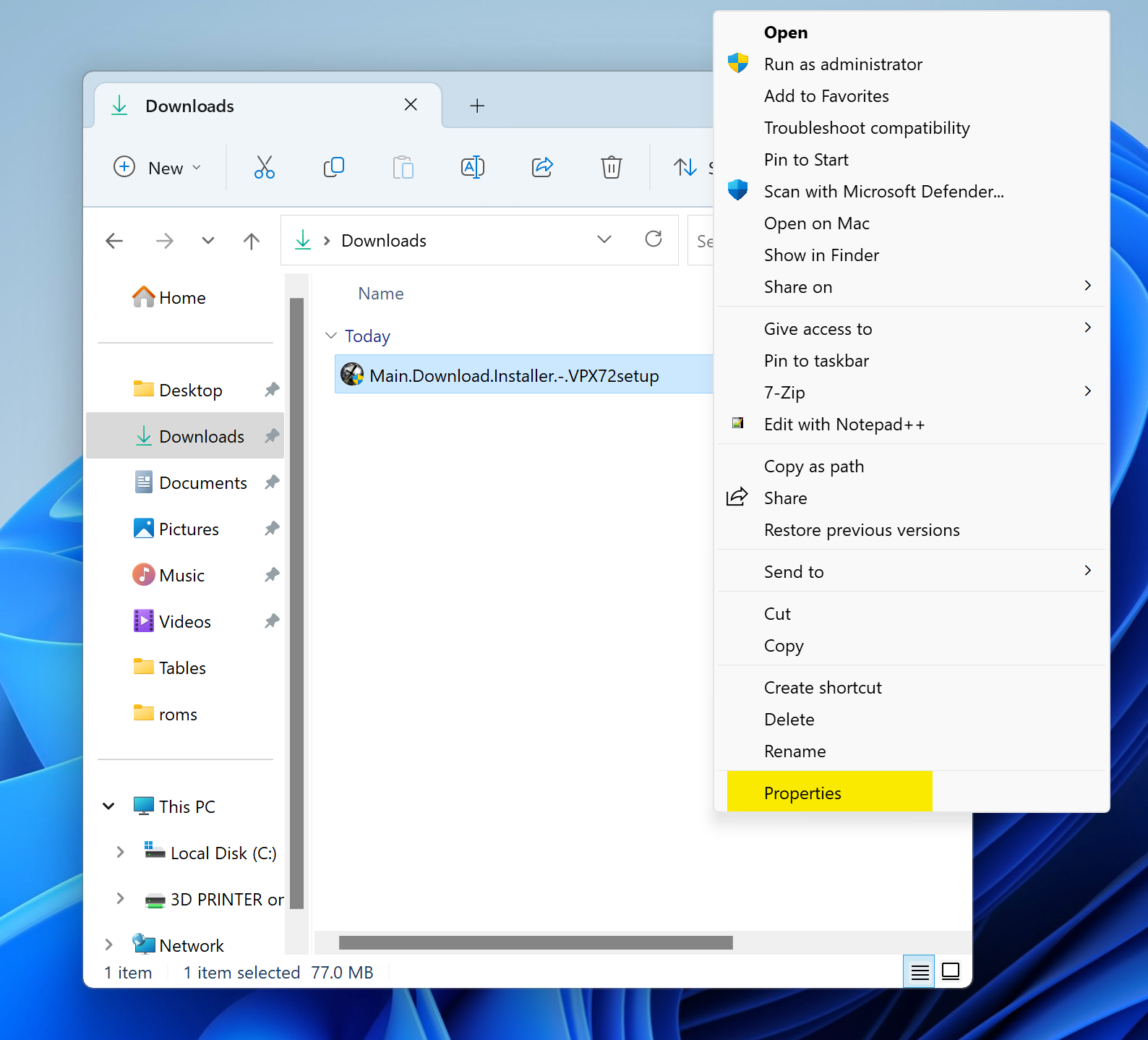
Check the Unblock box and click Apply.
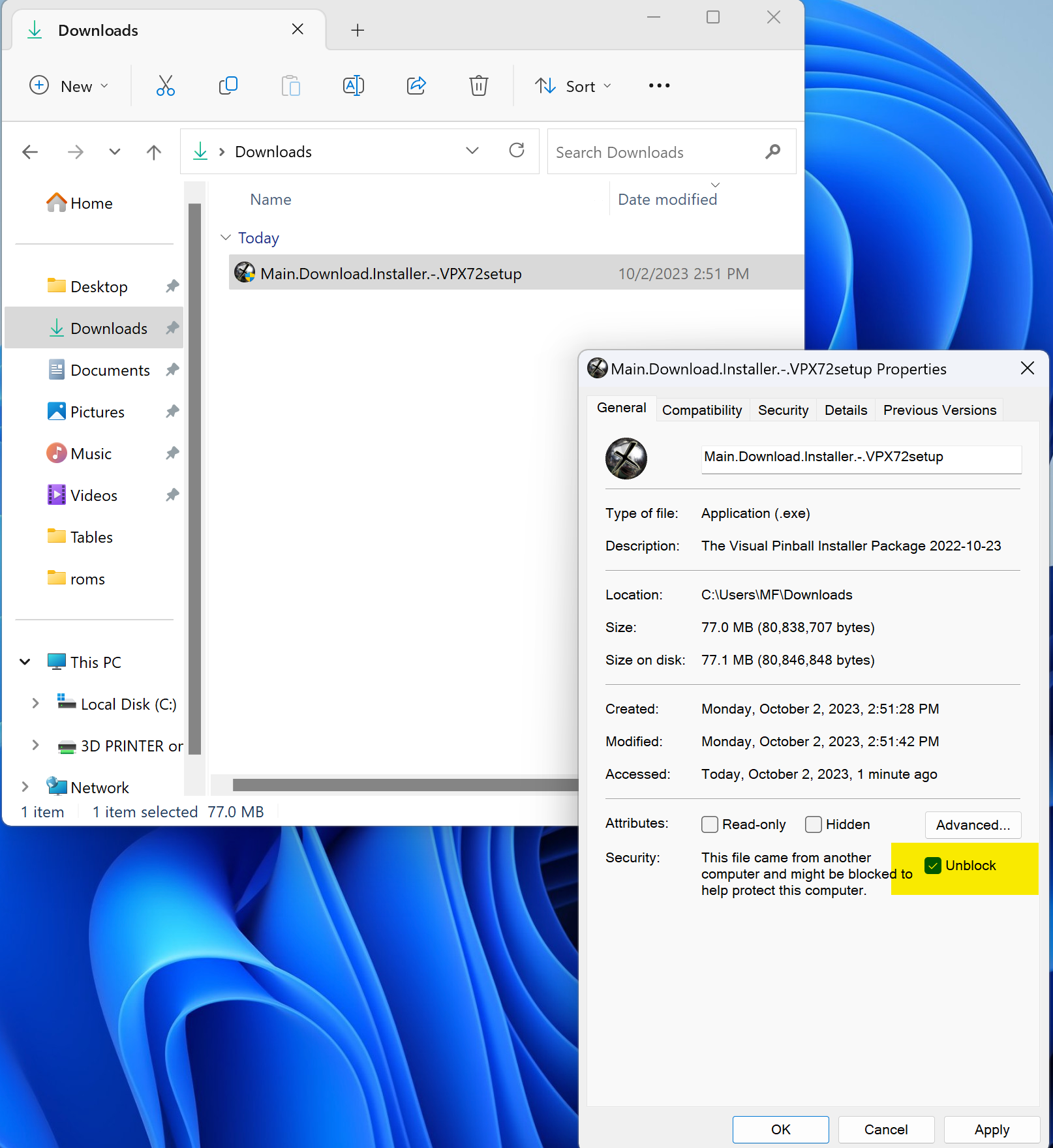
Double-click the installer and follow the prompts just like any other program.
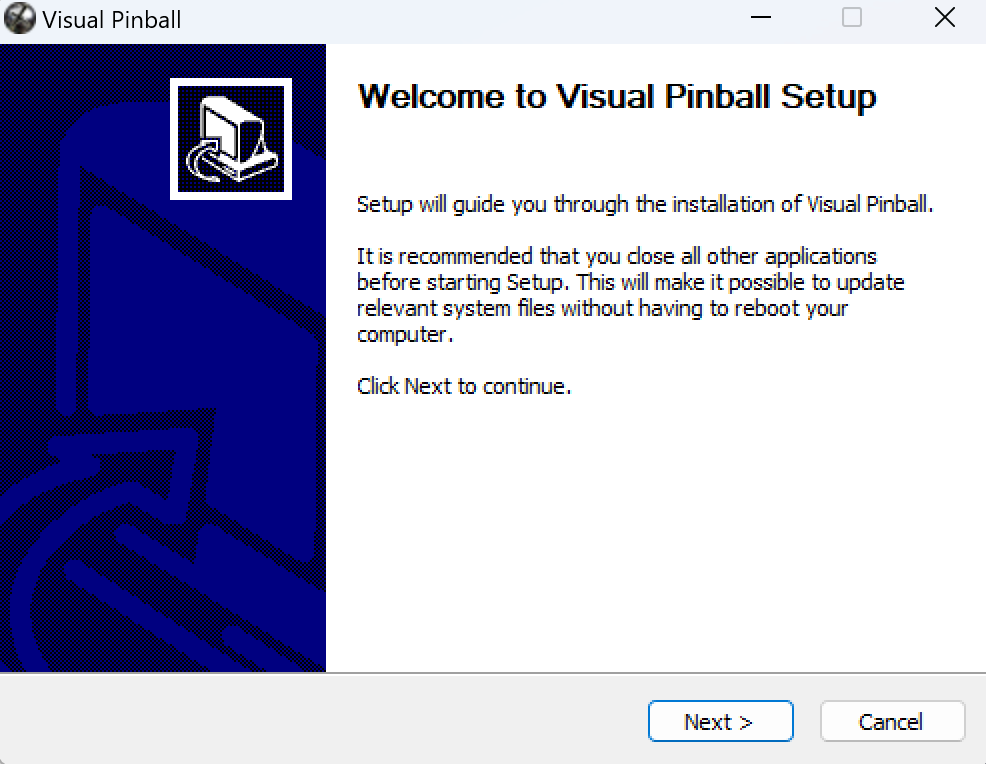
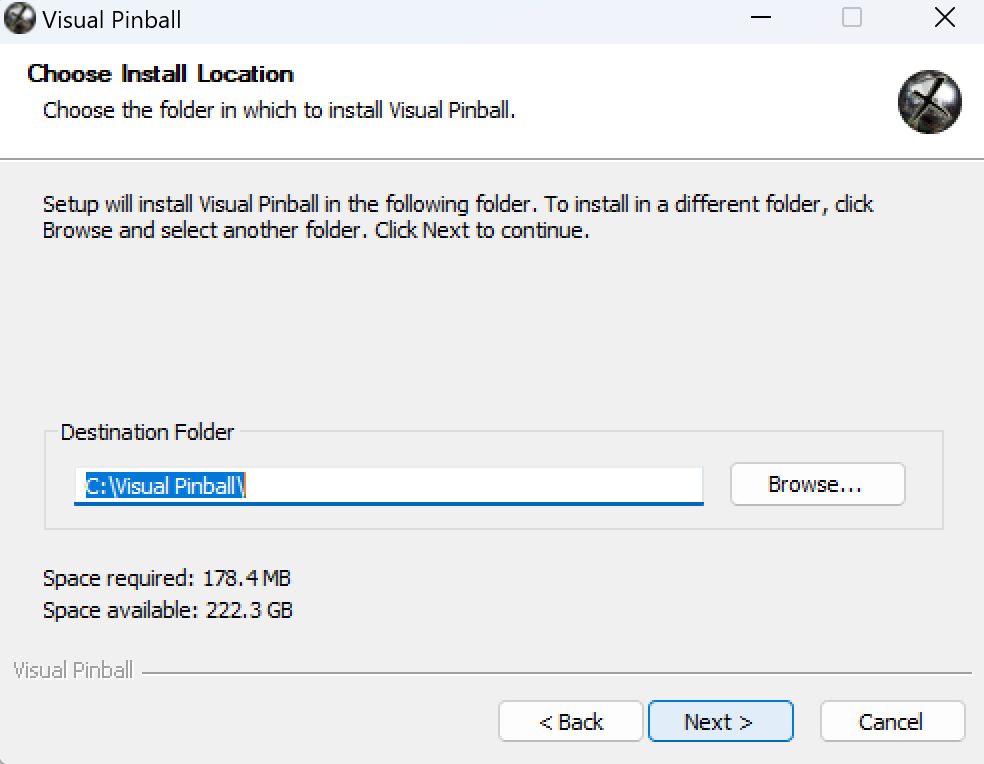
Install anywhere you like — just remember the path. Good practice: create a Vpinball folder and install all software inside it.
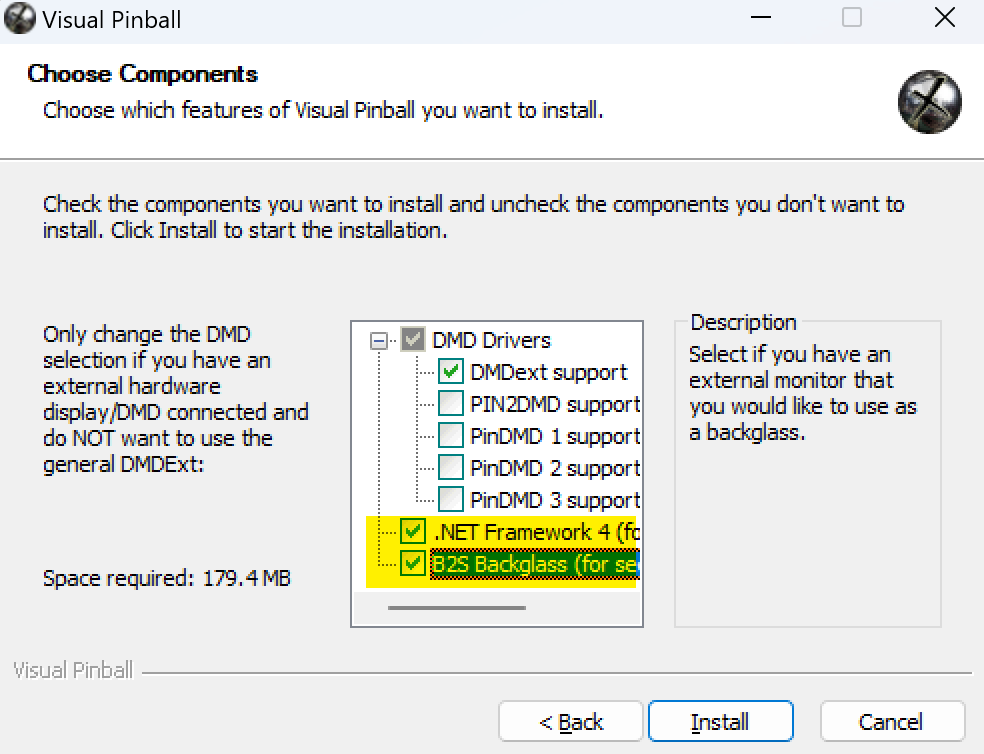
Select B2S Backglass and .NET. If you have a real DMD, also select PinDMD.
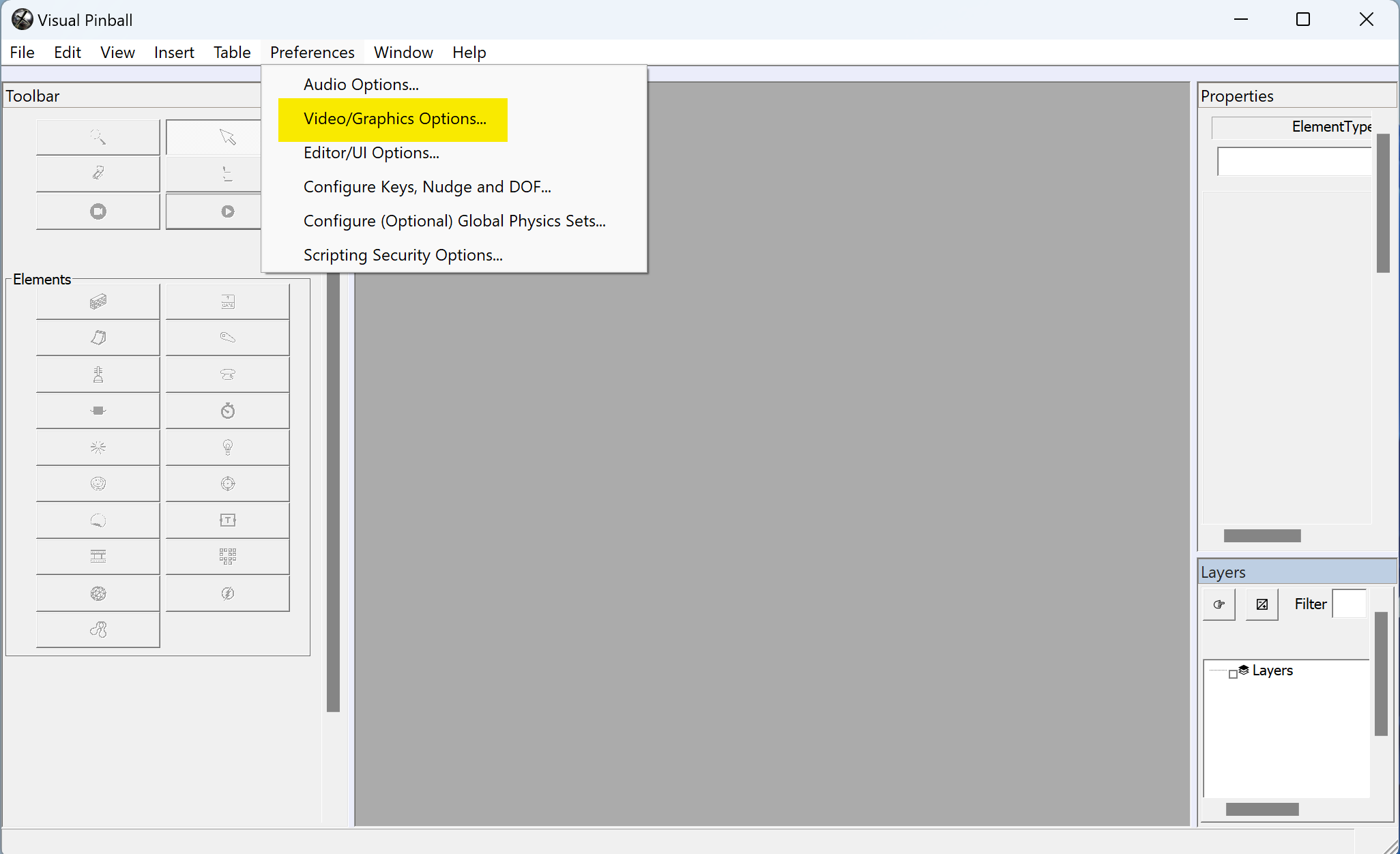
Double-click the VisualPinballX shortcut on your desktop. Go to Preferences → Video/Graphic Options.
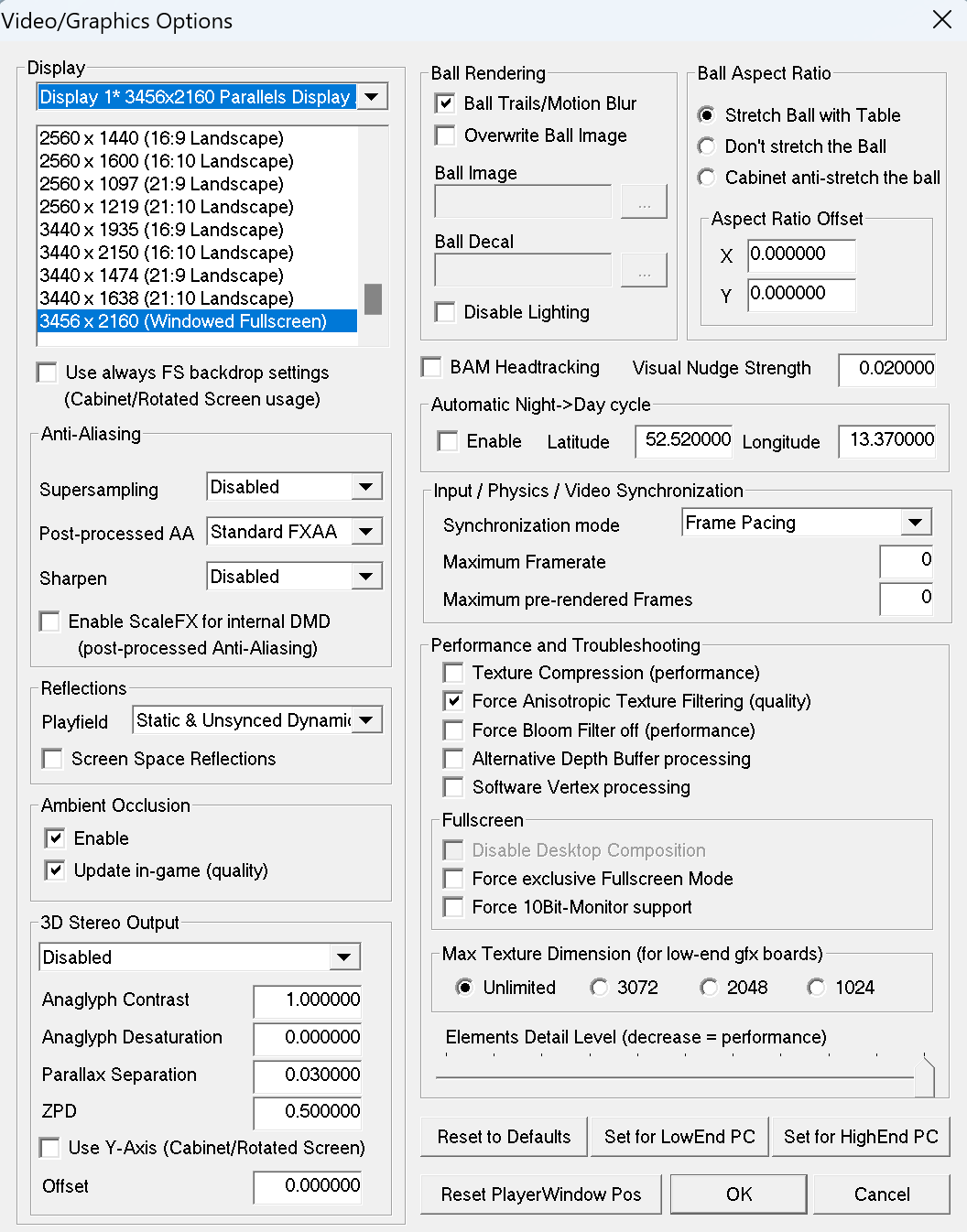
Select your video card and monitor resolution. Uncheck Force Exclusive Fullscreen. Adjust the texture slider to reduce lag or out-of-memory errors. Ambient occlusion can also cause memory errors.
Use the VPS site to find tables by keyword and locate the hosting site, version, ROM, backglass, POV, and media files.
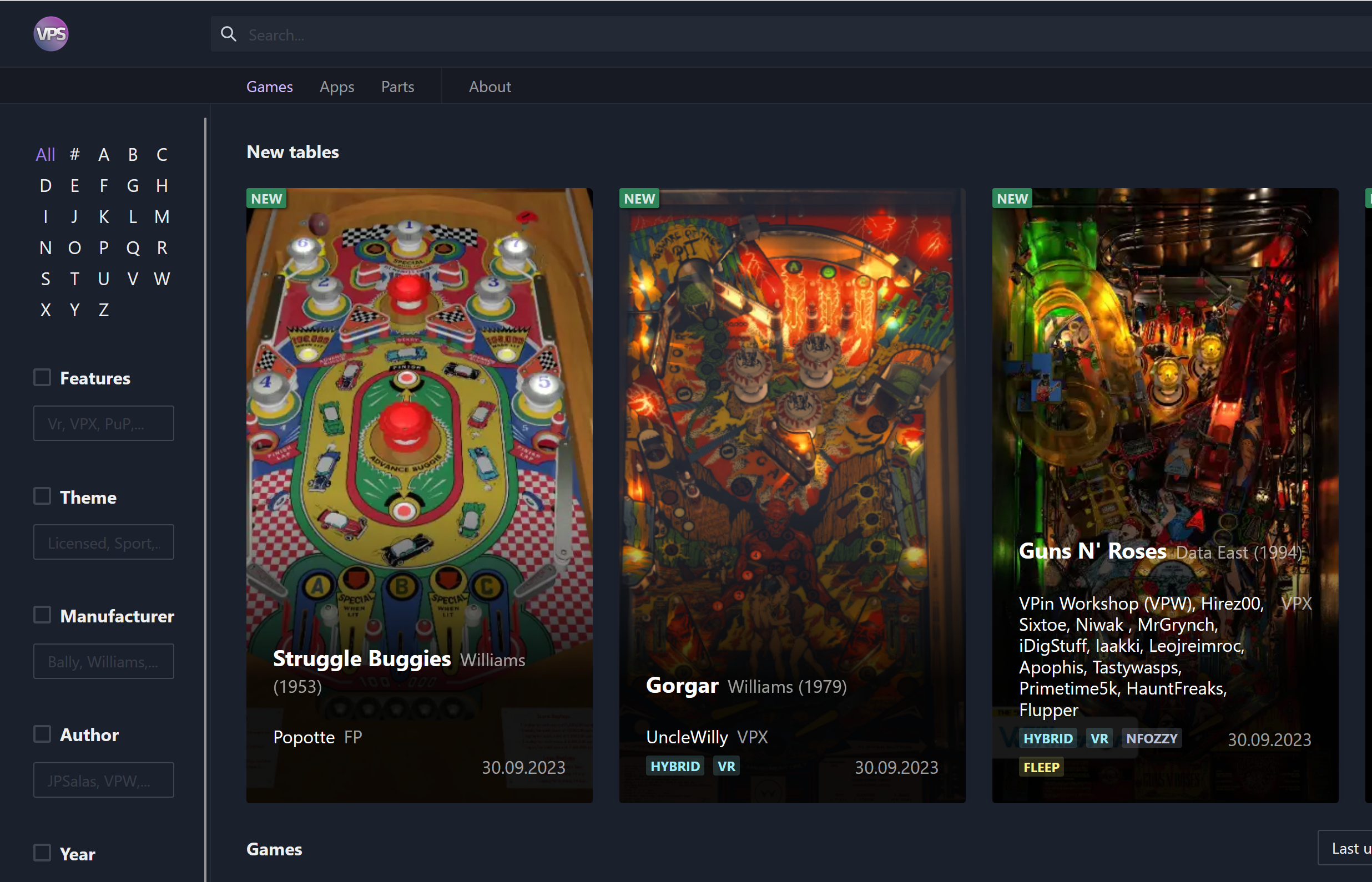
Tables are hosted on VPUniverse, VPForums, and Pinball Nirvana. The location is decided by the table author(s).
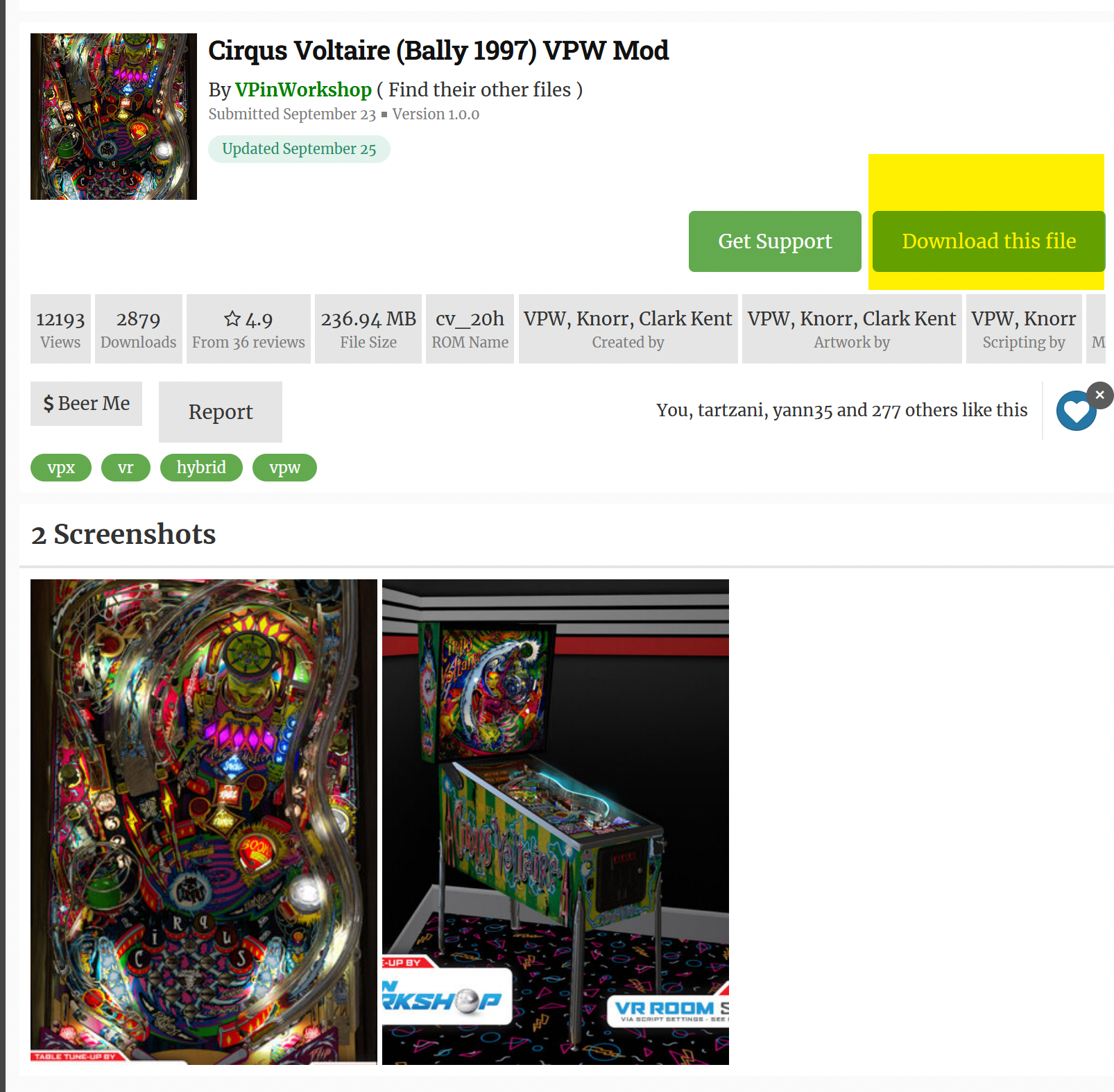
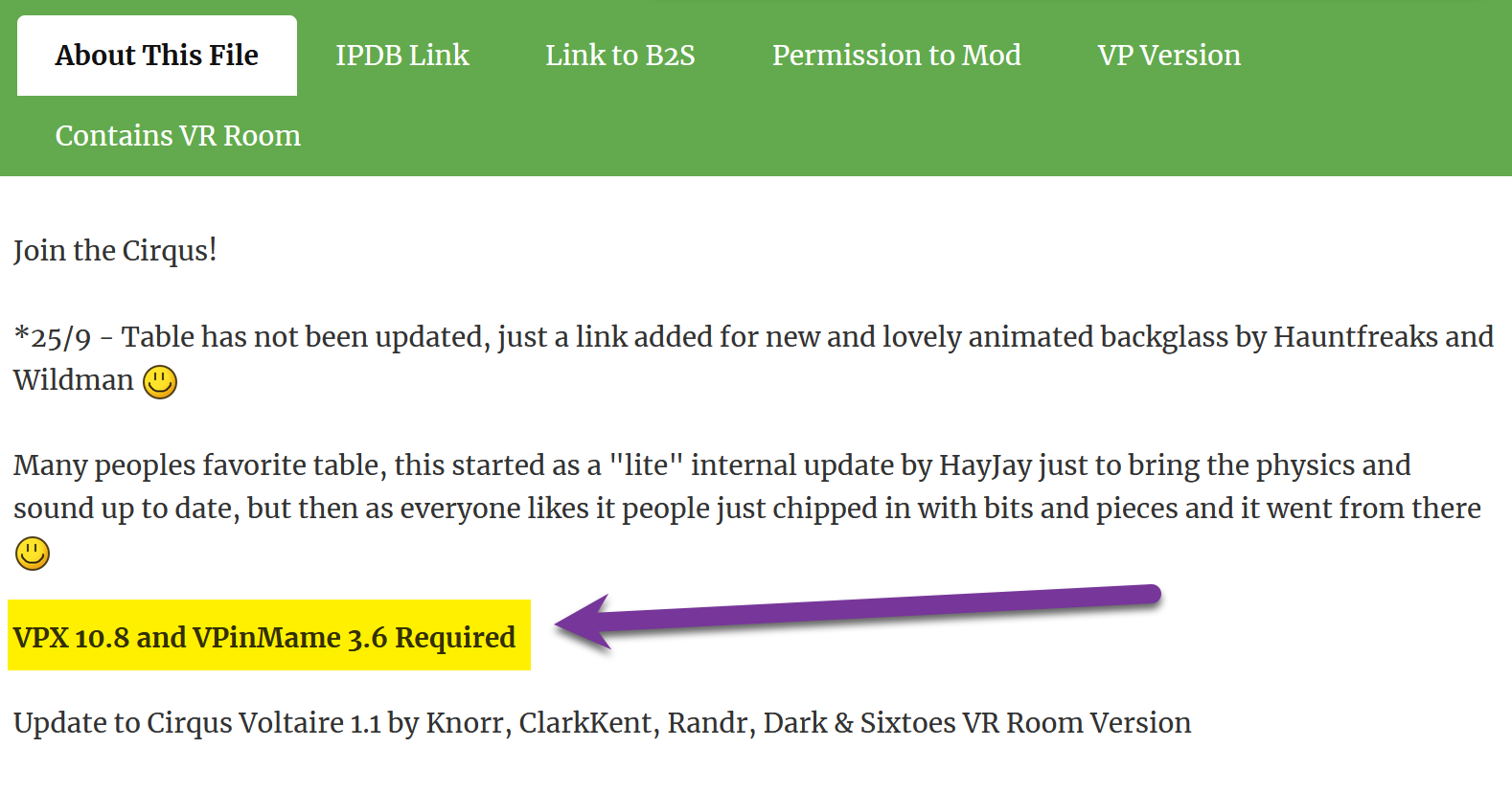
Take time to read the important details — especially what minimum software version is required.
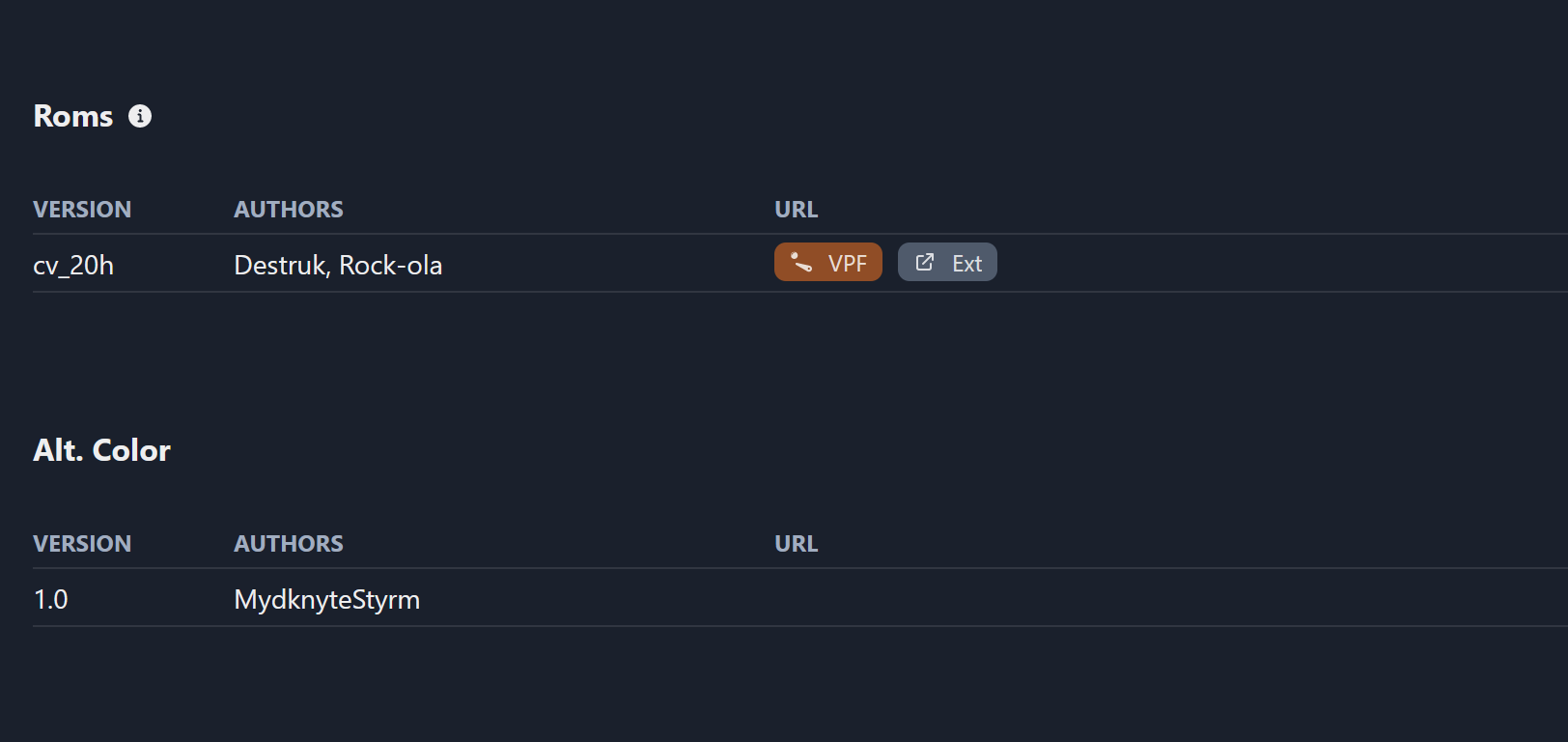
Real pinball recreations require a ROM for emulation. Tables with no ROM are called "Original tables." The VPS site links to the ROM for each table (e.g. Cirqus Voltaire).
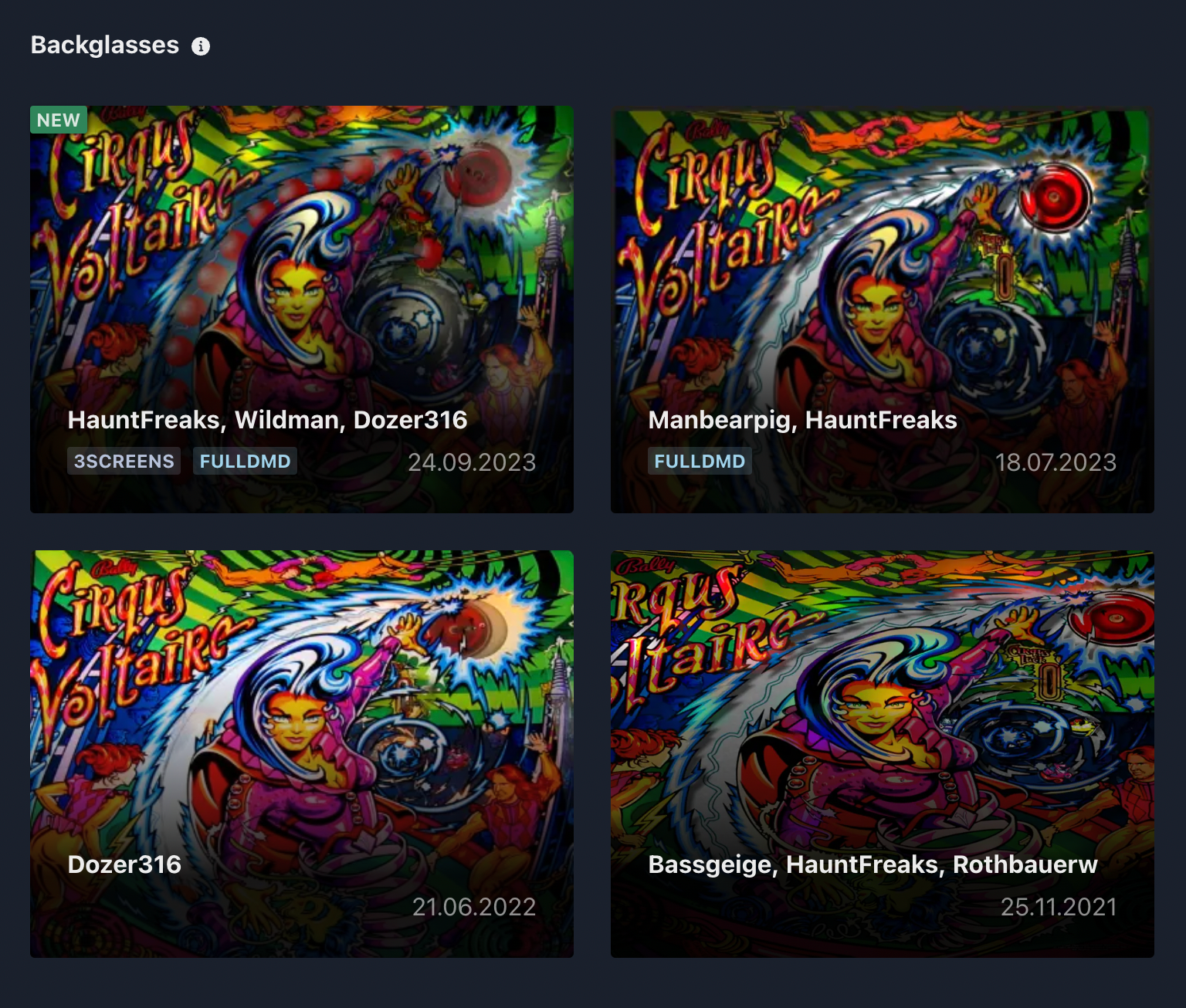
Backglasses are listed on the VPS site. Download one and extract it into the VisualPinball/Tables folder.
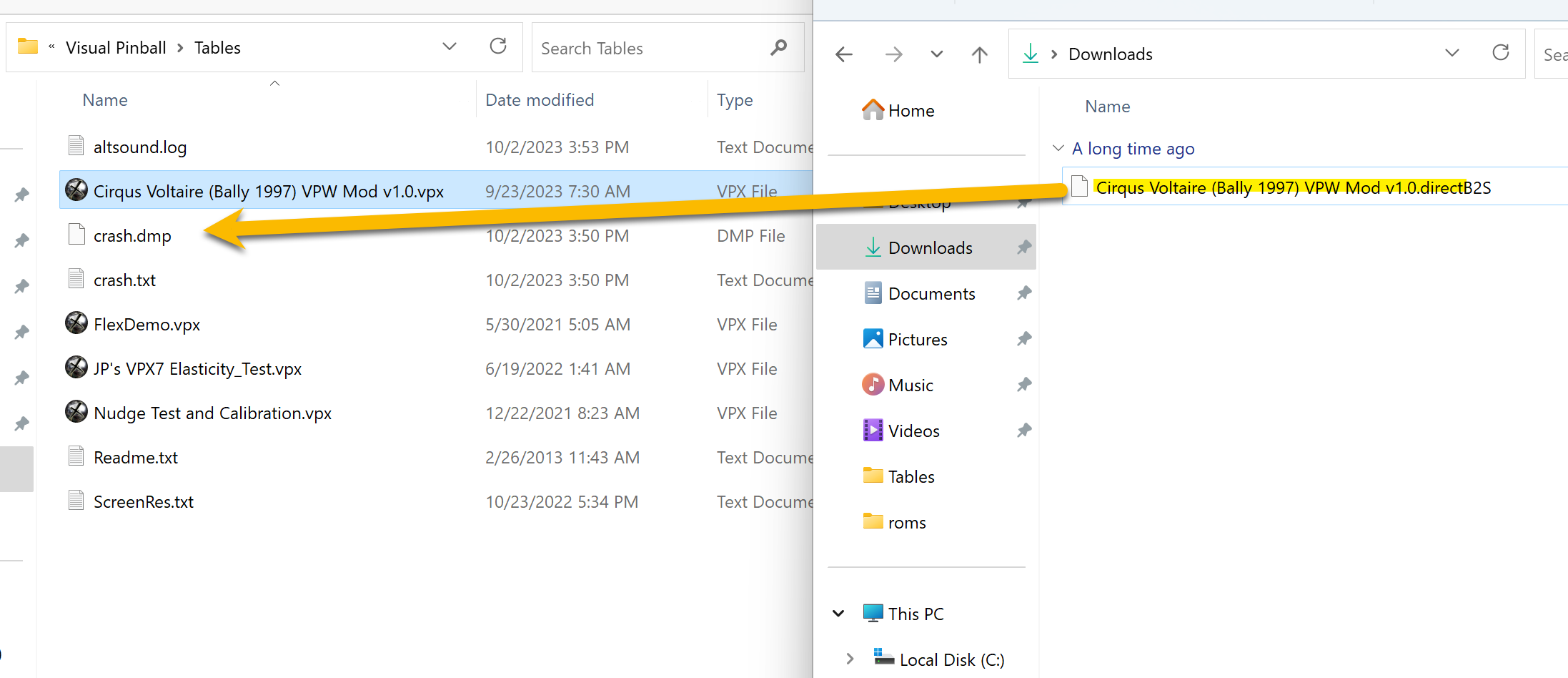
Rename the downloaded .directB2S file to match your table's filename exactly. Move it into VisualPinball/Tables.
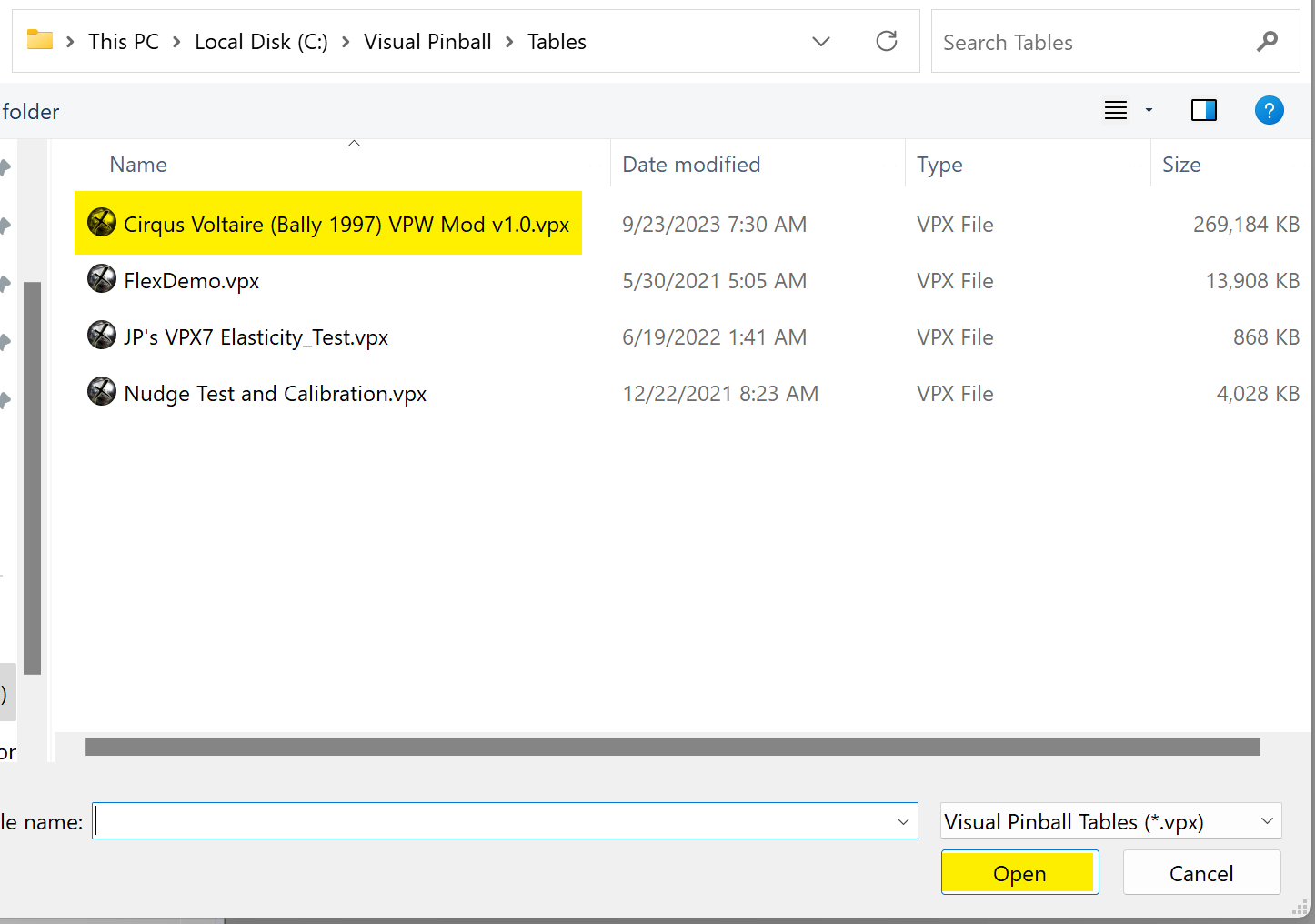
Double-click the VPX desktop shortcut. Go to File → Open and select a .vpx table file to open it in editor mode.
In editor mode you can view the script, launch the interactive view, and launch the table.
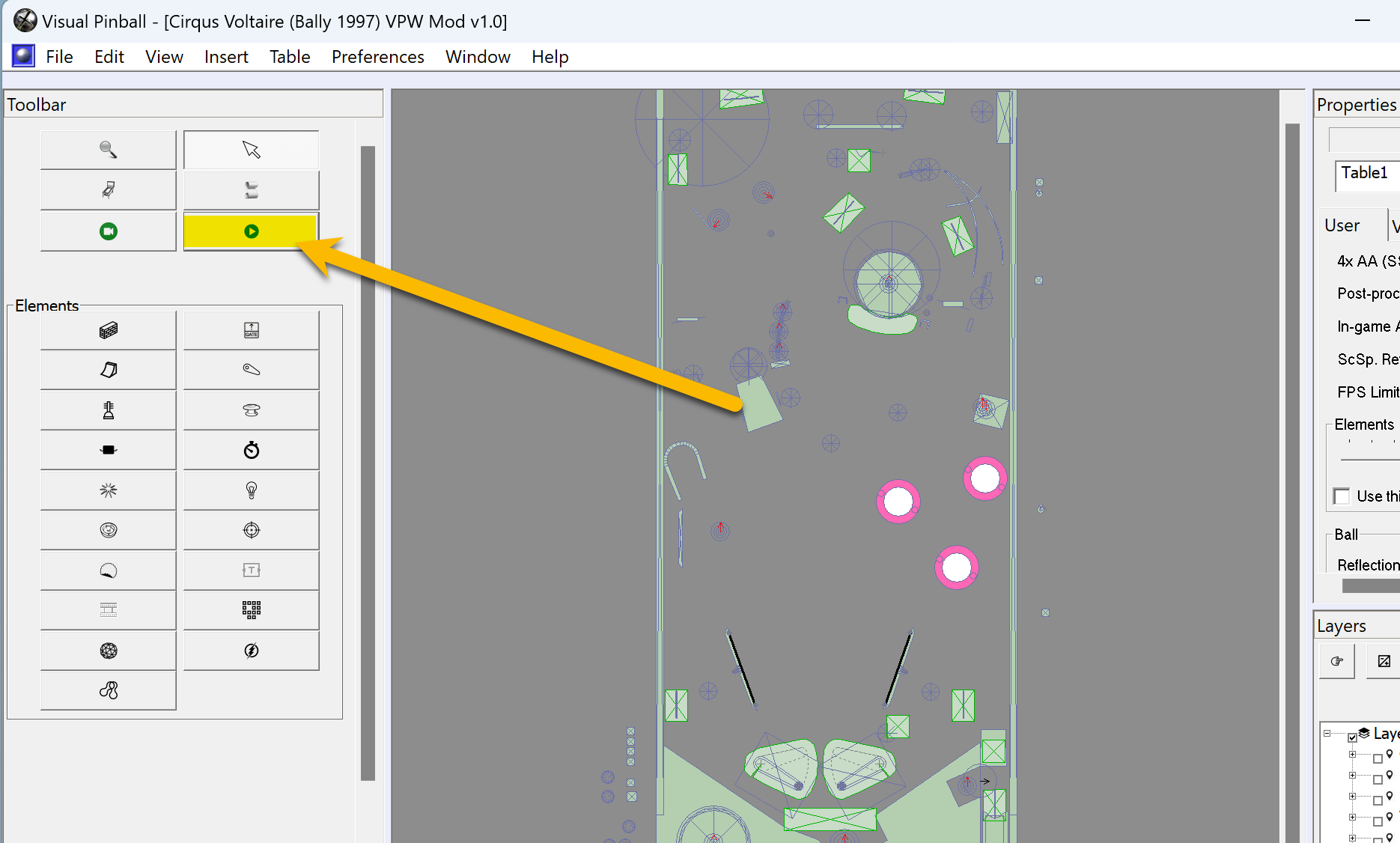
Press F5 or click the launch icon shown in the picture to start the table.
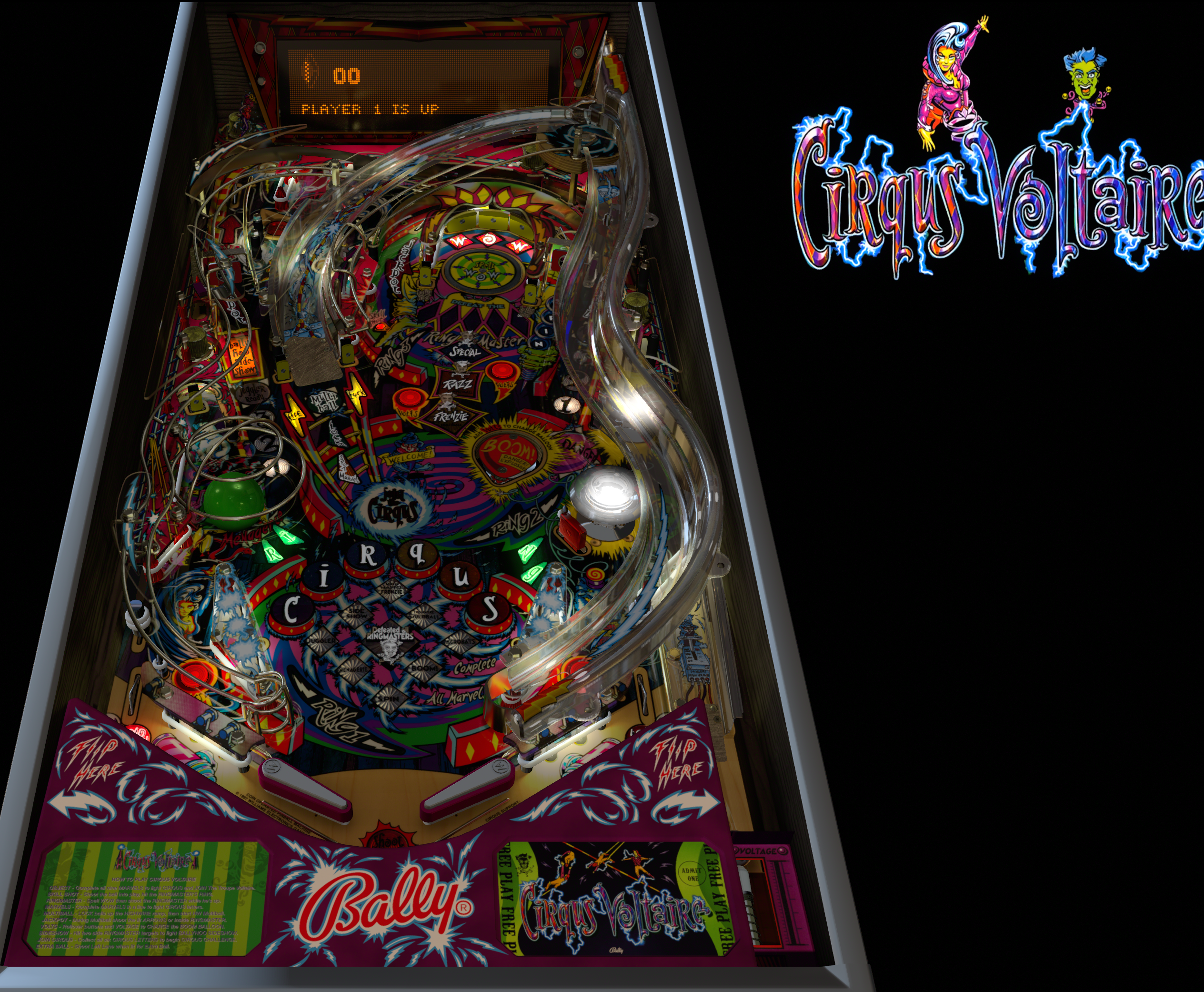
The table should launch. If you get an error it usually means the wrong software version is installed — upgrade to the minimum specs required (e.g. VPX 10.8 and VPinMAME 3.6).
Upgrading VPX to a Newer Version
Open VPX and go to Help → About to see your installed version.
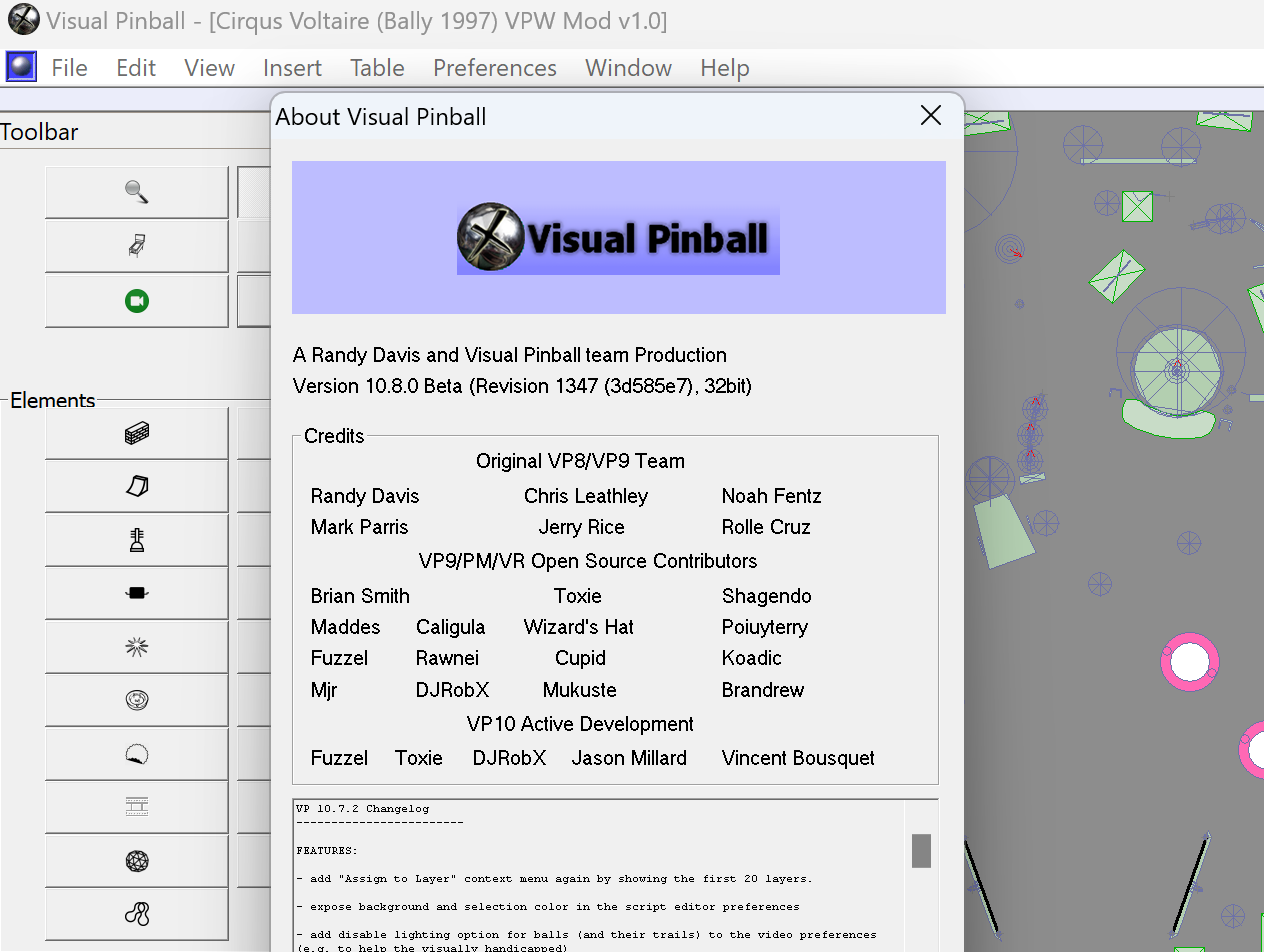
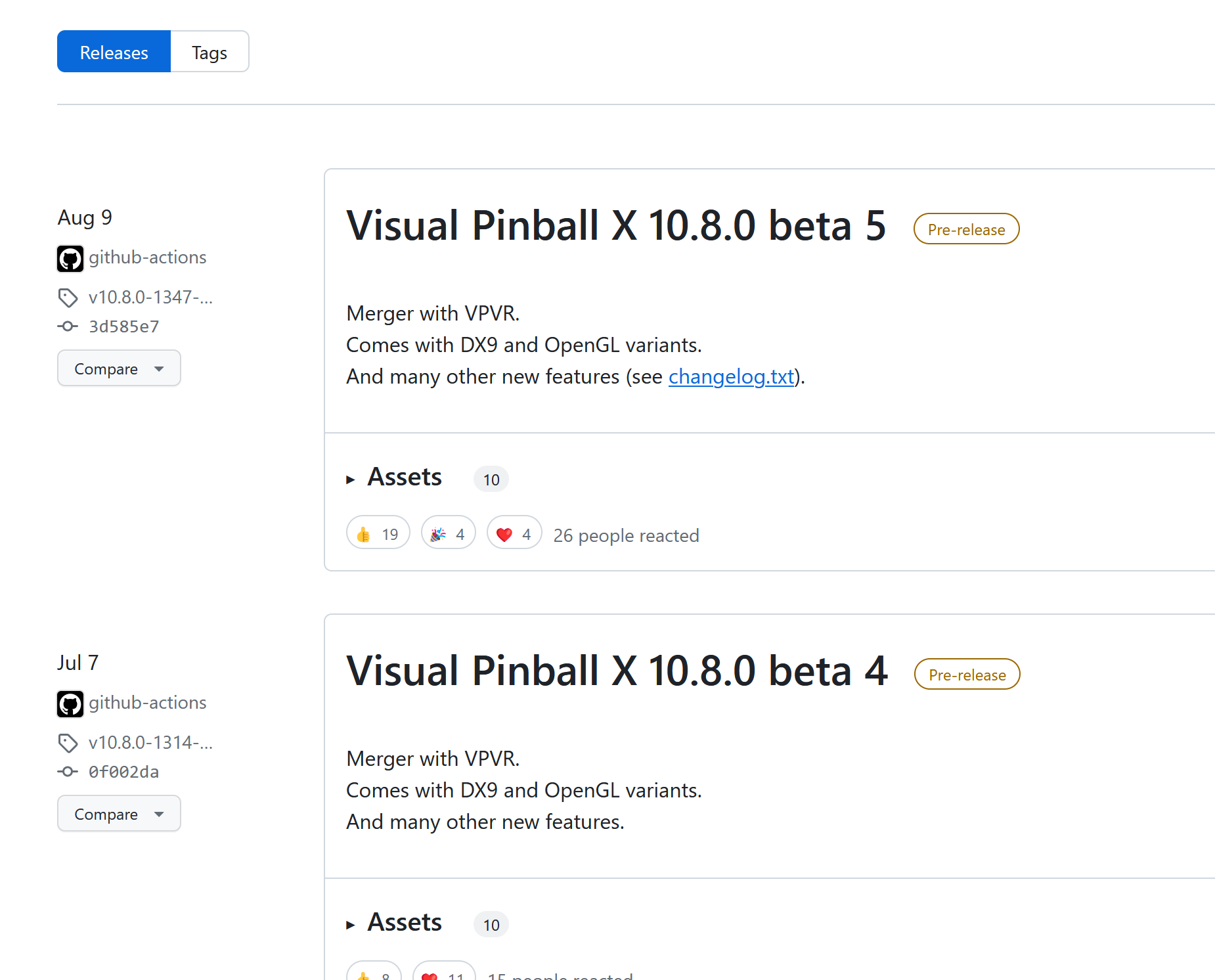
All beta versions are on GitHub. Read the release notes and check forums for community feedback before upgrading.
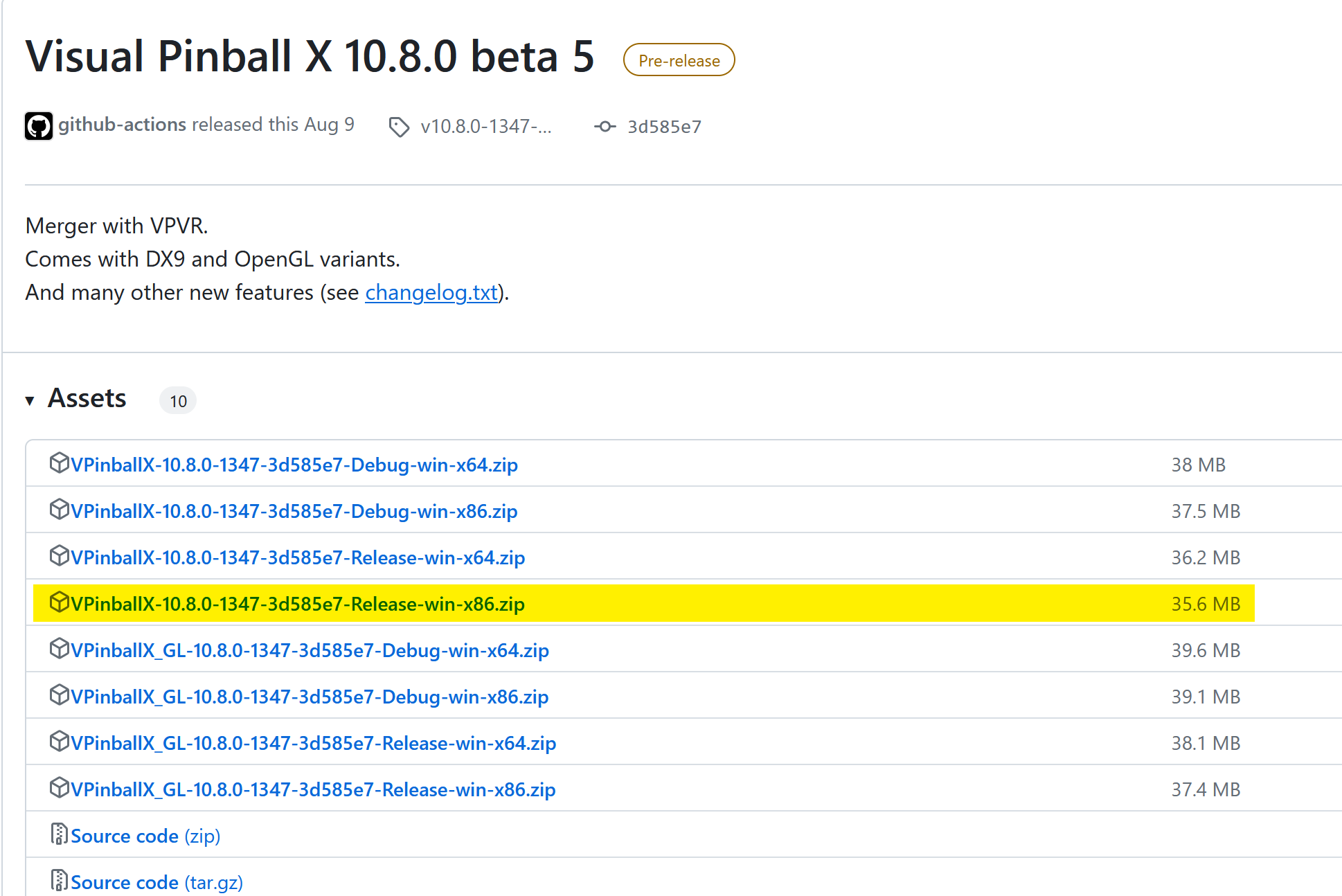
You'll see many versions (Debug, GL, etc). Pick the Release-Win version. Choose x86 for now.
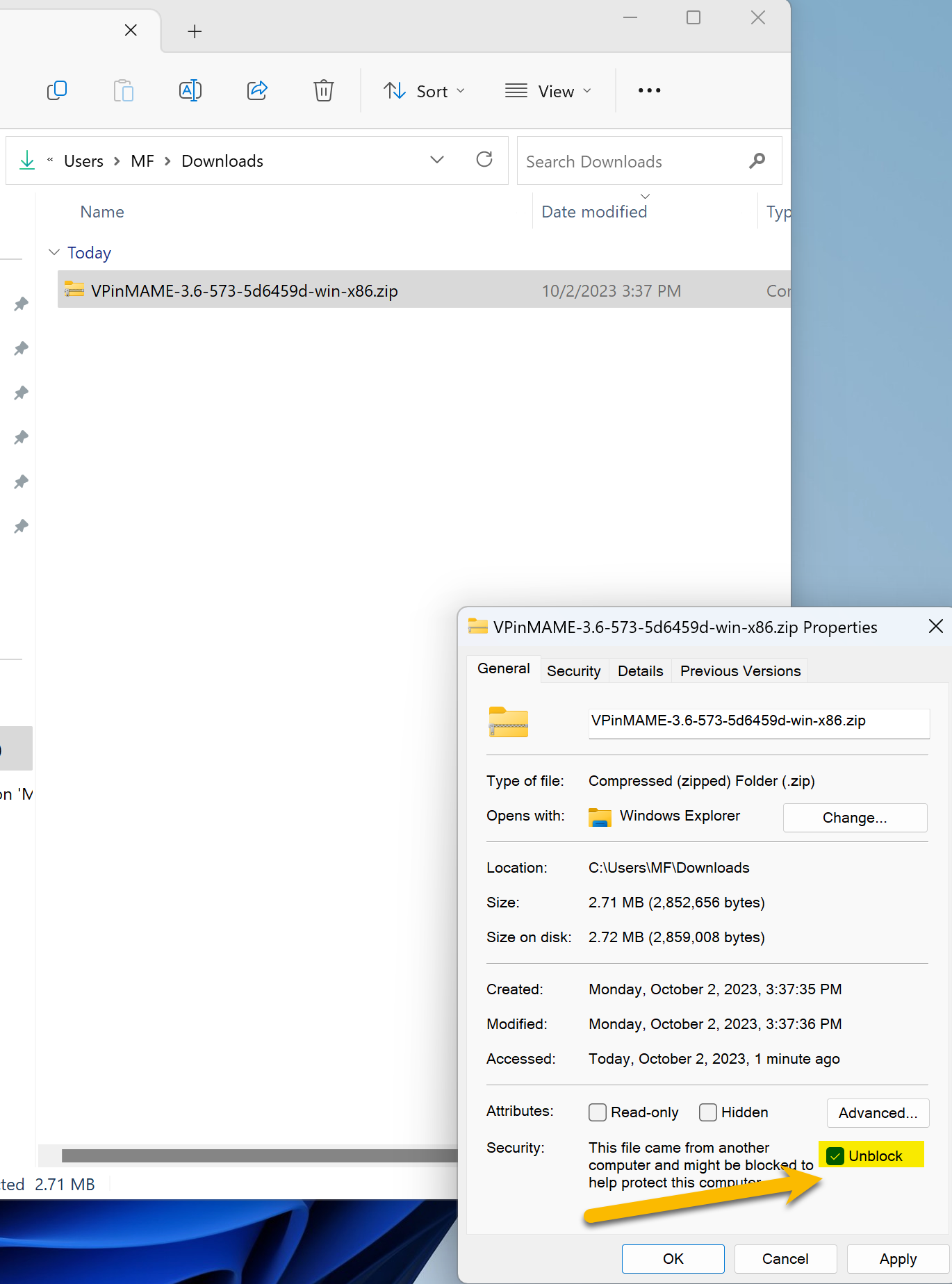
Right-click the downloaded file → Properties → check Unblock → Apply.
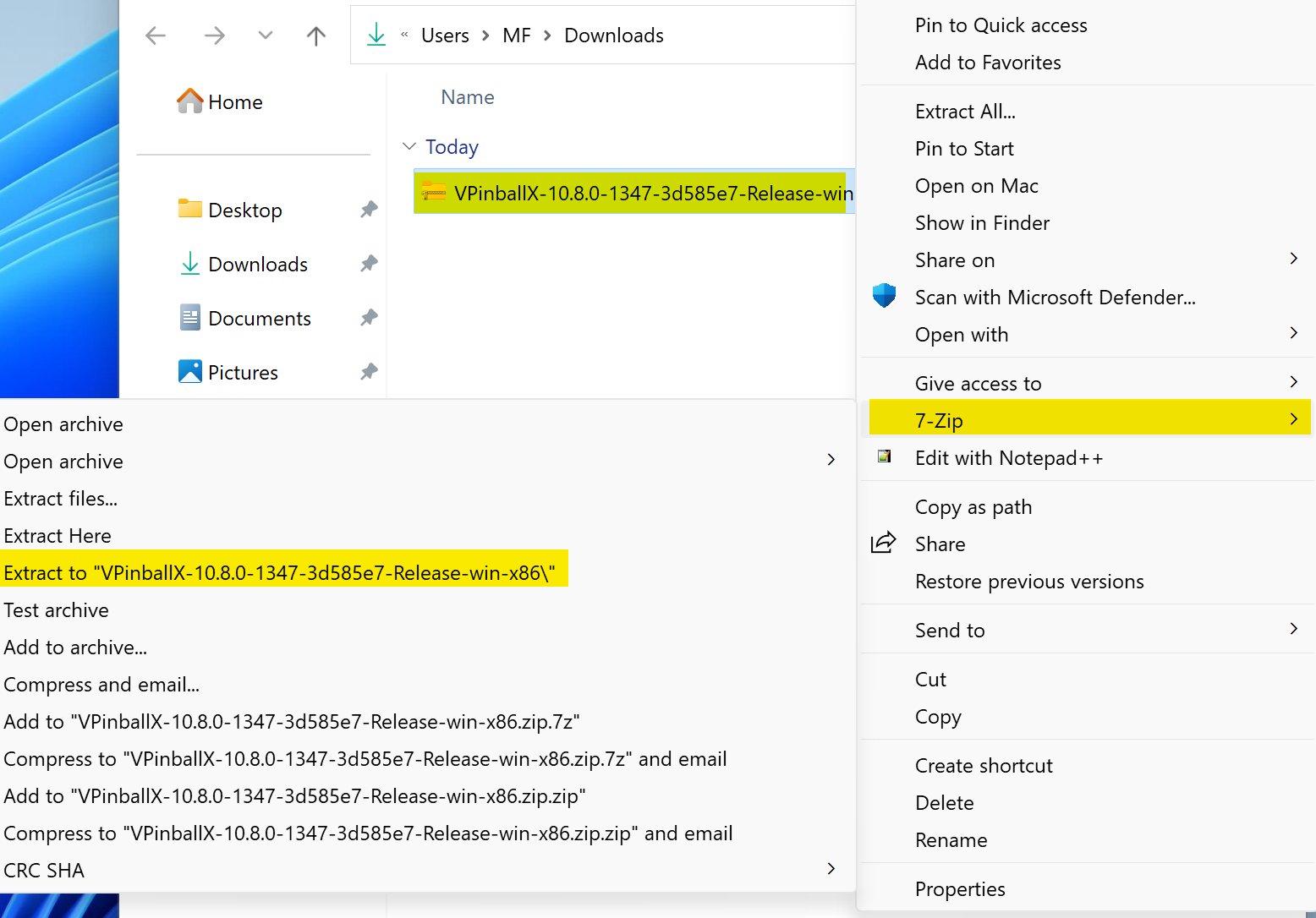
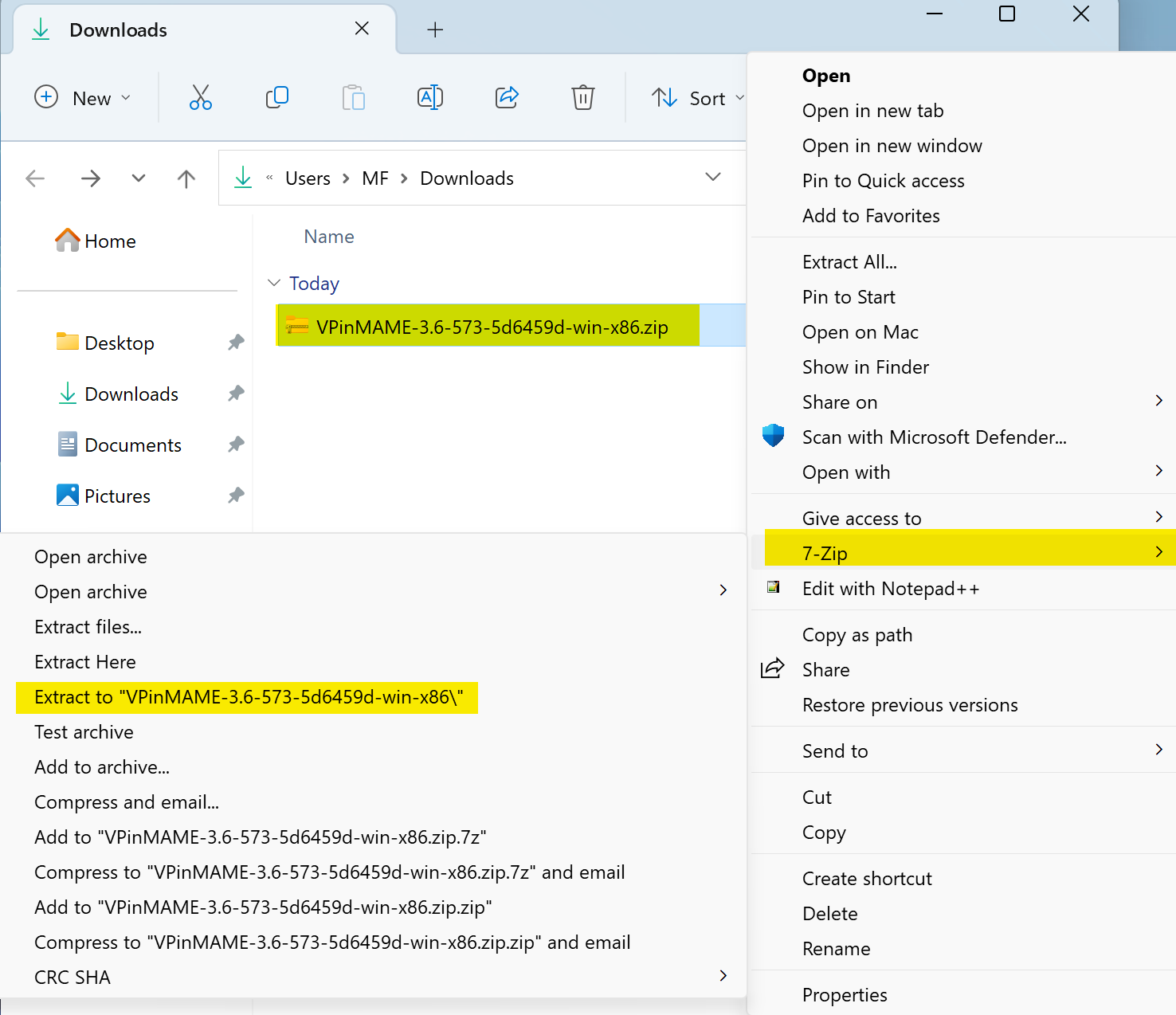
Extract the contents of the downloaded archive.
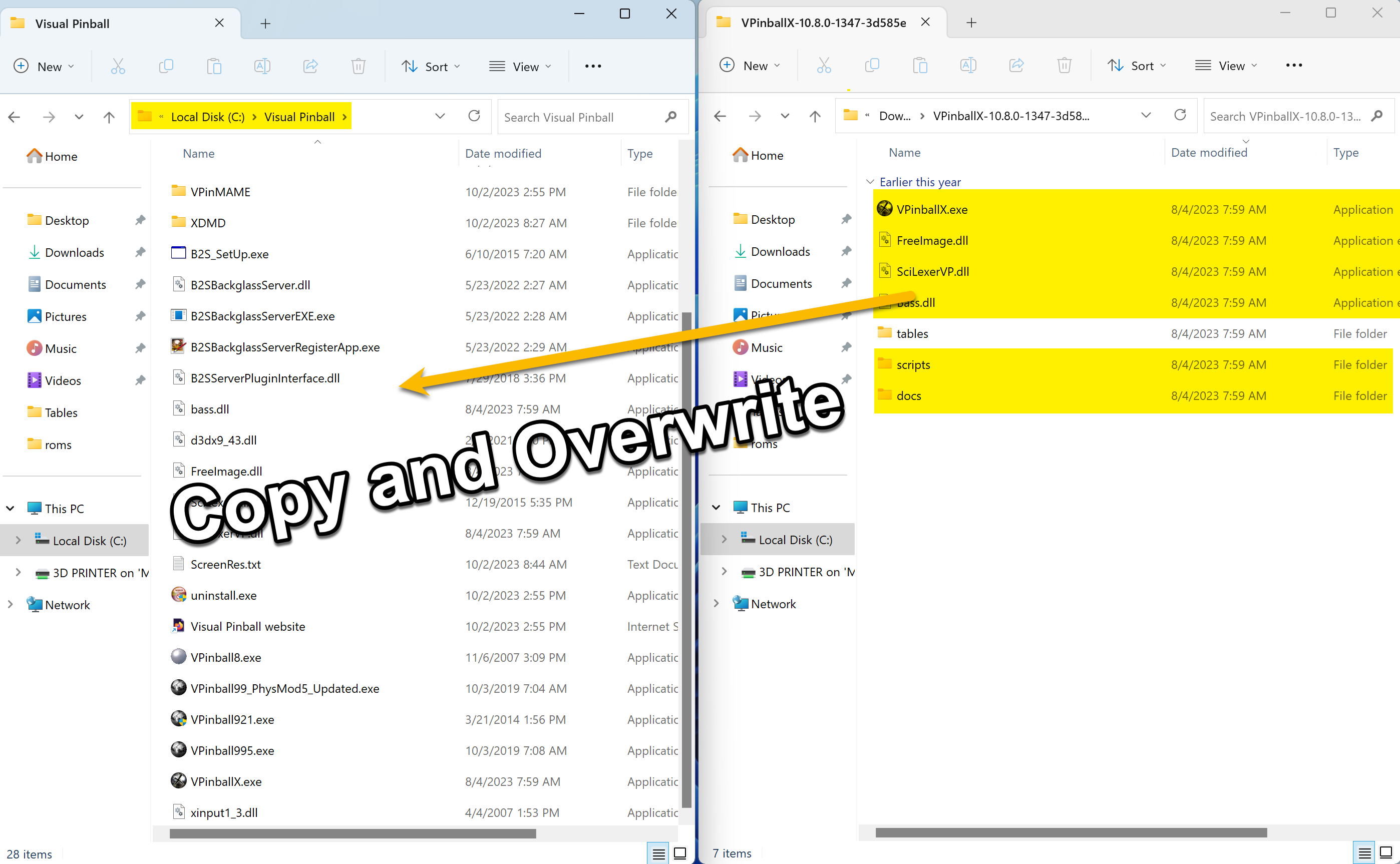
Select the new VPX 10.8 files and move them to the VisualPinball folder. When asked to overwrite, say Yes. You're done!
Upgrading VPinMAME
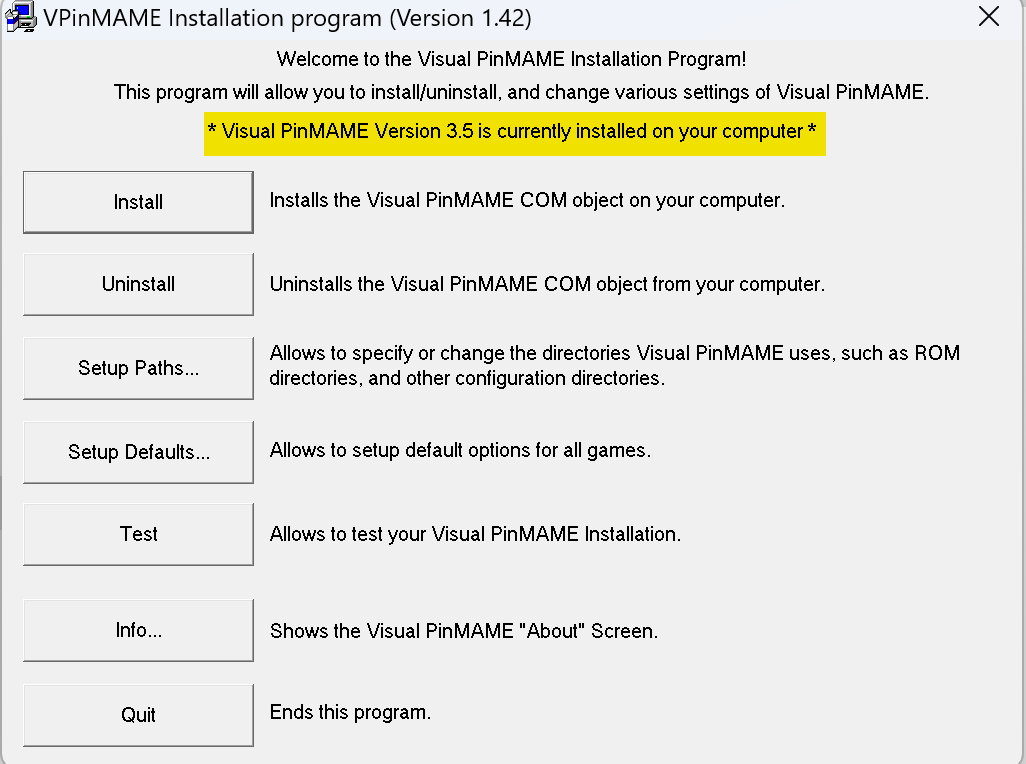
Navigate to your VisualPinball/VPinMAME folder and double-click Setup.exe.
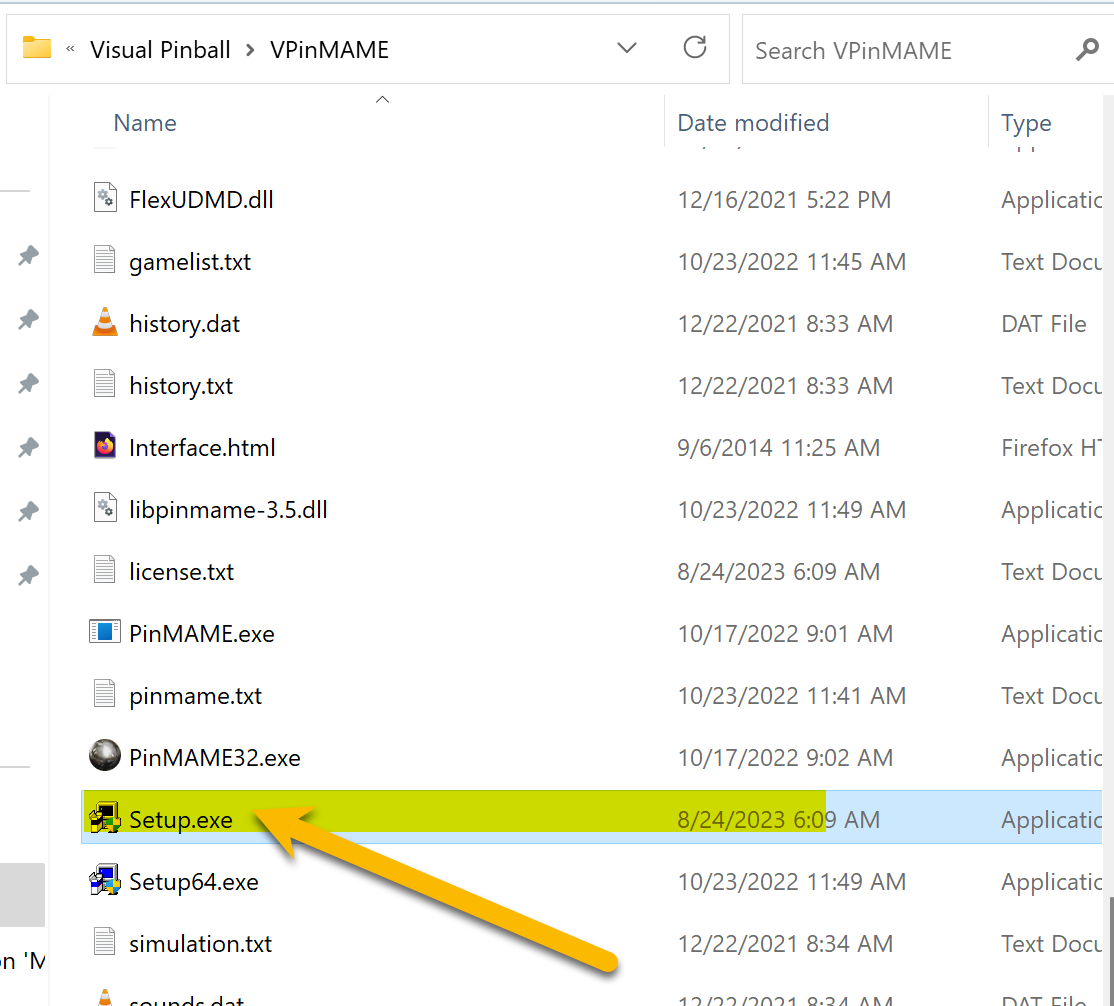
Setup.exe will tell you the currently installed VPinMAME version.
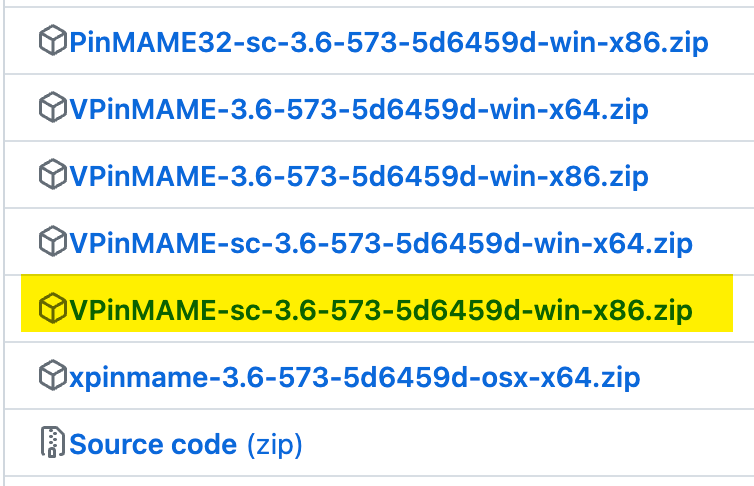
Right-click the downloaded file → Properties → check Unblock → Apply.
Extract the contents of the downloaded archive.
Copy and replace files in the VPinMAME folder. Keep your existing VPMalias file if it has content you've already added.
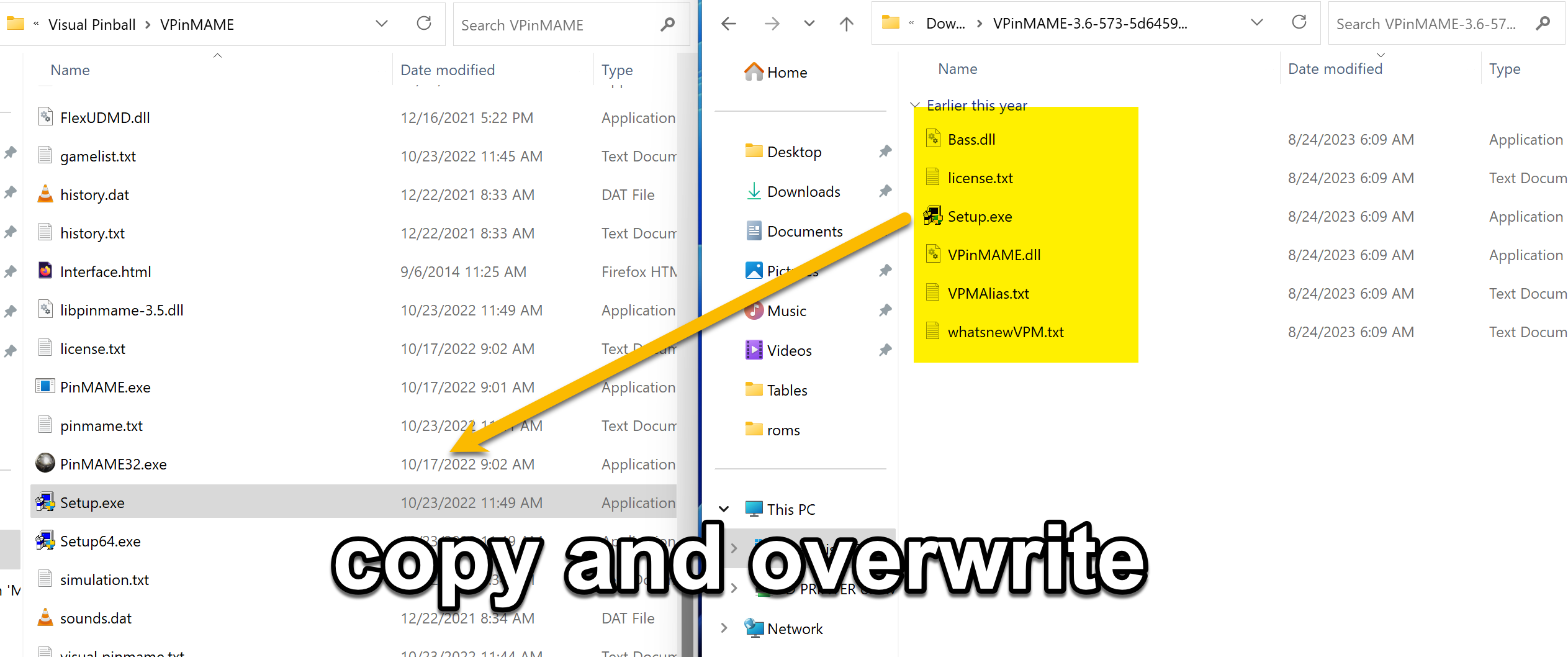
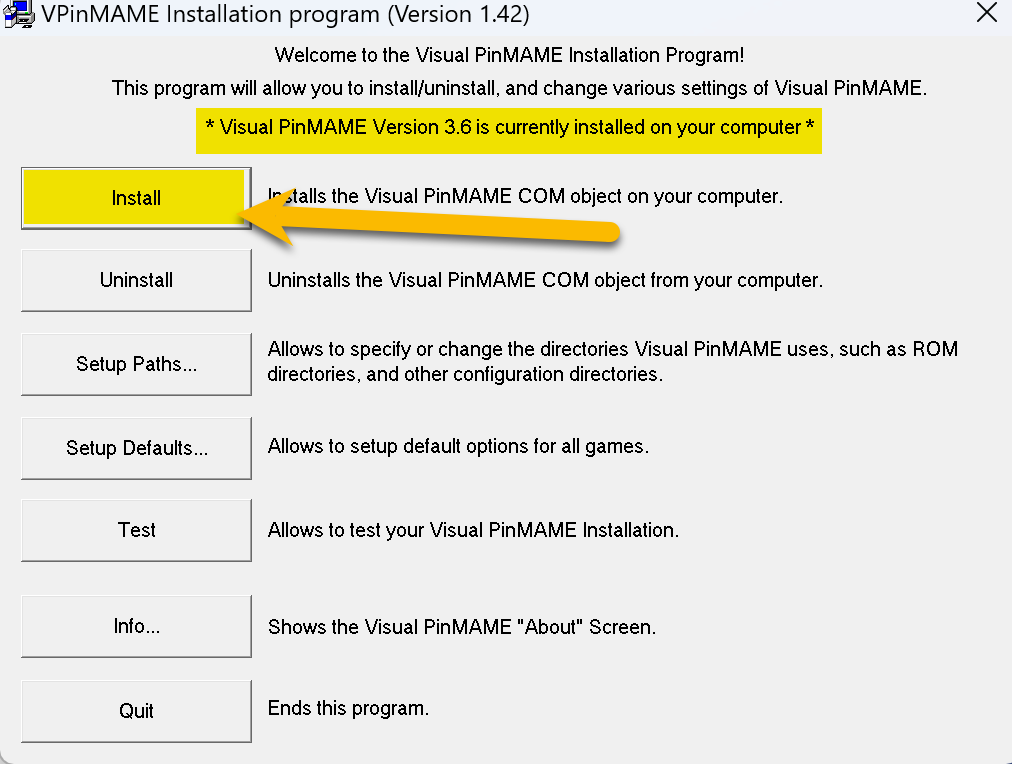
In the VPinMAME folder, open Setup.exe. It should reflect the new version. Click Install and follow the prompts.
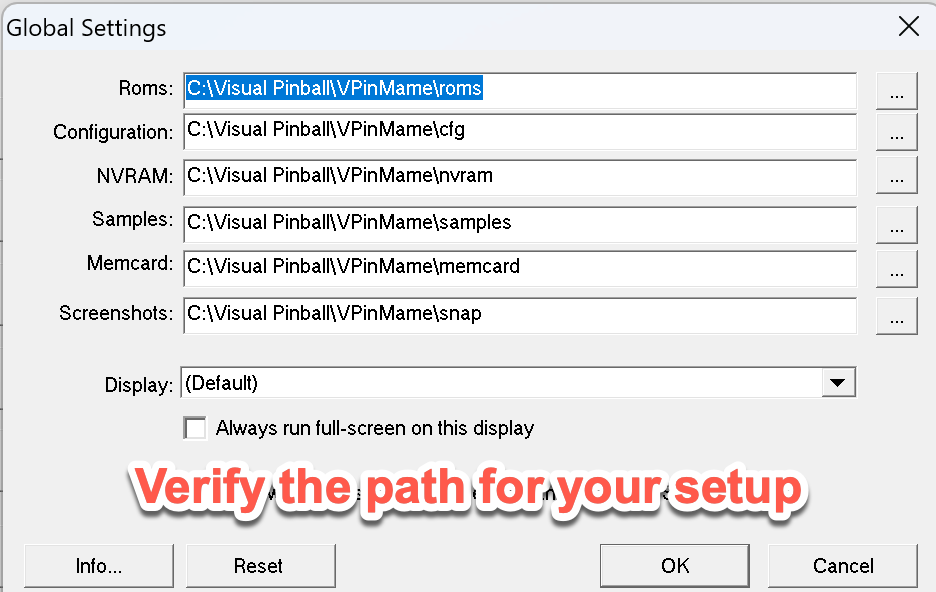
Click the Path button in Setup and make sure all paths are set correctly.
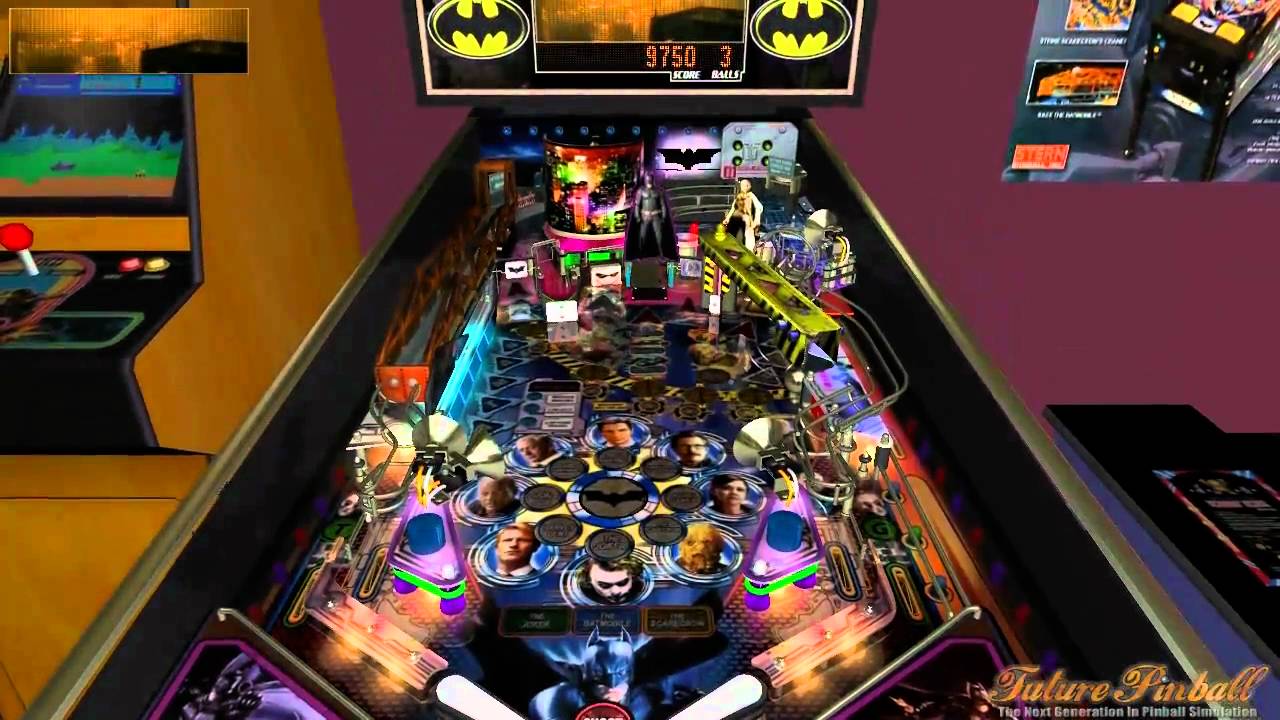
You've upgraded both VPX and VPinMAME to the latest versions. Launch a table and enjoy!
Video Tutorials

Related: Freezy / DMD Ext · PinUP Popper · DOF Setup · Software